















































Manage the Report Library
You can manage the Report Library to organize your reports and keep your workspace clean and easy to use. From the Report Library, you can create and manage categories and perform quick actions on both pre-built and custom reports saved in the Library.
Create and Manage Report Library Categories
Categories help you organize your reports by topic or any other structure your team uses.
To create or edit categories:
- Access the Report Library and click “Browse Library”.
- Click “Manage Categories” at the top right.
- In the Manage Categories window:
- Scroll to the bottom of the list and click “+ Add Category” to create a new category.
- Rename any category directly by editing its title.
- Drag and drop categories to change their order.
- Drag and drop reports to move them into a different category.
- Click the trash can icon to delete a category.
- When done, click “Save Categories”.
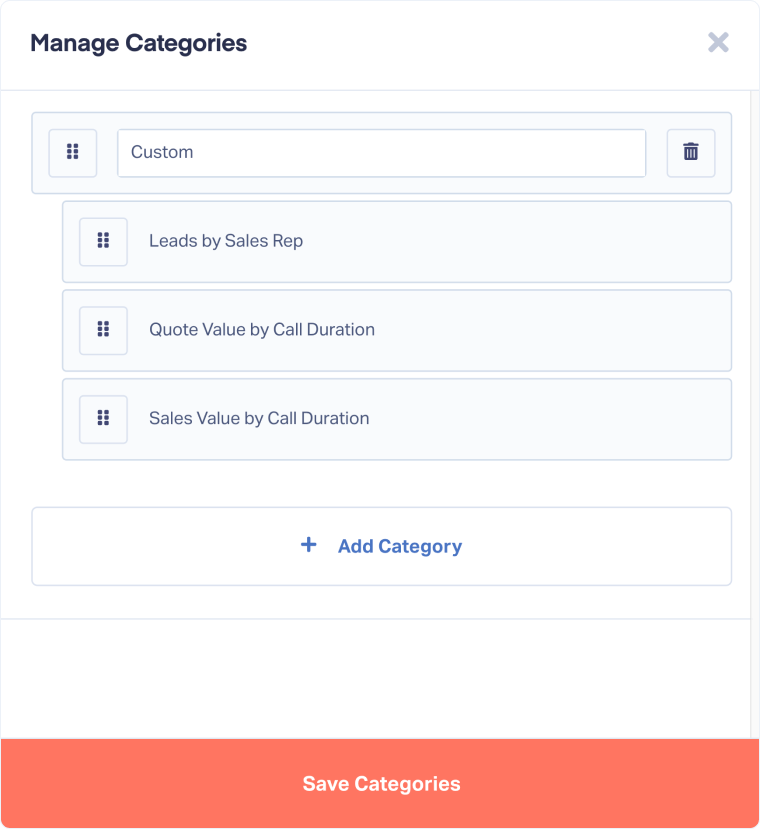
Tip : Categories can include both WhatConverts’ pre-built reports and your team’s custom reports.
Note: Deleting a category does not delete the reports within it.
Tip: Use the search fields to quickly find reports by name or description within a category.
Work With Pre-Built Reports
The Report Library includes both WhatConverts’ pre-built reports and any custom ones you’ve created. Each report includes a set of quick actions you can perform directly from the library.
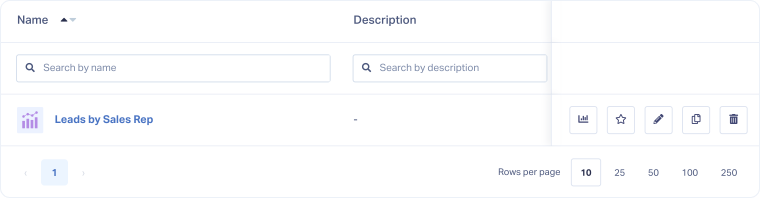
- View Report: Opens the report in the Report Builder for analysis.
- Add to Favorite: Marks the report as a favorite for quicker access, showing under the Favorites Category.
- Edit Report: Opens the report configuration in the Report Builder so you can adjust filters, metrics, or dimensions.
- Copy Report: Duplicates the report in another profile.
- Delete Report: Removes the report from your library permanently.
Note: Only users with the correct permissions can edit, copy, or delete reports.
Related Topics
Get a FREE presentation of WhatConverts
One of our marketing experts will give you a full presentation of how WhatConverts can help you grow your business.
Schedule a Demo






