















































Configure a Geo Routing Step in a Call Flow
A Geo Routing Step routes calls based on the caller's geographic location (country, state, or telephone area code). This allows you to direct callers to different destinations based on where they're calling from, ensuring they reach the most appropriate team or office.
Add and Configure a Geo Routing Step
To add and configure a Geo Routing Step in an existing Call Flow:
- Open the Call Flow and add a new step.
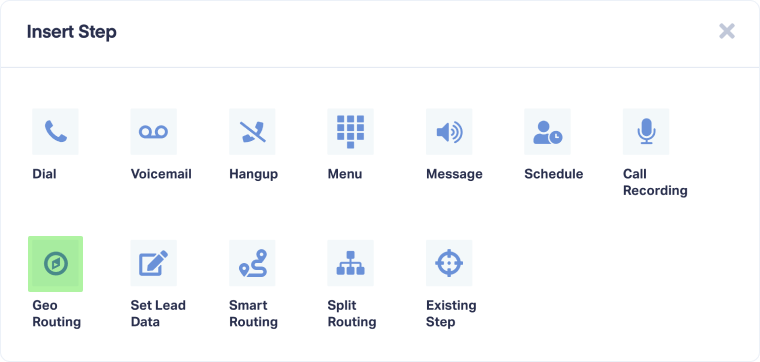
- Select "Geo Routing" from the available step options.
- Enter a descriptive name for the step (e.g., Regional Routing, State-Based Routing, International Routing).
- Under "Create routing rules", define which callers follow which routes.
- Set a Route Name for each route. Enter a descriptive name for this geographic route (e.g., West Coast, Texas Callers, International)
- Configure geographic conditions for each route:
- Complement: Choose Include or Exclude
- Location Type: Select Country, State, or Area Code
- Value: Select the specific location from the dropdown
- Optionally, click "+ Add Rule" to add more location conditions to the same route. Multiple rules within one route work together (AND logic).
- Optionally, click "+ Add Route" to create additional geographic routing paths. Each route can have its own set of location rules.
- Click "Save" to apply the Geo Routing Step.
After the Geo Routing Step, connect each named route to different Call Flow steps based on where you want callers from each location to go.
Tip: Use Geo Routing to direct callers to regional offices or teams. For example, route California callers to your West Coast office and Texas callers to your Central office for faster, localized service.
Note: Geo Routing uses the caller's phone number to determine location. Mobile numbers may not always reflect the caller's current physical location if they've moved or are traveling.
Related Topics
Get a FREE presentation of WhatConverts
One of our marketing experts will give you a full presentation of how WhatConverts can help you grow your business.
Schedule a Demo






