















































Configure a Split Routing Step in a Call Flow
A Split Routing step allows you to distribute incoming calls among different routes based on specific percentages or volume limits. This is ideal for balancing call volume between multiple team members, offices, or third-party call centers.
Add and Configure a Split Routing Step
To add and configure a Split Routing Step in an existing Call Flow:
- Open the Call Flow and add a new step.
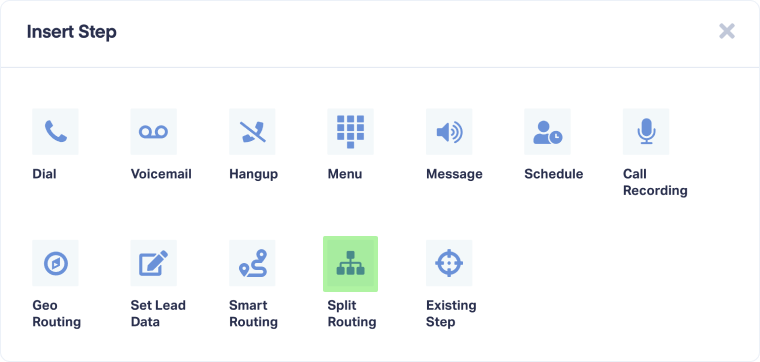
- Select "Split Routing" from the available step options.
- Enter a descriptive name for the routing step in the "how do you want to name this routing?" field.
- Under "what calls should be routed?", select one of the following:
- All Calls: Routes every call that reaches this step.
- A Limited Number of Calls: Allows you to set a maximum number of calls to route (e.g., 100 calls per day) and select the reset time zone.
- Choose "how should the routes be selected?":
- Select First Route Available: Calls are sent to the first route in the list that has not reached its limit.
- Optimize for Equal Distribution: Automatically balances calls to ensure each route receives a similar volume.
- Under "how to distribute calls among routes?", click "+ add new route" to define your destinations:
- Enter a name for the route (e.g., Sales Team A).
- Specify how many calls this route can receive (e.g., send 100 calls to this route).
- Click "save changes" to apply the step to your Call Flow.
Related Topics
Was this page helpful?
Get a FREE presentation of WhatConverts
One of our marketing experts will give you a full presentation of how WhatConverts can help you grow your business.
Schedule a Demo






