















































Create Lead Intelligence Rules to Run Lead Analysis
Who has access to this feature?
Available on: Elite Plans
Access level: All Users
Lead Analysis uses pre-built AI features to automatically analyze every lead and extract standardized insights like intent, sentiment, topics, keywords, and summaries. Unlike Ask AI rules, where you write custom questions, Lead Analysis applies consistent AI-powered categorization to all your leads, extracting key insights.
How It Works
Lead Analysis rules use the standard Lead Intelligence IF/THEN structure with "Run lead analysis" as the action type. When conditions are met, AI analyzes the lead content and populates multiple analysis fields simultaneously.
Available Analysis Types
When you run Lead Analysis, AI provides:
- Lead Summary: Brief overview of the interaction
- Keyword Detection: Important words or phrases mentioned
- Intent Detection: What the lead wanted to accomplish
- Sentiment Detection: Tone of the conversation (Positive, Negative, Neutral)
- Topic Detection: Main subjects discussed
All these fields populate automatically with a single action, unlike Ask AI, which requires configuring each question individually.
Note: Calls will also include Sales Call Handling fields, such as Sales Agent or Call Handling Score.
Set Up Lead Analysis Rules
To create a rule that runs Lead Analysis:
- Access the Master Account or Profiles settings depending on where you want to apply rules.
- Select "Lead Intelligence".
- Click "+ Add Intelligence Rule".
- Select "Add Individual Rule".
- Choose "Build rule from scratch".
- Set up conditions that determine which leads should receive Lead Analysis:
- Example: Type is Phone Call AND Duration (Seconds) greater than 60
- Or: Type is Web Form
- Or: Quotable is "Yes"
- Add multiple conditions as needed with AND/OR logic.
- In the Actions section, click "Add Action".
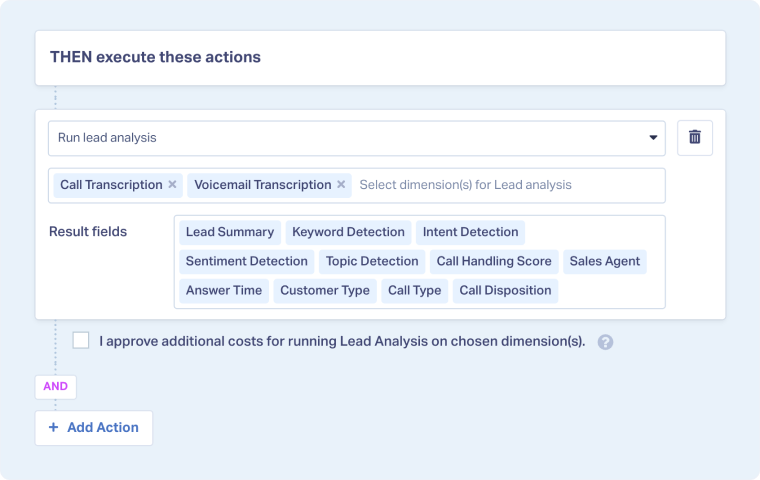
- Select "Run lead analysis" from the action type dropdown.
- Choose which dimensions AI should analyze:
- Call Transcription: For phone call analysis
- Voicemail Transcription: For voicemail messages
- Message: For form submissions and chats
- Or select multiple dimensions for comprehensive coverage
- Review the Result fields that will be populated:
- Lead Summary
- Keyword Detection
- Intent Detection
- Sentiment Detection
- Topic Detection
- Check the box that says "I approve additional costs for running Lead Analysis on chosen dimension(s)".
- Lead Analysis is billed per lead based on content volume
- See your Rates page for current pricing
- You can combine Lead Analysis with other actions in the same rule:
- Set Quotable status based on the lead type
- Increase Lead Score for analyzed leads
- Send conversions to ad platforms
- Click "Add Action" to add additional actions if needed.
- Click "Continue" to proceed to rule details.
- Fill in:
- Rule Name: Use a descriptive name like "Run Analysis on Qualified Calls"
- Rule Description: Note which leads receive analysis
- Activate Rule?: Toggle on to run automatically on new leads
- Time Zone: Select appropriate time zone
- Click "Complete" to save the rule.
Define Rule Conditions (IF)
Tip Box: Consider analyzing only leads that meet minimum quality thresholds (e.g., calls over 30 seconds) to manage AI costs effectively.
Configure Lead Analysis Action (THEN)
Optional: Add More Actions
Finalize the Rule
Understanding Lead Analysis Results
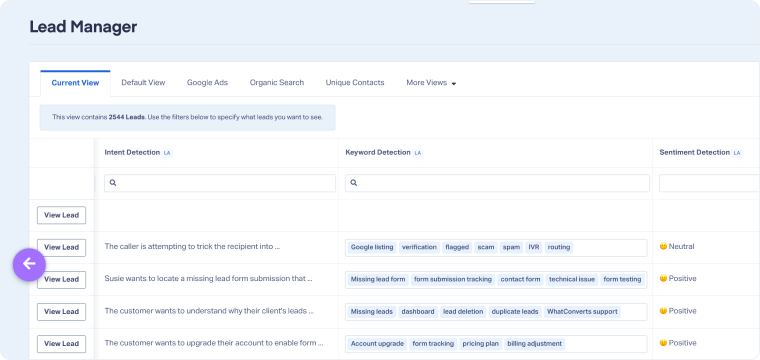
After Lead Analysis runs, you'll see new Lead Analysis fields (“LA”) populated in Lead Manager:
Lead Summary
A brief paragraph describing what happened during the interaction. Example: "The customer was looking to purchase call tracking services. The agent assisted them with setting up an account."
Keyword Detection
Important terms extracted from the conversation, comma-separated. Example: "buy”, “quote, “appointment”, “service”, “pricing".
Tip Box: You can use detected keywords in reporting to identify trends across leads or create follow-up rules that check for specific terms.
Intent Detection
What the lead wanted to accomplish. Example: "The customer wanted to purchase services" or "The caller was seeking information about pricing options".
Sentiment Detection
The overall tone of the conversation:
- Positive: Friendly, enthusiastic, satisfied
- Negative: Frustrated, upset, dissatisfied
- Neutral: Matter-of-fact, informational
Tip Box: Filter by sentiment in Lead Manager to identify calls that might need immediate attention or follow-up.
Topic Detection
Main subjects discussed, comma-separated. Example: "call tracking, purchase, sign up, pricing plans"
Related Topics
Get a FREE presentation of WhatConverts
One of our marketing experts will give you a full presentation of how WhatConverts can help you grow your business.
Schedule a Demo






