















































Create Ask AI Lead Intelligence Rules
Who has access to this feature?
Available on: Elite Plans
Access level: All Users
Ask AI Lead Intelligence rules let you automatically extract custom insights from call transcripts, form messages, and chat conversations by asking specific questions that AI answers for every lead. These rules automatically extract the exact information your business needs from your leads.
Before creating Ask AI rules, familiarize yourself with how Ask AI rules work to understand question formats and answer types.
Set Up Ask AI Rules
To create an Ask AI rule from scratch:
- Access the Master Account or Profiles settings depending on where you want to apply rules.
- Select "Lead Intelligence".
- Click "+ Add Intelligence Rule".
- Select "Add Individual Rule".
- Choose "Build rule from scratch".
- Set up conditions that determine which leads should trigger AI analysis:
- Example: Type is Phone Call AND Duration (Seconds) greater than 60
- Or: Lead Type is Web Form AND Form Name contains Contact
- Add multiple conditions as needed with AND/OR logic.
- In the Actions section, click "Add Action".
- Select "Ask AI questions about" from the action type dropdown.
- Choose which content AI should read in the Dimension(s) for AI analysis field:
- Call Transcription
- Voicemail Transcription
- Message (for forms/chats)
- Or select multiple dimensions for comprehensive analysis
- Enter the specific question you want AI to answer in the Question field.
- Good question: "Was an appointment booked or scheduled?"
- Good question: "What service or product is the customer interested in?"
- Avoid vague questions: "Tell me about this call" (too broad)
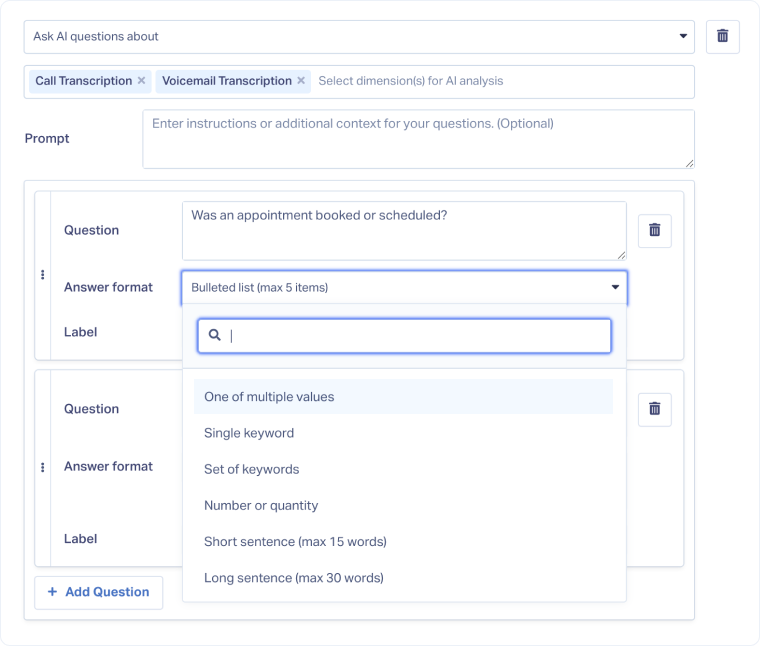
- Choose how AI should respond in the Answer format field.
- If you selected "One of multiple values", enter the allowed responses (e.g., Yes, No, Unknown).
- Enter a Label that describes this answer field.
- This becomes the Lead Analysis field name in Lead Manager
- Good labels: "Appointment Scheduled", "Quote Requested", "Service Type"
- Avoid generic labels: "Answer 1", "Question", "AI Response"
- Use the Prompt field to provide extra instructions or context for AI (optional):
- "Focus only on explicit scheduling language, not vague interest."
- "If multiple services are mentioned, list all of them separated by commas."
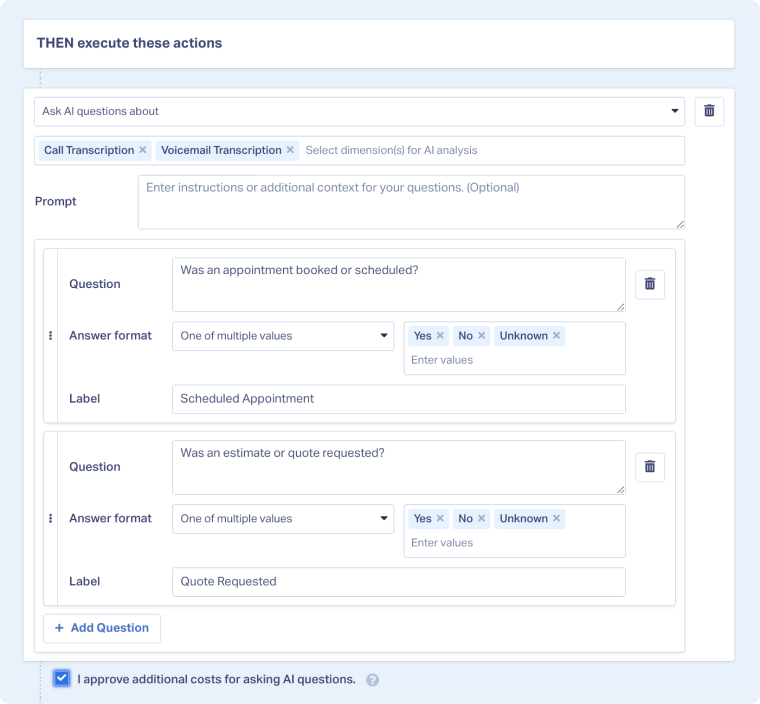
- To ask additional questions, click "Add Question" again and repeat steps 8-14.
- You can ask multiple questions in a single rule
- All questions execute when conditions are met
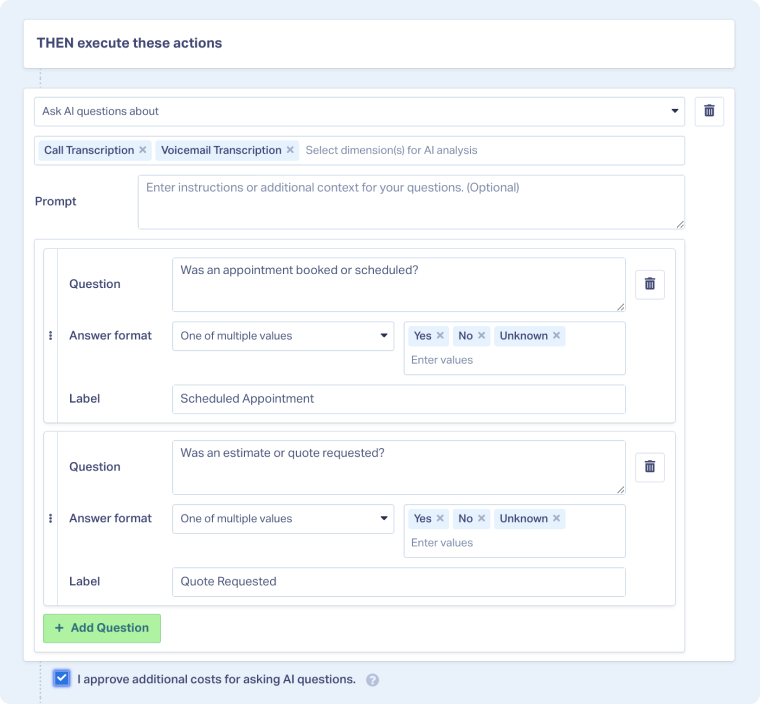
- Check the box that says "I approve additional AI analysis costs".
- AI analysis is billed per lead based on content volume
- See your Rates page for current pricing
- Click "Continue" to proceed to rule details.
- Fill in:
- Rule Name: Use a descriptive name like "Extract Service Type and Appointment Status"
- Rule Description: Note what the rule does and which questions it asks
- Activate Rule?: Toggle on to run automatically on new leads
- Time Zone: Select appropriate time zone
- Click "Complete" to save the rule.
Define Rule Conditions (IF)
Configure the rule condition(s):
Configure Ask AI Actions (THEN)
Configure the rule action(s):
Select Dimensions to Analyze
Select what field(s) you want to analyze using AI:
Tip Box: You can analyze multiple dimensions simultaneously. For example, select both "Call Transcription" and "Voicemail Transcription" to ensure AI checks all available audio content.
Write Your Question
Define the question you’ll use to analyze the selected dimension(s):
Set Answer Format
Choose the type of answer:
Add a Label
Enter the label that will identify the new field created in the Lead Manager containing the information extracted by the Ask AI question(s) you have configured:
Optional: Add Additional Context
If you want, give AI more context:
Add More Questions
If needed, you can add additional questions to the same rule:
Approve AI Analysis Costs
Finalize the Rule
Other Ways to Use Ask AI Rules
- Build multi-question profiles by stacking 3-5 questions in one rule to create comprehensive lead insights
- Use answers to trigger follow-up rules by creating second-tier rules that check AI-generated fields
- Combine with standard actions to both ask questions and set quotable status, scores, or values simultaneously
- Create answer-based qualification where AI responses determine whether leads are marked quotable
- Export AI insights via webhooks to send custom field data to your CRM or other systems
Note: When creating multiple Ask AI rules, consider the order in which they run. If one rule's answer should influence another rule's conditions, place it earlier in your rule sequence.
Related Topics
Get a FREE presentation of WhatConverts
One of our marketing experts will give you a full presentation of how WhatConverts can help you grow your business.
Schedule a Demo






