















































Use Custom Fields
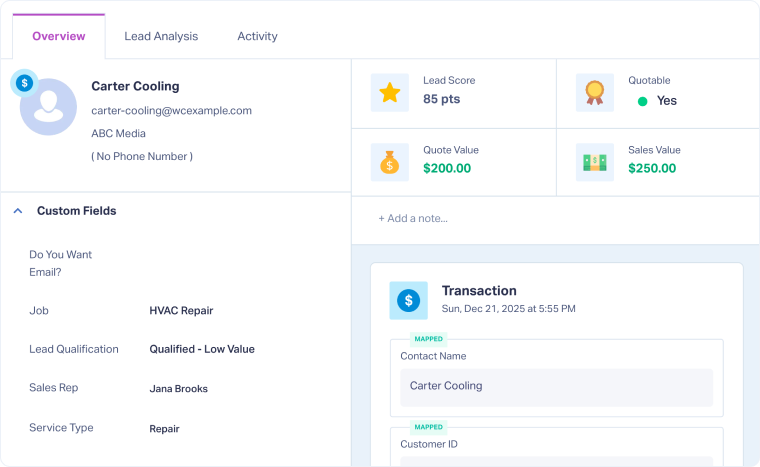
Once you’ve created your Custom Fields, you’ll use them in the Lead Details page to enrich individual leads by adding or updating field values. Keeping these values current is crucial for getting the most insight and value from your leads.
Update a Custom Field Manually
To enrich a lead using Custom Fields:
- Access the Lead Details page for the lead you want to update.
- Scroll down to the “Custom Fields” section.
- You'll see all Custom Fields created in your Profile Settings (based on lead type).
- Select the field you want to update and enter the value:
- Text: Type your entry.
- Dropdown: Choose from preset options.
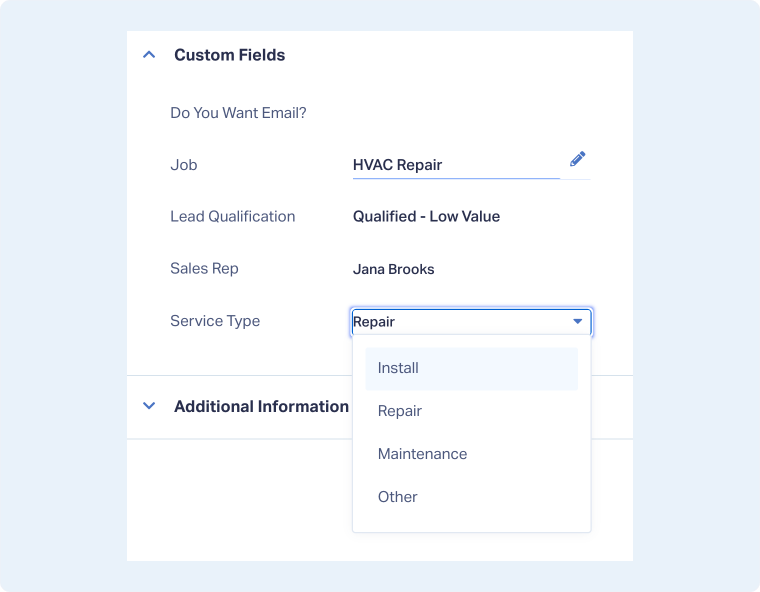
Note: When updating a text Custom Field, make sure to click “Update” to save your changes.
Other Ways to Update Custom Fields
You can also populate/update Custom Fields at scale using:
- Lead Import: Upload a CSV file to populate or update fields in bulk.
- Lead Intelligence: Automatically assign field values using rule-based logic.
Related Topics
Was this page helpful?
Get a FREE presentation of WhatConverts
One of our marketing experts will give you a full presentation of how WhatConverts can help you grow your business.
Schedule a Demo






