















































Export Your Leads
You can download your leads from the Lead Manager into a CSV file for analysis or data updates.
A common use case is exporting leads to prepare a CSV file for updating existing data with the Lead Import Tool. Exports include the Lead ID and other key information, making it easy to modify and re-upload your updated data in bulk.
Export Your Leads from the Lead Manager
You can export leads directly from the Lead Manager using filters and export options that control which data appears in your file.
- Access the Lead Manager.
- Apply any filters, choose columns, or select a custom view to define which leads and columns you want to export.
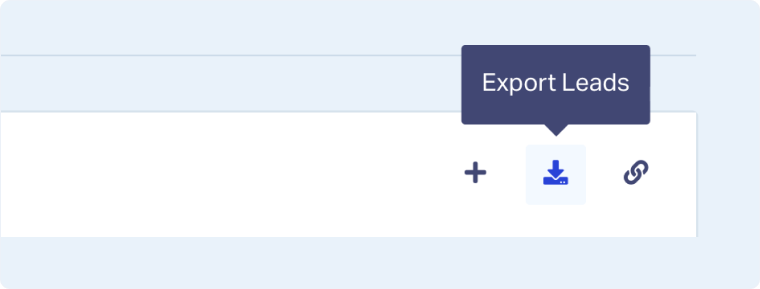
- Click the download icon at the top right of the Lead Manager.
- Choose one of the following export options:
- Export Current View: Exports the filtered leads using only the columns currently visible in your view.
- Export All Columns: Exports all available fields for the filtered leads, regardless of which columns are displayed.
- Export All Columns + Customer Journey: Exports all available fields for the filtered leads and adds a Customer Journey column at the end of the file showing the full path of interactions that led to the conversion.
- Wait for the download to complete. Your file will be saved in CSV format.
Note: Exports always respect your active filters, meaning only the leads currently displayed in your filtered view will be included.
Related Topics
Was this page helpful?
Get a FREE presentation of WhatConverts
One of our marketing experts will give you a full presentation of how WhatConverts can help you grow your business.
Schedule a Demo






