















































Add Additional Fields to the Conversion Details
You can add Additional Fields to the Conversion Details section of the Lead Details page to capture extra information from your leads.
These fields are ideal for adding extra context from your CRM or other systems that store information not collected directly from the lead interaction. Examples could include Lifetime Value (LTV), Account Owner, or Customer ID.
Once mapped, these fields appear in the Lead Manager, Reporting, and the Lead Details page, providing deeper insight into each interaction.
Note: Use Custom Fields to categorize and qualify leads using all data captured from the conversion, including any Additional Fields shown in the Conversion Details section
Add an Additional Field Manually
- Access the Lead Details for the lead you want to update.
- Scroll to the Conversion Details section.
- Click “+ Add Field”.
- Enter the Field Name and Field Value.
- Click “Save”.
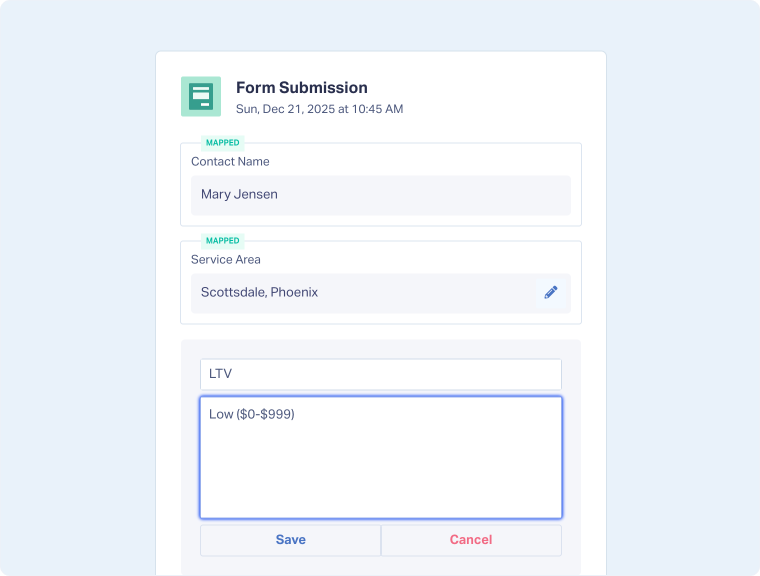
Note: After import, make sure to map the Additional Fields so they appear across the Lead Manager, reports, and Lead Intelligence features.
Add Additional Fields Using the Lead Import Tool
If you need to enrich multiple leads with additional information (for example, importing additional CRM data), you can use the Lead Import Tool to upload Additional Fields in bulk
This method lets you update existing leads by matching an identifier (Lead ID, Email, or Phone Number) and importing additional data columns.
Related Topics
Get a FREE presentation of WhatConverts
One of our marketing experts will give you a full presentation of how WhatConverts can help you grow your business.
Schedule a Demo






