















































Add a Phone Number to Track Google Ads Extension Calls
Call extensions in Google Ads let you display a phone number directly in your ad so customers can call you without visiting your site. By adding a WhatConverts tracking number, you can record, attribute, and analyze those calls alongside your other leads.
Add a Tracking Number for Google Ads Call Extensions
Follow these steps to create and connect a WhatConverts tracking number to your Google Ads call extensions.
- In your WhatConverts profile, select "Tracking" from the top menu.
- Choose "Calls", then "Phone Numbers".
- Click "+ Add Phone Number".
- Select "Advanced Setup".
- Choose "Google Ad Extension" as the tracking type and click "Next Step".
- Move the slider to "1".
- Choose the country, phone number type (local or toll-free), and area code.
- Click "Find Numbers".
- Review the selected number and click "Next Step".
- Enter the Destination Number (the number calls will forward to) and give your phone number a descriptive name, such as Google Call Extension. Click "Next Step".
- Review and adjust optional features such as Call Recording, Call Greeting, or Call Whisper.
- Once satisfied with your selections, click "Finish".
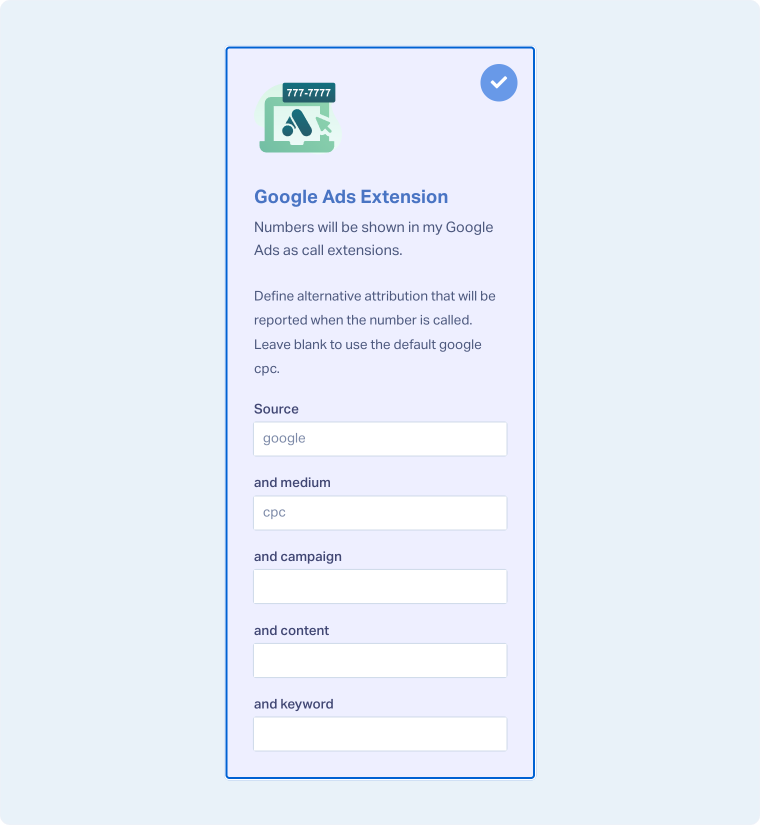
Connect the Tracking Number in Google Ads
- In your Google Ads account, create or edit a Call Extension.
- Use the tracking number you set up in WhatConverts as the call extension number.
- Enable Call Reporting and select "Count calls as phone call conversions".
- Choose the appropriate conversion action to track these calls as conversions.
Note: To turn Call Reporting on or off, go to All Campaigns → Settings → Account Settings → Call Reporting and switch it to “On”.
What If Google Disapproves My Tracking Number?
Google may disapprove tracking numbers if they cannot verify that the number is associated with your website. To prevent this, verify your number using one of the following methods:
Option 1: Display the number on your site
- Ensure the tracking number appears in text (not as an image) on a page within your ad's domain.
- The number should be visible on a frequently visited landing page to increase verification success.
Option 2: Verify domain ownership
- Link your Google Search Console and Google Ads accounts, or
- Add your Google Ads conversion tracking tag or remarketing tag to your website.
Once verified, your call extension should be approved by Google.
For more information, please refer to Google's Destination Requirements.
Important Note About Google Forwarding Numbers
If Google is not replacing your WhatConverts tracking number with a Google forwarding number, remember:
- Call extensions function at the ad group level, even when configured at the campaign level.
- Google requires a threshold of approximately 20-50 clicks per month before a forwarding number begins displaying, and 10-20 clicks per month to maintain it.
- If this threshold isn't met, Google will continue displaying your WhatConverts number.
Troubleshooting Google Ads Conversion Errors
If you experience issues with call conversions not appearing or being recorded incorrectly, see: Troubleshoot Google Ads Conversion Errors.
Related Topics
Get a FREE presentation of WhatConverts
One of our marketing experts will give you a full presentation of how WhatConverts can help you grow your business.
Schedule a Demo






