















































Enable Call Whisper
Call Whisper plays a short message to the person answering the phone before the call connects. This message is not heard by the caller and helps identify which campaign or tracking number generated the lead.
Note: When the destination number answers, the whisper will play for the recipient before connecting the call.
Set Up a Call Whisper
Before you begin, make sure you’ve already set up a tracking number. The whisper message is added from the number’s settings and plays only to the recipient before the call connects.
- In your WhatConverts profile, select “Tracking”, then “Calls”.
- Choose “Phone Numbers”.
- Locate the number you’d like to add a whisper to and select the pencil icon to edit it.
- In the “Whisper Message” section, choose one of the following options:
- Text-to-Speech (Say Message): Type your whisper message to have it automatically read aloud.
- Upload an Audio File (Play Message): Use a pre-recorded message in MP3 or WAV format.
- Select “Finish” to apply the change.
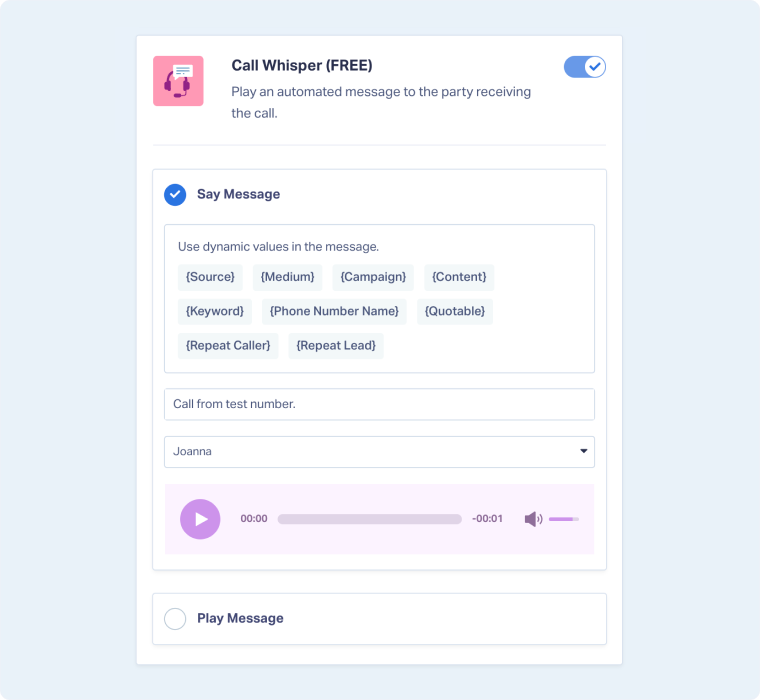
Note: When setting up text-to-speech, you can use dynamic variables like {source} and {medium} to have the message say the lead’s tracked attribution. The Call Whisper box will include a list of all dynamic variables that you can utilize.
Tip: You can edit multiple phone numbers at once by selecting the checkboxes to the left of each number in your list. Any changes you make, such as enabling features or updating call options, will apply to all selected numbers simultaneously.
Related Topics
Get a FREE presentation of WhatConverts
One of our marketing experts will give you a full presentation of how WhatConverts can help you grow your business.
Schedule a Demo






