















































Save a New Custom Report in the Report Library
Who has access to this feature?
Available on: Report Builder - Pro and Elite Plans
Access level: All Users
You can create a new report in the Report Builder and save it to your Report Library to make it accessible for future use or for your team to reference.
Add a New Custom Report
To add a new report directly from the Report Library:
- Access the Report Library and click “Browse Library”.
- Click “+ Create Custom Report” in the top right corner.
- In the Report Builder, choose your dimensions, metrics, and filters to create the report.
- Click “Save Report”.
- Give your report a name, add a description, and choose a report category in the library
- Click “Save” to add it to your Report Library.

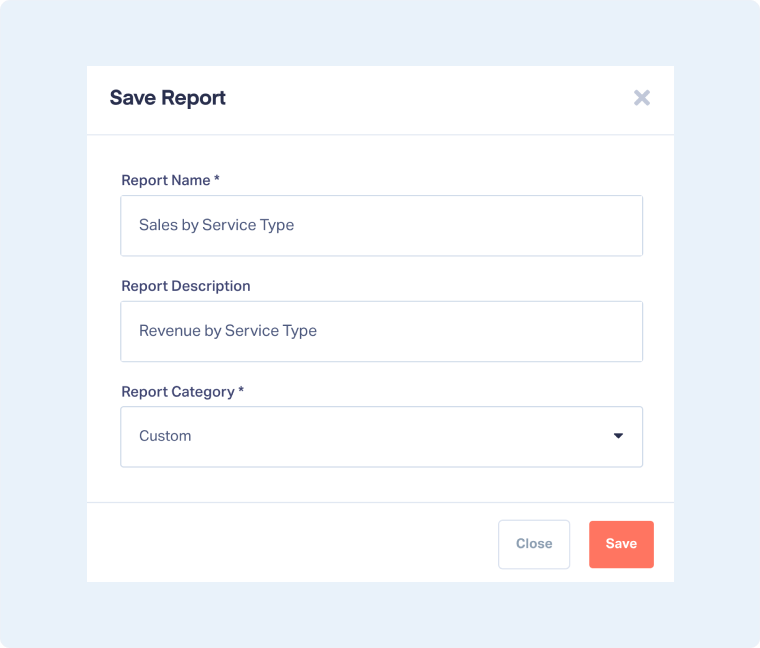
Your new report will now appear under the selected category in the Report Library.
Tip: Saved reports can be shared with your team and reused to maintain consistent reporting setups across profiles.
Related Topics
Was this page helpful?
Get a FREE presentation of WhatConverts
One of our marketing experts will give you a full presentation of how WhatConverts can help you grow your business.
Schedule a Demo






