















































Configure a Menu Step in a Call Flow
A Menu Step plays a greeting message and presents callers with numbered options (like "Press 1 for Sales, Press 2 for Support"). Callers can use their phone keypad to select the option that matches their needs, and the Call Flow routes them accordingly.
Add and Configure a Menu Step
To add and configure a Menu Step in an existing Call Flow:
- Open the Call Flow and add a new step.
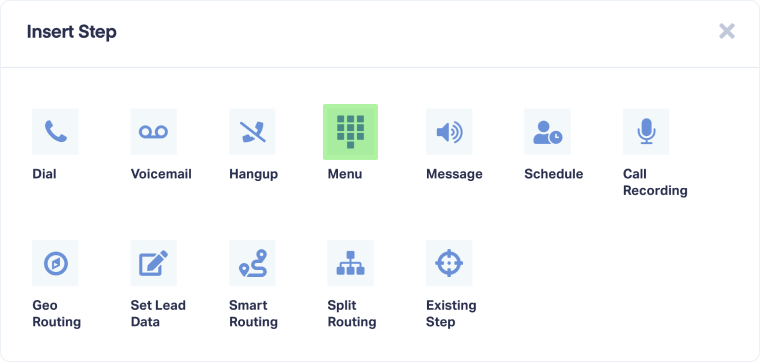
- Select "Menu" from the available step options.
- Enter a descriptive name for the step (e.g., Main Menu, Department Selection).
- Under "Set greeting message", choose what message callers hear to begin the menu:
- None: No greeting message (menu starts immediately)
- Say Message: Text-to-speech message
- Play Message: Upload or record an audio file
- Under "Choose response type", select how the menu listens for caller input:
- Key Press: Callers press numbers on their phone keypad
- Speech: Callers speak their selection (voice recognition)
- Both: Accepts both keypad and voice input
- For speech recognition, select the primary language your callers speak from the dropdown menu (default is English, United States).
- Under "Add menu options", create the choices callers can select:
- Name: Descriptive label for the option (e.g., Sales, Support, Billing)
- Key Press: Assign a number (1-9) for keypad selection
- Speech: Enter the word or phrase callers should say (e.g., "contains 1" or "sales")
- Click "+ Add Option" to add additional menu choices
- Under "Set response timeout", enter how many seconds to wait for the caller to make a selection before proceeding (default is 5 seconds).
- Under "Configure no-response message", choose what happens if the caller doesn't respond:
- None: Silent (moves to next step)
- Say Message: Text-to-speech message
- Play Message: Upload or record an audio file
- Under "Set menu repeat behavior", choose how many times the menu should repeat if there's no response:
- Do Not Repeat: Menu plays once only
- Repeat 1-5 times: Menu replays the specified number of times before moving to the next step
- Click "Save Changes" to apply the Menu Step.
Note: When using speech recognition, test your menu with common phrases and accents to ensure accurate detection. Combine speech with key press (both options) for better reliability.
Edit a Menu Step
To update settings in an existing Menu Step:
- Go to "Tracking" from the top menu and select "Calls".
- Choose "Call Flows".
- Find the Call Flow and click "Edit".
- Click the pencil icon on the Menu Step you want to modify.
- Update any settings (greeting messages, menu options, timeout duration, etc.).
- Click "Save" to apply your changes.
Tip: After editing menu options, call your tracking number to test that all selections route correctly and that greeting messages are clear.
Related Topics
Get a FREE presentation of WhatConverts
One of our marketing experts will give you a full presentation of how WhatConverts can help you grow your business.
Schedule a Demo






