















































Configure a Dial Step in a Call Flow
A Dial Step routes incoming calls directly to a phone number you specify. This is the most common Call Flow step and ensures callers reach your business phone when they call a tracking number.
Add and Configure a Dial Step
To add and configure a Dial Step in an existing Call Flow:
- Open the Call Flow and add a new step.
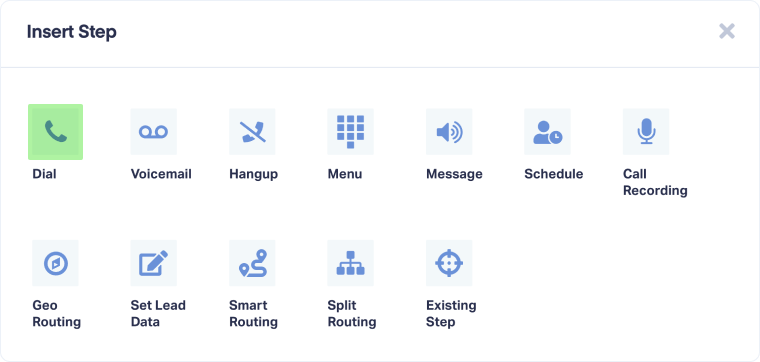
- Select "Dial" from the available step options.
- Enter a descriptive name (e.g., Sales Team, Main Office).
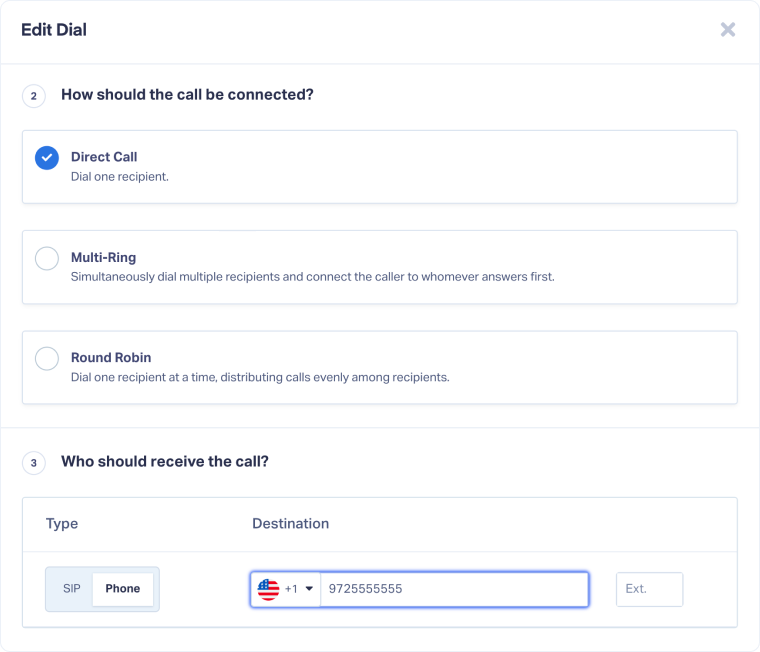
- Choose connection method:
- Direct Call: Dials one recipient
- Multi-Ring: Simultaneously dials multiple recipients and connects the caller to whoever answers first
- Round Robin: Dials one recipient at a time, distributing calls evenly among recipients
- Add the destination phone number (with country code). For Multi-Ring or Round Robin, add multiple numbers.
- Enter how many seconds to wait for the recipient to answer before moving to the next step (default is 30 seconds).
- Optionally, toggle "Prevent automated answers" on to prevent calls from connecting to voicemail or automated systems. Recipients must press "1" before the call connects.
- Under "Set Caller ID", choose what number appears to the recipient:
- Caller's Number: Shows the original caller's phone number
- Tracking Number: Shows your WhatConverts tracking number
- Optionally, under "Add a whisper message", choose whether to play a message only the recipient hears before connecting:
- None: No whisper message
- Say Message: Text-to-speech message
- Play Message: Upload or record an audio file
- Optionally, under "Configure Post-Call Flow", select a Call Flow to trigger when the caller hangs up, or the recipient presses a key on their phone keypad.
- Click "Save Changes" to apply the Dial Step.
Note: The "Prevent automated answers" setting adds an extra step for recipients but ensures callers always reach a live person, not voicemail.
Tip: Test your Call Flow by calling your tracking number to ensure calls route correctly to your destination number.
Edit a Dial Step
To update the phone number or settings in a Dial Step:
- Go to "Tracking" from the top menu and select "Calls".
- Choose "Call Flows".
- Find the Call Flow you want to update and click "Edit".
- Click the pencil icon on the Dial Step you want to modify.
- Update the phone number under Who should receive the call?.
- Click "Save Changes" to apply your changes.
Related Topics
Was this page helpful?
Get a FREE presentation of WhatConverts
One of our marketing experts will give you a full presentation of how WhatConverts can help you grow your business.
Schedule a Demo






