















































Prepare CSV or JSON Files for Endpoints
Before sending lead data to WhatConverts through endpoints, you need to format your data correctly. This guide explains how to prepare CSV or JSON files that WhatConverts can process successfully.
Download the Template
WhatConverts provides templates to help you format your data correctly:
- In your WhatConverts profile, select "Tracking", then "Integrations".
- Choose "Automations", and under the Endpoints Panel, select "Connect".
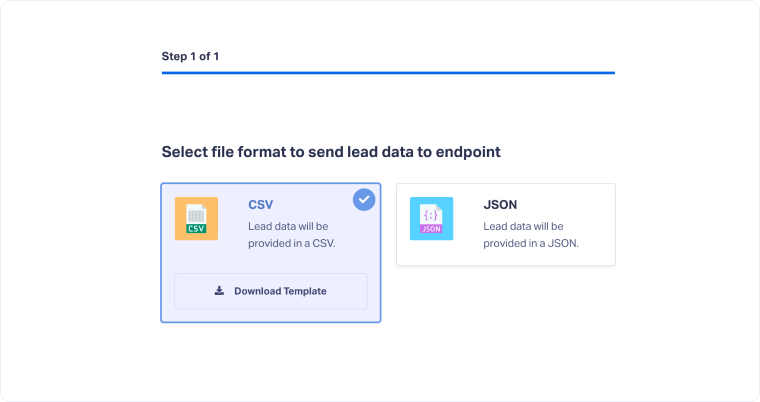
- Click "Add Endpoint" and select your file format (CSV or JSON).
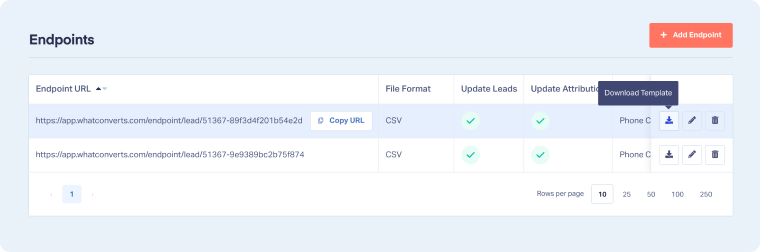
- Download the provided template for your chosen format. This can be done in two ways:
- Download the template while creating the Endpoint
- Download the template using the download icon on the Endpoints page
CSV File Requirements
Mandatory Fields
Every CSV file must include these two columns, or the file cannot be processed:
- Profile ID: The WhatConverts Profile ID where the leads should be imported
- Date: The date the lead occurred, formatted as YYYY-MM-DD
- Date formatting uses UTC If you want to specify Time, then use this format: YYYY-MM-DDT00:00:00Z
Optional Standard Fields
The CSV template includes these optional columns you can populate:
- Lead ID, Email Address, Phone Number
- Source, Medium, Campaign, Content, Keyword
- Quote Value, Sales Value, Spotted Keywords, Lead Score, Quotable
- IP, GCLID, MSCLKID, FBCLID, FBPID
- Lead Page, Landing Page, Operating System, Browser, Device Type, Device Make
- Number Name, Tracking Number, Destination Number
- Caller Name, Caller City, Caller Zip, Caller State, Caller Country
- Duration (Seconds), Answer Status, Line Type
- Call Transcription, Voicemail Transcription, Message
- Form Name, Category, Action, Label
- Order ID, Tax, Shipping
- Sender Name, Subject, Message
Add Custom Fields to CSV
To add custom fields beyond the standard columns, use this format:
[additional_field]NameOfField
For example, if you want to add a custom field called "Lead Source Detail", your column header would be:
[additional_field]Lead Source Detail
JSON File Requirements
Mandatory Fields
Every JSON object must include:
- profile_id: The WhatConverts Profile ID
- date: The lead date in YYYY-MM-DD format
Add Custom Fields to JSON
To include additional fields in JSON format, add an additional_fields object:
{
  "profile_id": "12345",
  "date": "2024-01-15",
  "email_address": "example@email.com",
  "additional_fields": {
    "FieldName": "EnterValue",
    "Lead Source Detail": "Google Organic Search"
  }
}
File Preparation Checklist
Before uploading your file, verify:
- Profile ID is included and correct
- Date column uses YYYY-MM-DD format
- All custom fields use the proper naming convention
- Data is complete and formatted consistently
- File is saved in the correct format (CSV or JSON)
Common Formatting Mistakes
Avoid these common errors:
- Using incorrect date formats (like MM/DD/YYYY or DD-MM-YYYY)
- Missing the Profile ID column
- Forgetting the [additional_field] prefix for custom columns in CSV
- Including special characters that break CSV formatting
Related Topics
Get a FREE presentation of WhatConverts
One of our marketing experts will give you a full presentation of how WhatConverts can help you grow your business.
Schedule a Demo






