















































Configure Rules for Endpoints
Configuring rules for your endpoint determines how WhatConverts processes incoming lead data. Rules control whether leads are created, updated, or ignored, and how attribution data is handled.
Set Up Endpoint Rules
To configure rules for your endpoint:
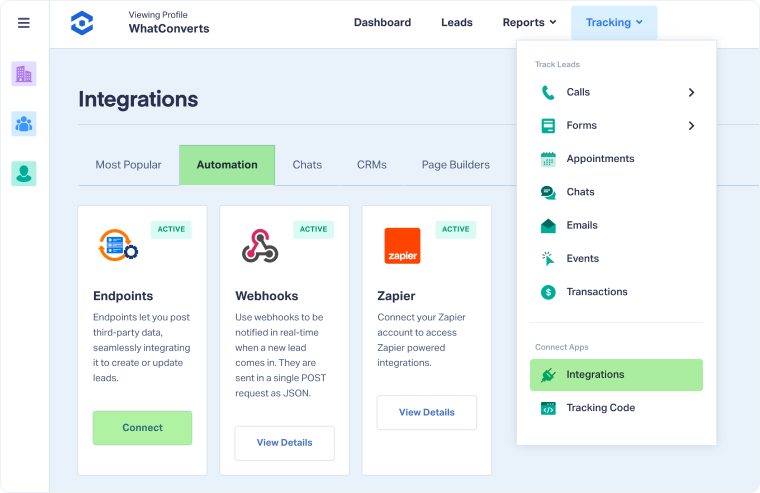
- In your WhatConverts profile, select "Tracking", then "Integrations".
- Choose "Automations", and under the Endpoints Panel, select "Connect".
- Click "Add Endpoint" to create a new endpoint, or select an existing endpoint to edit its rules.
- Choose your file format: CSV or JSON.
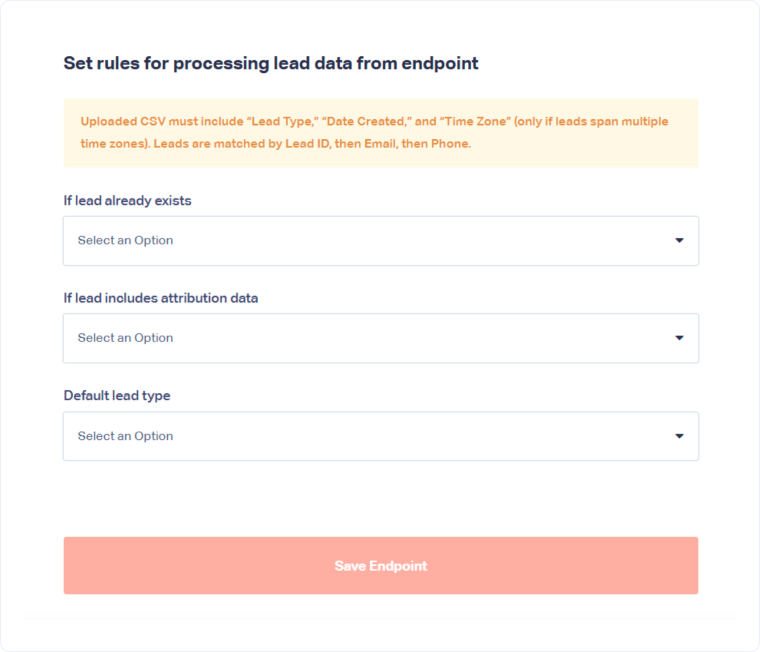
- Configure the following rules based on your use case:
- If lead already exists:
- Update existing lead with endpoint data: Overwrites the existing lead's information with the new data you send
- Create new lead from endpoint data: Creates a duplicate lead even if one already exists
- Don't take any action: Ignores the incoming data if a matching lead is found
- If lead includes attribution data:
- Update lead attribution with endpoint data: Replaces the lead's marketing source information with the attribution data you send
- Don't modify lead attribution data: Keeps the original attribution and ignores any new attribution you send
- Default lead type:
Select the lead type that will be applied if you don't specify a type in your data file. Choose from:- Appointment
- Chat
- Event
- Other
- Phone Call
- Text Message
- Transaction
- Web Form
- If lead already exists:
- Click "Save Endpoint" to save your configuration.
- Copy the generated Endpoint URL and store it securely. You'll need this URL to send data to WhatConverts.
Choose the Right Rules
The best practices to configure the Endpoint rules are:
- For importing new leads only: Select "Create new lead from endpoint data" to avoid overwriting existing records
- For updating existing leads: Choose "Update existing lead with endpoint data" to keep records current
- For flexible imports: Use "Update existing lead with endpoint data" to update matches and create new leads when no match is found
- For preserving marketing attribution: Select "Don't modify lead attribution data" to keep original source tracking intact
- For uploading multiple lead types: Always specify the lead type in your data file to ensure accurate categorization
Note: When creating leads, the default lead type is applied only if you don't specify a type in your upload file. If you're uploading multiple lead types (like both phone calls and web forms), make sure to include the lead type column in your data.
Related Topics
Was this page helpful?
Get a FREE presentation of WhatConverts
One of our marketing experts will give you a full presentation of how WhatConverts can help you grow your business.
Schedule a Demo






