















































Block Spam Callers
Blocking phone numbers prevents unwanted or spam callers from reaching your tracked phone numbers. This keeps your Lead Manager focused on real leads and protects your team from time-wasting calls.
Before you start, see What is Call Tracking? for an overview of how call tracking works.
Block a Phone Number
To manually block a phone number from your profile:
- In your WhatConverts profile, select “Tracking” from the top menu.
- Choose “Calls”, then "Blocked Numbers".
- Click "+ Add Blocked Number".
- Enter the phone number you want to block.
- Click “Finish”.
Once blocked, the caller will no longer be able to reach any tracking numbers in that profile.
Tip: Block numbers as you identify spam patterns. This prevents repeat offenders from calling multiple tracking numbers.
Block a Number from the Lead Details Page
To block a number directly from an existing lead:
- Access the Lead Manager.
- Find the lead whose number you want to block and click "View Lead".
- In the Lead Details page, go to the Conversion Details section.
- Hover over the Phone Number field and click "Block".
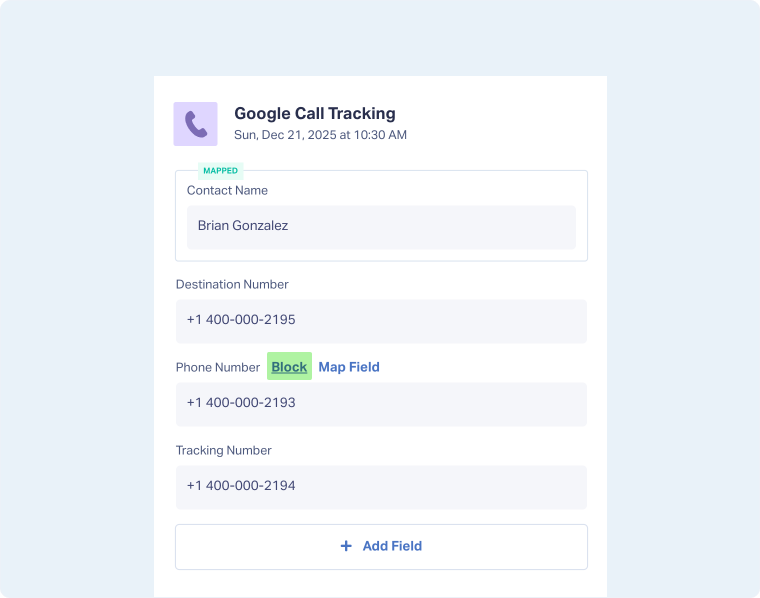
The number will be added to your Blocked Numbers list, and future calls from that number will be prevented.
Note: Blocking a number from the Lead Details page applies to the current profile only. To block a number across all profiles, add it manually from "Blocked Numbers" in each profile.
Unblock a Phone Number
To remove a number from your blocked list:
- In your WhatConverts profile, select “Tracking” from the top menu.
- Choose “Calls”, then "Blocked Numbers".
- Find the number you want to unblock and click "Delete".
- Confirm the deletion to allow calls from that number again.
Related Topics
Get a FREE presentation of WhatConverts
One of our marketing experts will give you a full presentation of how WhatConverts can help you grow your business.
Schedule a Demo






