















































Add a Group of Lead Intelligence Rules
Who has access to this feature?
Available on: Elite Plans
Access level: All Users
Adding a group of Intelligence rules lets you quickly implement multiple related automation rules at once. Instead of building rules individually, you can import pre-configured rule sets designed for common workflows like Google Ads optimization, lead qualification, call tracking, or keyword-based scoring.
Add a Group of Lead Intelligence Rules
To add a group of Intelligence rules to your profile:
- Access the Master Account or Profiles settings depending on where you want to apply rules.
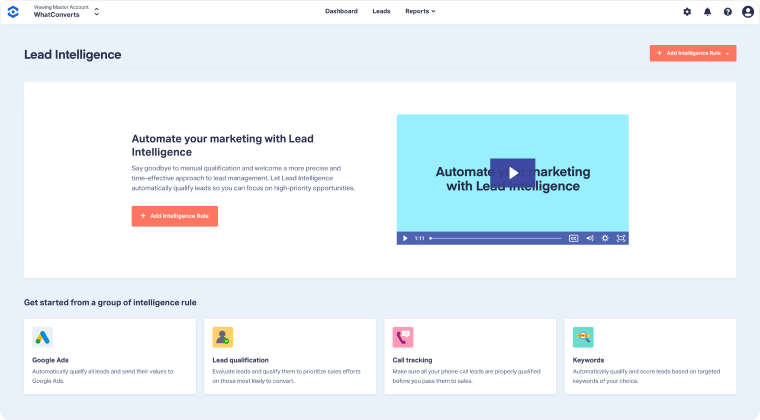
- Click "Lead Intelligence" from the menu.
- You'll see four rule group categories to choose from:
- Google Ads: Automatically qualify all leads and send their values to Google Ads.
- Lead qualification: Evaluate leads and qualify them to prioritize sales efforts on those most likely to convert.
- Call tracking: Make sure all your phone call leads are properly qualified before you pass them to sales.
- Keywords: Automatically qualify and score leads based on targeted keywords of your choice.
- Select the category that matches your goal.
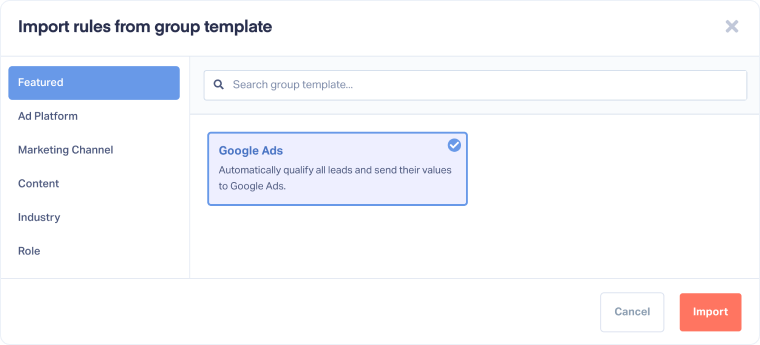
- Select "Import rules from group template".
- In the Import rules from group template modal, browse categories or use the search bar to find the rule group you need.
- Click the rule group card you want to import (e.g., Google Ads).
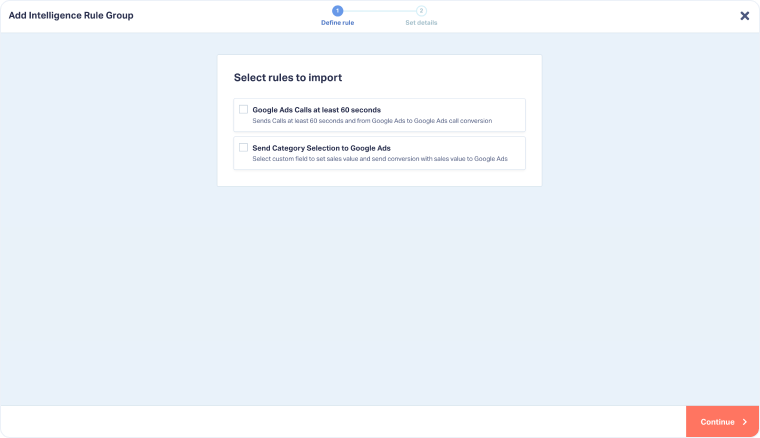
- Review the individual rules included in the group (each rule will be listed with a checkbox and description).
- Select the rules you want to import by checking the boxes next to each rule.
- Click "Continue".
- In the Enter rules details section, configure the group settings:
- Activate rules?: Choose "Yes, activate immediately after saving" or save as inactive.
- When to apply rules?: Select "When new lead is created or existing lead is updated" (or choose your preferred trigger).
- Which time zone should apply to this rule?: Select your time zone.
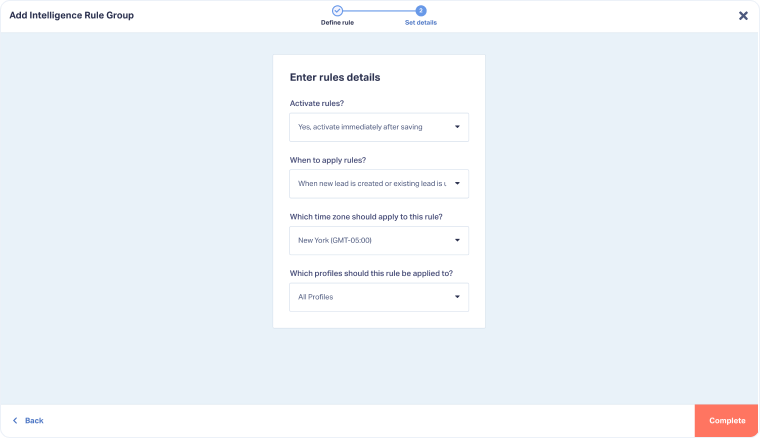
- Click "Complete" to add the rule group to your profile.
Note: When you import a rule group, each rule becomes an independent automation in your profile. You can edit, activate, or delete individual rules without affecting the others.
Related Topics
Was this page helpful?
Get a FREE presentation of WhatConverts
One of our marketing experts will give you a full presentation of how WhatConverts can help you grow your business.
Schedule a Demo






