















































Apply Lead Intelligence Rules to Existing Leads
Who has access to this feature?
Available on: Elite Plans
Access level: All Users
Applying Lead Intelligence rules to existing leads lets you retroactively process leads that were captured before a rule was created or activated. This helps you qualify, score, or update historical leads using automation logic you've built, ensuring your entire lead database is consistent and up-to-date.
Apply Lead Intelligence Rules to Existing Leads
To apply Lead Intelligence rules to leads that already exist in your profile:
- Access the Master Account or Profiles settings depending on where you want to apply rules.
- Click "Lead Intelligence" from the menu.
- Click the "Manage Rules" dropdown button.
- Select "Apply rules to existing leads".
- In the Apply Rules to Existing Leads modal, you'll see three sections to complete.
Step 1: Which Leads Should Be Modified?
To decide the leads that will be subject to updates:
- Select the date range of leads you want to process.
- Click the date range selector and choose your start and end dates.
The system will count how many leads fall within this date range and display the total number that will be affected.
Tip: Start with a small date range (e.g., one week) to test how rules process existing leads before applying them to your entire lead database.
Step 2: Which Rules Should Be Applied to These Leads?
To decide which rules apply to the existing leads in the time range selected:
- Review the "Available Rules" list on the left, which shows all active Lead Intelligence rules in your profile.
- Click the rule(s) you want to apply to move them to the "Selected Rules" column on the right.
- You can select multiple rules to run at once.
- To remove a rule from the selected list, click "Remove All" or click the individual rule to move it back to Available Rules.
Step 3: Confirm Lead Data Modification
To make sure the updates are correct before applying them:
- Review the confirmation section, which displays the total number of leads that will be modified.
- Optionally, check "Send me a notification email when finished" to receive an alert when processing is complete.
- Check the confirmation box: "I confirm this rule will run for [X] leads".
- Click "Apply Rules to Selected Leads" to start processing.
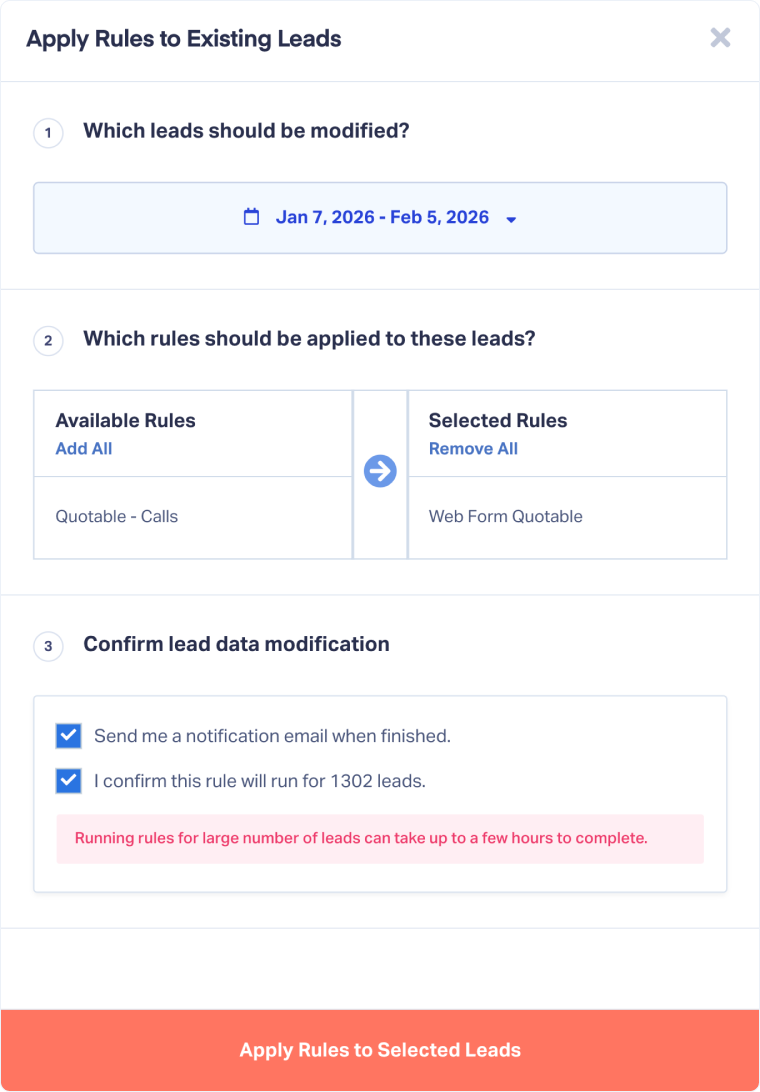
Note: Applying rules to a large number of leads can take several hours to complete. The process runs in the background, so you can continue working in WhatConverts while it processes.
Related Topics
Get a FREE presentation of WhatConverts
One of our marketing experts will give you a full presentation of how WhatConverts can help you grow your business.
Schedule a Demo






