















































Configure a Message Step in a Call Flow
A Message Step plays an audio message to callers without requiring any input or action. This is useful for announcements, instructions, business hour notifications, or promotional messages before routing calls to the next step of your Call Flow.
Add and Configure a Message Step
To add and configure a Message Step in an existing Call Flow:
- Open the Call Flow and add a new step.
- Select "Message" from the available step options.
- Enter a descriptive name for the step (e.g., Business Hours Notice, Holiday Message, Promotional Announcement).
- Under "Choose message type", select how you want to deliver the message:
- Say Message: Automated text-to-speech message
- Play Message: Upload a pre-recorded audio file
- For Say Message:
- Type your message in the text field
- Use dynamic values to personalize messages (click tags like {Source}, {Medium}, {Campaign}, {Keyword}, etc.)
- Select a voice from the "Select a Voice" dropdown
- For Play Message:
- Click "Click here to upload MP3 recording".
- Upload an MP3 file (maximum file size is 1MB).
- Click "Save Changes" to apply the Message Step.
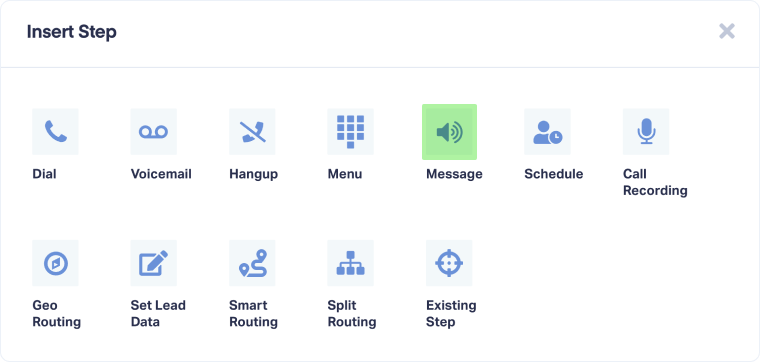
Once configured, callers will hear the message and then automatically move to the next step in your Call Flow.
Tip: Use dynamic values in Say Message to personalize greetings. For example, "Thank you for calling from {Source}" will say "Thank you for calling from Google" to callers arriving from Google Ads.
Note:Message Steps play once and automatically continue to the next step. Unlike Menu Steps, they don't wait for caller input.
Related Topics
Get a FREE presentation of WhatConverts
One of our marketing experts will give you a full presentation of how WhatConverts can help you grow your business.
Schedule a Demo






