















































Configure a Voicemail Step in a Call Flow
A Voicemail Step in your Call Flows allows callers to record a voicemail message when no one is available to answer. You can configure optional greeting messages, voicemail prompts, beep sounds, and time limits to control how callers leave messages.
Add and Configure a Voicemail Step
To add and configure a Voicemail Step in an existing Call Flow:
- Open the Call Flow and add a new step.
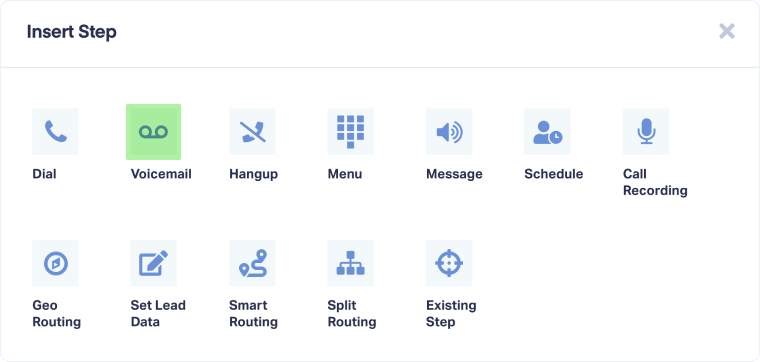
- Select "Voicemail" from the available step options.
- Enter a descriptive name for the step (e.g., After Hours Voicemail, Sales Team Voicemail).
- Under "Set voicemail prompt message", choose whether callers hear a message prompting them to leave a voicemail:
- None: No prompt (voicemail recording starts immediately after beep)
- Say Message: Text-to-speech message (e.g., "Please leave a message after the tone")
- Play Message: Upload or record an audio file
- Under "Enable voicemail beep", choose whether to play a beep sound before the voicemail recording starts:
- Yes: Plays a beep tone to signal recording has begun
- No: Recording starts silently without a beep
- Under "Set voicemail time limit", enter the maximum recording duration in minutes (default is 10 minutes). Voicemail recording automatically stops when the time limit is reached.
- Click "Save" to apply the Voicemail Step.
Callers will now be able to leave voicemail messages, which will appear as leads in your Lead Manager with the recorded audio file attached.
Tip: Always include a prompt message that tells callers to leave their name, number, and reason for calling. This improves voicemail quality and callback success rates.
Note: Voicemail recordings are stored with the lead record and can be played back in the Lead Details page or accessed via API.
Edit a Voicemail Step
To update settings in an existing Voicemail Step:
- Go to "Tracking" from the top menu and select "Calls".
- Choose "Call Flows".
- Find the Call Flow and click "Edit".
- Click the pencil icon on the Voicemail Step you want to modify.
- Update any settings (prompt message, beep preference, time limit).
- Click "Save" to apply your changes.
Related Topics
Get a FREE presentation of WhatConverts
One of our marketing experts will give you a full presentation of how WhatConverts can help you grow your business.
Schedule a Demo






