


Send Appointments (Scheduled Jobs) from Housecall Pro to WhatConverts
Sending Appointment (called Scheduled Jobs in HouseCall Pro) data from Housecall Pro to WhatConverts allows you to track your booked jobs on both platforms. By automatically creating leads in WhatConverts when jobs are scheduled in Housecall Pro, you can connect service appointments back to other marketing efforts that have been previously tracked.
This workflow uses Zapier to monitor for new scheduled jobs in Housecall Pro and automatically creates corresponding leads in WhatConverts. You can map any fields from the Housecall Pro job to fields in WhatConverts, ensuring all relevant appointment information is captured for reporting.
Before You Begin
Make sure you have already connected WhatConverts and Housecall Pro through Zapier. If you haven't set up the connection yet, follow the instructions in Connect WhatConverts to Housecall Pro.
Set Up the Scheduled Job Workflow
Follow these steps to send scheduled jobs from Housecall Pro to WhatConverts:
- Log in to your Zapier account and click "+ Create". Then select “Zap”.
- For the Trigger, search for and select "Housecall Pro".
- Choose "New Scheduled Job" as your trigger event. This fires when a new job is scheduled.
- Connect your Housecall Pro account by entering your API key if you haven't already.
- Test the trigger to verify it successfully retrieves scheduled job data from Housecall Pro.
- For the Action, search for and select "WhatConverts."
- Choose "Create Lead" as your action event.
- Connect your WhatConverts account using your API key if you haven't already.
- Map the fields from the Housecall Pro scheduled job to the corresponding fields in WhatConverts.
- Map any additional fields that are important to your tracking and reporting by adding key-value pairs at the bottom in the Additional Fields section.
- Test the action to ensure the lead is created correctly in WhatConverts, then publish your Zap to begin automatically sending scheduled jobs.
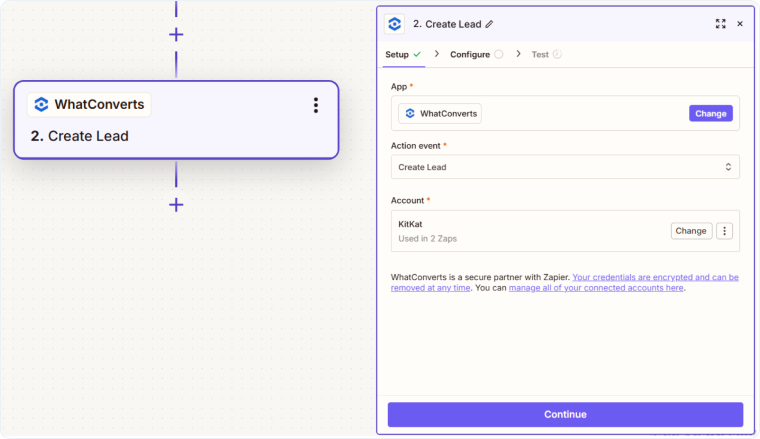
Once activated, every time a job is scheduled in Housecall Pro, a lead will be automatically created in WhatConverts with the appointment details you mapped.
Important Note About Marketing Attribution
Leads sent from Housecall Pro to WhatConverts will only contain the information that Housecall Pro captures. Because WhatConverts cannot natively track Housecall Pro forms (due to iFrame limitations), marketing attribution data such as ad source, keywords, and landing pages will not be available for these leads unless provided by Housecall Pro.
For complete marketing attribution, capture leads through WhatConverts-tracked forms first, then send them to Housecall Pro.
Related Topics
Get a FREE presentation of WhatConverts
One of our marketing experts will give you a full presentation of how WhatConverts can help you grow your business.
Schedule a Demo






