


View Spend Reports
Once you’ve connected and tracked your marketing channels, you can use Spend Reports to analyze performance for each individual channel. A Spend Report shows how much you’ve spent, how many leads you generated, and your cost per lead metrics in one place.
View a Spend Report
To view a Spend Report for a specific marketing channel:
- Go to “Reports”.
- Click “Marketing Spend”.
- Locate the marketing channel you want to analyze.
- Click “View Spend Report” next to that channel.
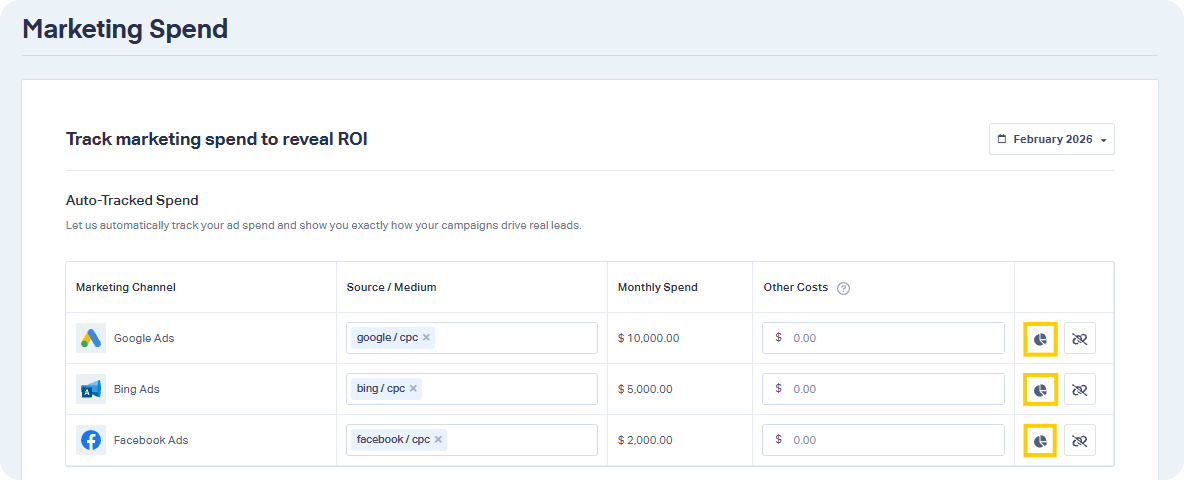
The Spend Report opens and displays performance metrics for that specific channel.
Understand the Spend Report Metrics
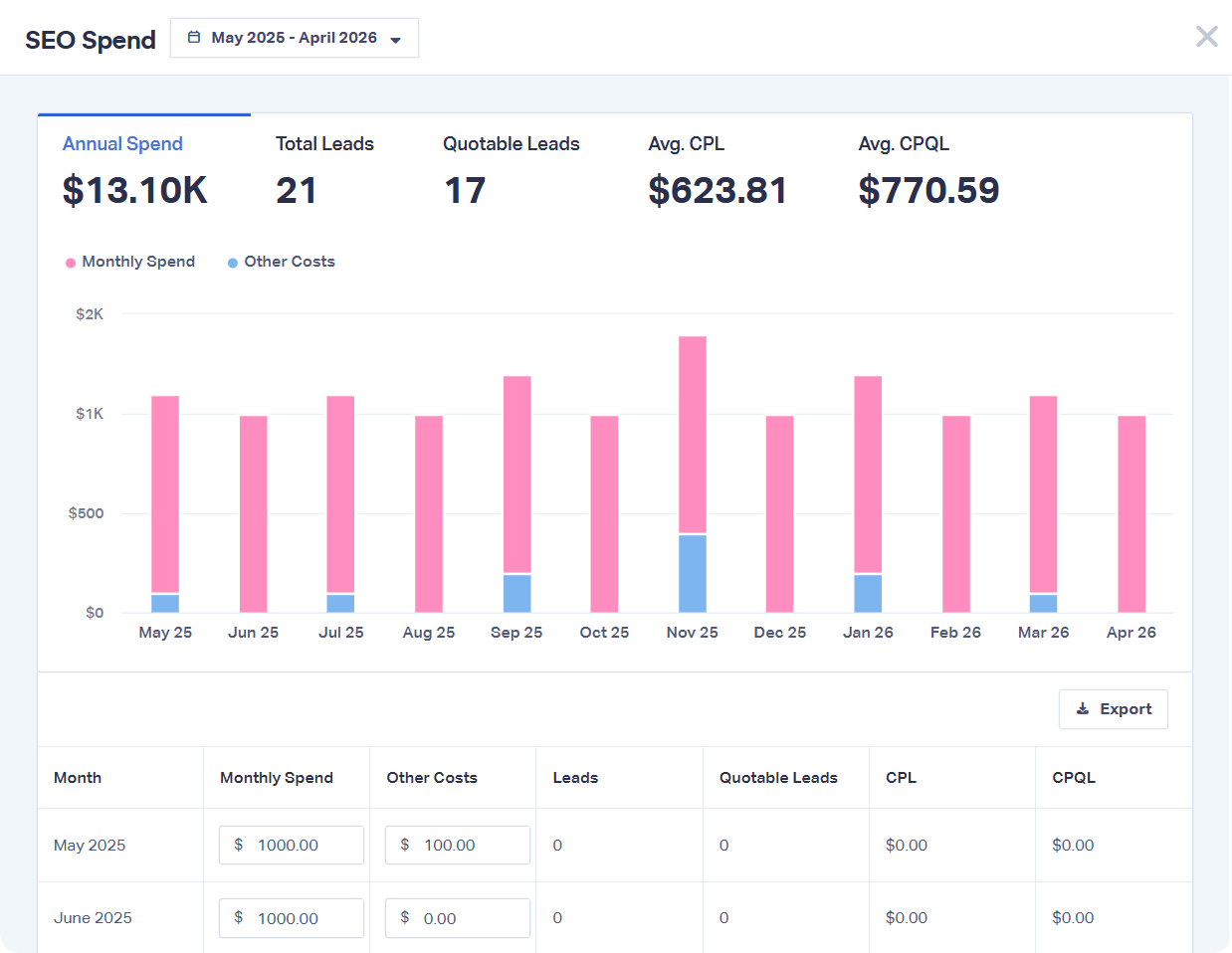
Each Spend Report includes the following metrics:
- Annual Spend: The total amount spent for that channel during the selected year.
- Total Leads: The total number of leads generated from that channel.
- Quotable Leads: The number of leads marked as Quotable.
- Avg. CPL (Cost Per Lead): The average cost for each lead generated.
- Avg. CPQL (Cost Per Quotable Lead): The average cost for each quotable lead generated.
These metrics help you evaluate which marketing channels are producing the most valuable leads at the lowest cost.
Export a Spend Report
You can export a Spend Report as a CSV file.
To export a Spend Report:
- Open a Spend Report.
- Click the “Export” button.
Update Spend Data and Date Range
On the Marketing Spend page, you can adjust the date range and update spend data to keep your reports accurate and up to date.
Use the date selector at the top of the page to choose the timeframe you want to view or update.
Update Monthly Spend and Other Costs
You can update Monthly Spend and Other Costs either one month at a time or across multiple months, depending on where you make the update.
There are two ways to update spend data:
Option 1: Update from the Marketing Spend Page (Single Month)
- Go to the Marketing Spend page.
- Select a specific month using the date range selector.
- Locate the marketing channel you want to update.
- Enter values in the Monthly Spend and Other Costs fields.
This updates spend data for the selected month only. When you open the Spend Report, the updated values are included in your reporting metrics.
Option 2: Update from the Spend Report (Full Year View)
- Go to the Marketing Spend page.
- Click “View Spend Report” next to a channel.
- Review the report, which displays a full year of data (e.g., May 2025 - April 2026).
- Update the Monthly Spend and Other Costs fields for any month directly within the report.
This view lets you update multiple months in one place, and all changes are reflected immediately in your reporting metrics.
When to Use the Spend Report
Use the Spend Report when you want to:
- Compare channel performance based on lead volume and cost
- Identify high-cost, low-performing channels
- Evaluate the efficiency of your marketing budget
- Optimize campaigns based on Cost Per Lead and Cost Per Quotable Lead
Related Topics
Get a FREE presentation of WhatConverts
One of our marketing experts will give you a full presentation of how WhatConverts can help you grow your business.
Schedule a Demo






