


Send Transactions and Sales Value from ServiceTitan to WhatConverts
Create a Zapier workflow that automatically sends invoice data from ServiceTitan to WhatConverts.
Before You Begin
Make sure you have:
- Your ServiceTitan API credentials (Tenant ID, Client ID, and Client Secret)
- See Connect WhatConverts to ServiceTitan for information on how to access this information.
- Your WhatConverts API key:
- For Master Account integrations: Generate a Master API Key
- For Profile integrations: Generate a Profile API Key
- A Zapier account
Create Your Invoices Workflow
To build your Zapier workflow for sending invoices from ServiceTitan to WhatConverts:
Step 1: Set Up the Trigger
- Log in to your Zapier account.
- In the left-hand menu, click "+ Create", then click "Zaps".
- Use the AI Copilot to enter the integration you are setting up, or click the “Trigger Box” and search for "ServiceTitan".
- Choose "New Invoice" as the trigger event.
- Click "Continue".
- Connect your ServiceTitan account using your Tenant ID, Client ID, and Client Secret.
- Test the trigger to verify the connection works and review sample invoice data.
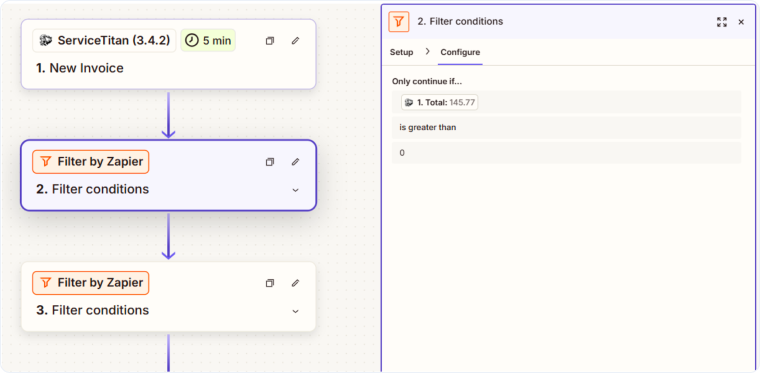
Step 2: Filter by Total Value
- Click the "+" button to add a new step.
- Search for and select "Filter by Zapier".
- Set up the filter condition:
- Field: Map the "Total" field from Step 1 (ServiceTitan trigger)
- Condition: Select "greater than"
- Value: Enter 0
- This ensures only invoices with a positive total value proceed through the workflow.
Step 3: Filter by Job ID
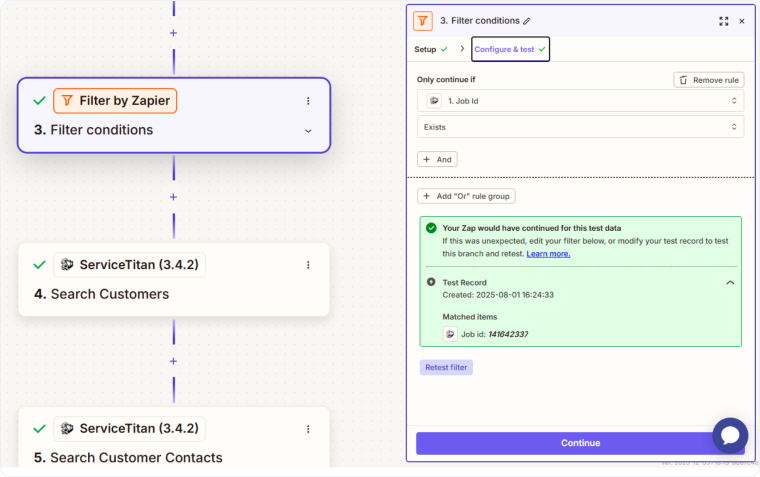
- Add another "Filter by Zapier" step.
- Set up the filter condition:
- Field: Map the "Job ID" from Step 1
- Condition: Select "exists"
- This ensures the invoice has an associated job before proceeding.
Step 4: Search for Customer Information
- Add a new ServiceTitan step.
- Choose "Search Customers" as the action.
- In the "Customers IDs" field, map the "Customer ID" from Step 1.
- Test this step to retrieve customer details.
Step 5: Search for Customer Contact Information
- Add another ServiceTitan step.
- Choose "Search Customer Contacts" as the action.
- In the "Customers Id" field, map the "Customer ID" from Step 1.
- Test this step to retrieve contact details.
Step 6: Process Contact Information with Code
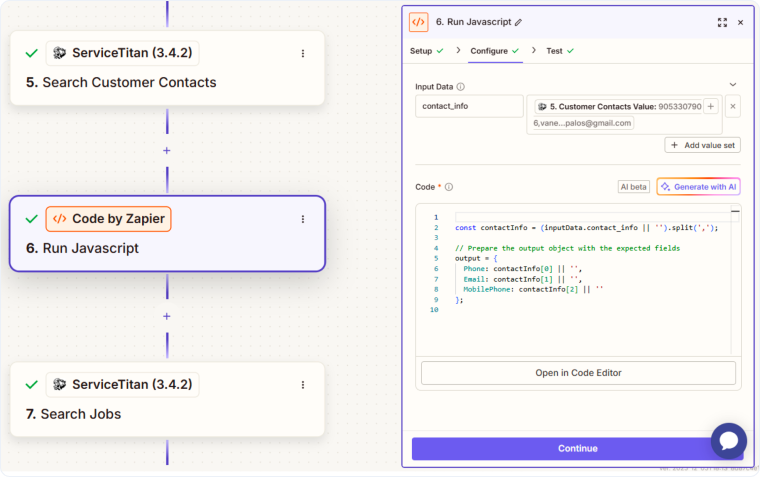
- Add a "Code by Zapier" step.
- Choose "Run Javascript" as the action.
- In the "Input Data" section, add one field:
- Field name: contact_info, then map "Customer Contacts Value" from Step 5
- In the "Code" field, paste this JavaScript:
JavaScript
 const contactInfo = (inputData.contact_info || '').split(',');

 // Prepare the output object with the expected fields
 output = {
   Phone: contactInfo[0] || '',
   Email: contactInfo[1] || '',
   MobilePhone: contactInfo[2] || ''
 };
- Test this step to verify the contact information is properly formatted.
Step 7: Search for Job Information
- Add a new ServiceTitan step.
- Choose "Search Jobs" as the action.
- In the "Type" field, map the "Job ID" from Step 1.
- Test this step to retrieve job details.
Step 8: Search for Job Type Details
- Add another ServiceTitan step.
- Choose "Search Job Types" as the action.
- In the "Job Type ID" field, map the "Job Type ID" from Step 7.
- Test this step to retrieve the job type name and details
Step 9: Create Lead in WhatConverts
- Add a "WhatConverts" step.
- Choose "Create Lead" as the action.
- Connect your WhatConverts account using your Profile ID and Secret Token.
- Map the fields into WhatConverts as needed.
- Test this step to create a test lead in WhatConverts.
- Verify the lead appears correctly in your WhatConverts account.
Activate Your Workflow
Once you've successfully tested all steps:
- Review the entire workflow to ensure all mappings are correct.
- Click "Publish" to activate the Zap.
- Monitor the first few appointments that come through to ensure everything works as expected.
Understand Sales Value Tracking
When an invoice is sent from ServiceTitan to WhatConverts through this workflow, the invoice total appears in the "Sales Value" field in WhatConverts. This allows you to track revenue attribution and understand which marketing sources generate the highest-value customers. If WhatConverts has previously tracked a marketing interaction with this customer, you'll be able to see which marketing channel ultimately led to this sale.
Related Topics
Get a FREE presentation of WhatConverts
One of our marketing experts will give you a full presentation of how WhatConverts can help you grow your business.
Schedule a Demo






