


Understand the Google Ads Integration
The Google Ads integration connects WhatConverts to your Google Ads account, enabling you to send qualified lead conversions back to Google for campaign optimization. This integration helps Google's bidding algorithms learn which ads, keywords, and campaigns generate your most valuable leads.
How It Works
The Google Ads integration creates a one way connection between WhatConverts and Google Ads for us to send conversions back. We track the attribution provided by Google Ads and use identifiers to send back conversion data. The process for tracking Google Ads is as follows:
- Google Ads sends tracking data to WhatConverts: When someone clicks your ad and Auto-Tagging is enabled, Google appends a GCLID (Google Click ID) to the destination URL. WhatConverts captures this GCLID and associates it with any leads that visitor generates (calls, forms, chats, etc.).
- WhatConverts sends conversions back to Google Ads: Based on the triggers you configure, WhatConverts sends qualified leads back to Google Ads as conversions. Google uses this conversion data to optimize your campaigns through automated bidding strategies.
- Conversion data appears in both platforms: You can view detailed lead information in WhatConverts and see conversion metrics in Google Ads reporting.
Use the Google Ads Integration
To access and manage your Google Ads integration:
- At the Profile Level, navigate to "Tracking".
- Select "Integrations".
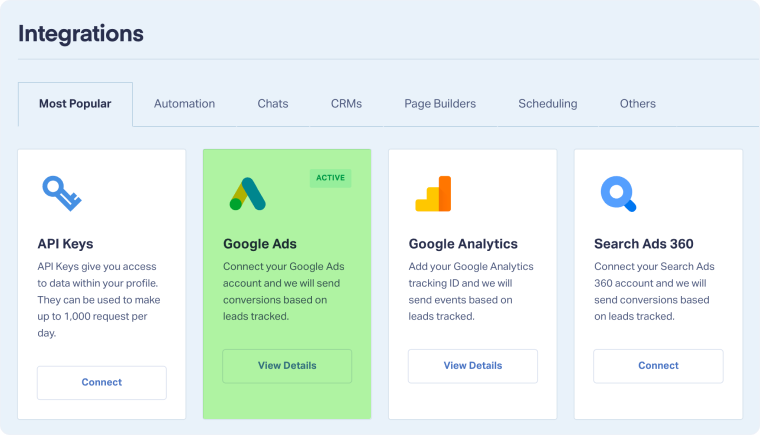
- Click "Google Ads" from the integrations list.
- From here you can:
- Add new connections to Google Ads accounts
- Edit existing connection settings
- View conversion details and status
- Change conversion triggers
- Enable or disable Enhanced Conversions
Key Integration Features
Conversion Triggers
Control which leads get sent to Google Ads as conversions:
- New Lead Received: Send every new lead from Google Ads
- Sales Value Received or Added: Only send leads with sales values attached
- Quote Value Received or Added: Only send leads with quote values attached
- Set as Quotable Lead: Only send leads marked as Yes under the "Quotable" field
- Lead Intelligence Rules (Elite plans): Use custom rules to determine which leads qualify as conversions
Value-Based Bidding
Send sales values or quote values along with conversions, allowing Google's automated bidding to optimize for revenue, not just volume.
Enhanced Conversions
Enable Enhanced Conversions to track offline conversions by sending securely hashed first-party data (phone numbers, email addresses) to Google Ads.
Conversion Statuses
WhatConverts assigns status labels to show whether conversions were successfully sent:
- Pending: Conversion is queued to send (Google requires a 6-hour wait)
- Click Conversion: Successfully sent using GCLID
- Call Conversion: Successfully sent call extension conversion using timestamp
- Enhanced Conversion: Successfully sent using hashed contact data
- Error: Conversion failed to send (hover over or click for error details)
- Blank: No conversion was triggered based on your rules
See View and Understand Your Google Ads Conversion Details for more information on interpreting conversion statuses.
Common Integration Workflows
Send Only Qualified Leads
Instead of sending every form fill or call, use the "Set as Quotable Lead" trigger to only send leads you've marked Yes under the Quotable field. This trains Google's algorithm to find similar high-quality leads.
Optimize for Revenue
Use "Sales Value Received or Added" as your trigger and enable value-based bidding. Google will optimize campaigns toward leads that generate actual revenue.
Separate Lead Types
Create different conversion actions for phone calls vs. web forms, then use Lead Intelligence rules to route each lead type to its appropriate action.
Track Offline Conversions
Enable Enhanced Conversions to send leads that convert offline (in-person sales, phone sales, etc.) back to Google Ads for complete attribution.
Related Topics
Get a FREE presentation of WhatConverts
One of our marketing experts will give you a full presentation of how WhatConverts can help you grow your business.
Schedule a Demo






