


Track GoHighLevel Web Forms
GoHighLevel is an all-in-one marketing platform that includes form builders for lead generation, appointments, and surveys.
WhatConverts can track GoHighLevel form submissions using three different methods depending on how your form is deployed: non-iframe forms that appear directly on the page, forms embedded in iframes, or multi-step forms. Each method requires adding custom JavaScript code to properly capture lead data and marketing attribution.
Note: The tracking methods below require adding custom JavaScript to your website. If you have access to your site’s code, you can add it yourself. Otherwise, contact WhatConverts Support to have the code added for you.
Method 1: Track Non-Iframe GoHighLevel Forms
Use this method if the form appears directly on the page (not embedded in an iframe).
Set Up Non-Iframe GoHighLevel Form Tracking
- Add the following code to your website directly below your WhatConverts Tracking Script (or email WhatConverts Support at support@whatconverts.com to have the code added for you):
- Go to "Tracking" from the top menu. Select "Forms" and click "Web Forms".
- Click the "Add Web Form" button, and select "Manual Setup".
- Name your form, select Attribute Type "Class" and enter Attribute Value as wc_form.
- Click "Finish".
<script type = "text/javascript">
function wc_track() {
      var els = document.querySelectorAll('div[id="_builder-form"]');
      if (els.length > 0) {
          Array.prototype.forEach.call(els, function(el) {
              var wrapper = document.createElement('form');
              el.parentNode.insertBefore(wrapper, el);
              wrapper.setAttribute('class', 'wc_form');
              wrapper.appendChild(el);
          });
      }
  }
setTimeout(wc_track, 2000);
</script>
Once added, log in to WhatConverts:
Your non-iframe GoHighLevel form should now be tracked. WhatConverts will capture all submissions from this form and create leads with full attribution data.
Note: The above code adds form tags and a class of wc_form to the GHL form. Since all GHL forms share the same <div> and ID _builder-form, this code will be applied to every GHL form on your website.
Method 2: Track Iframe GoHighLevel Forms
Use this method if the form is embedded inside an iframe.
Set Up Iframe GoHighLevel Form Tracking
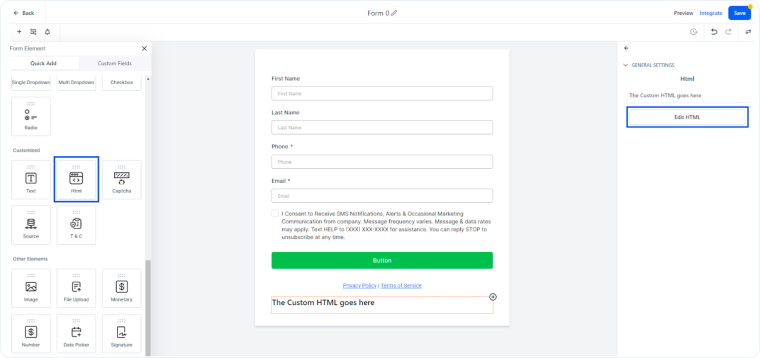
- Edit the form in GoHighLevel and add a Custom HTML element.
- In the HTML element, Add your WhatConverts Tracking Script and the code below underneath your Tracking Script:
- Add the following code to your website under your WhatConverts Tracking Script (or contact WhatConverts Support to have it added for you):
<script type = "text/javascript"> wc_frame_target = 'Use the iframe's Name, ID, or Class attribute'; </script>
Replace the bolded section above with one of the below
Name: wc_frame_target = '[name=example]';
ID: wc_frame_target = '#example';
Class: wc_frame_target = '.example'; - Log in to your WhatConverts profile.
- Go to "Tracking" from the top menu. Select "Forms" and click "Web Forms".
- Click the "Add Web Form" button, and select "Manual Setup".
- Name your form, select Attribute Type: as "Class" and enter Attribute Value: as "wc_form".
- Click "Finish".
<script type = "text/javascript">
wc_frame_parent = 'Replace with Website URL(https://www.example.com)';

var els = document.querySelectorAll('div[id="_builder-form"]');
if (els.length > 0) {
        Array.prototype.forEach.call(els, function(el) {
            var wrapper = document.createElement('form');
            el.parentNode.insertBefore(wrapper, el);
            wrapper.setAttribute('class', 'wc_form');
            wrapper.appendChild(el);
        });
};
</script>
Once the code is added:
Your iFrame GoHighLevel form should now be tracked. WhatConverts will capture all submissions from this form and create leads with full attribution data.
Method 3: Track Multi-Step GoHighLevel Forms
Use this method if the form includes multiple steps.
Set Up Multi-Step GoHighLevel Form Tracking
- Check if the form is an iframe:
- If the form is in an iframe, follow the steps outlined in the Method 2: Track Iframe GoHighLevel Forms section above.
- If the form is not in an iframe, continue to step 2.
- Add the following code to your website under your WhatConverts Tracking Script:
- Log in to your WhatConverts profile.
- Go to "Tracking" from the top menu. Select "Forms" and click "Web Forms".
- Click the "Add Web Form" button, and select "Manual Setup".
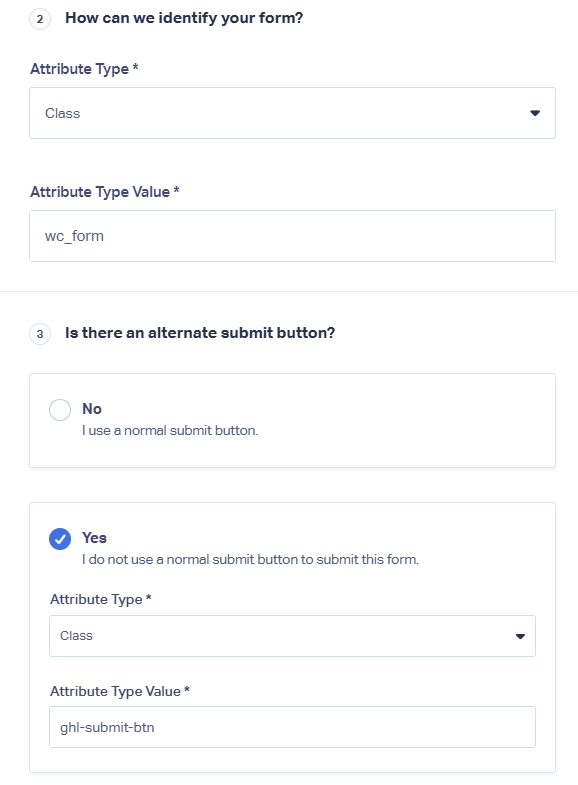
- Name your form, select Attribute Type: as "Class" and enter Attribute Value: as wc_form.
- Set up an Alternate Submit button with Attribute Type "Class" and enter Attribute Value as ghl-submit-btn.
<script type = "text/javascript">
function wc_track() {
      var els = document.querySelectorAll('div[id="_builder-form"]');
      if (els.length > 0) {
          Array.prototype.forEach.call(els, function(el) {
              var wrapper = document.createElement('form');
              el.parentNode.insertBefore(wrapper, el);
              wrapper.setAttribute('class', 'wc_form');
              wrapper.appendChild(el);
          });
      }
  }
setTimeout(wc_track, 2000);
</script>
Your multi-step GoHighLevel form should now be tracked. WhatConverts will capture all submissions from this form and create leads with full attribution data.
Test Your GoHighLevel Form Tracking
After setting up tracking using any of the methods above, verify that form submissions are being captured correctly:
- Go to the page where your GoHighLevel form is located.
- Fill out the form with test information and submit it.
- Return to your WhatConverts profile and view your form leads.
- Find the test form submission and check its data.
If your test lead appears correctly, your GoHighLevel form tracking is working properly.
Related Topics
- What is Web Form Tracking?
- Track Web Forms Automatically with the Form Finder
- Track Multi-Step Forms
- Track Iframe Forms
Get a FREE presentation of WhatConverts
One of our marketing experts will give you a full presentation of how WhatConverts can help you grow your business.
Schedule a Demo






