


Set Up WooCommerce Transaction Tracking
Set up transaction tracking for your WooCommerce store. Learn more about what this integration offers in What is the WooCommerce Integration?
Note Box: You must have your WhatConverts Tracking Code placed in the <head> of the page. If you are using the WhatConverts WordPress Plugin or Google Tag Manager, you will need to deactivate that and place the HTML Tracking Code in the header of your page. You can use a plugin such as Insert Headers and Footers to accomplish this.
Before You Begin
Make sure you have:
- A WooCommerce store with WordPress admin access
- Your WhatConverts tracking script installed in the <head> of your site
- Admin access to install WordPress plugins
Step 1: Install the Code Snippets Plugin
- Download, install, and activate the Code Snippets Plugin.
Step 2: Add the WooCommerce Tracking Code Snippet
- In your WordPress dashboard, hover over "Snippets" and select "Add New" from the menu.
- Give your snippet a name (e.g., "WhatConverts WooCommerce Tracking").
- Paste the following code in the "Code" section:
add_action('woocommerce_thankyou', 'whatconverts_tracking'); function whatconverts_tracking($order_id) { if ($order_id > 0) { $order = wc_get_order($order_id); if ($order instanceof WC_Order) { // Ensure atomic check-and-set to prevent duplicate processing. if (get_post_meta($order_id, '_wc_whatconverts_tracked', true)) { return; // Stop if already tracked. } update_post_meta($order_id, '_wc_whatconverts_tracked', true); $completion_date = empty($order->get_date_paid()) ? strtotime($order->get_date_created()) : strtotime($order->get_date_paid()); $completion_date_readable = date('Y-m-d H:i:s', $completion_date); $current_date = new DateTime(); $time_difference = $current_date->getTimestamp() - $completion_date; if ($time_difference < 180) { // Ensure script is added only for recent orders. $order_data = [ 'order_id' => $order->get_id(), 'total' => $order->get_total(), 'tax_total' => array_sum(array_column($order->get_tax_totals(), 'amount')), // Sum all tax amounts 'shipping_total' => $order->get_shipping_total(), 'email' => $order->get_billing_email(), 'name' => trim($order->get_billing_first_name() . ' ' . $order->get_billing_last_name()), 'company' => $order->get_billing_company(), 'address_1' => $order->get_billing_address_1(), 'address_2' => $order->get_billing_address_2(), 'city' => $order->get_billing_city(), 'state' => $order->get_billing_state(), 'postcode' => $order->get_billing_postcode(), 'country' => $order->get_billing_country(), 'completion_date' => $completion_date_readable ]; echo '<script type="text/javascript"> (function() { var orderData = '.json_encode($order_data, JSON_HEX_APOS | JSON_HEX_QUOT).'; // LocalStorage check var storedOrders = JSON.parse(localStorage.getItem("whatconvertsTrackedOrders") || "[]"); if (storedOrders.includes(orderData.order_id)) return; // SessionStorage check if (sessionStorage.getItem("whatconvertsTracked-" + orderData.order_id)) return; sessionStorage.setItem("whatconvertsTracked-" + orderData.order_id, "true"); // Mark order as tracked in localStorage storedOrders.push(orderData.order_id); localStorage.setItem("whatconvertsTrackedOrders", JSON.stringify(storedOrders)); // Execute tracking function wc_transaction_ypbib( orderData.order_id, parseFloat(orderData.total), parseFloat(orderData.tax_total), parseFloat(orderData.shipping_total), { "Email Address": orderData.email, "Name": orderData.name, "Company": orderData.company, "Address 1": orderData.address_1, "Address 2": orderData.address_2, "City": orderData.city, "State": orderData.state, "Postal Code": orderData.postcode, "Country": orderData.country, "Completion Date": orderData.completion_date } ); })(); </script>'; } } } } - Select "Run snippet everywhere".
- Click "Save Changes and Activate".
Step 3: Verify Transaction Tracking
- Place a test order on your WooCommerce store.
- Complete the checkout process and reach the order confirmation page.
- Log in to your WhatConverts account.
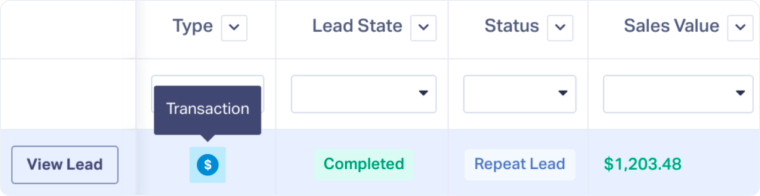
- Access the Lead Manager and look for your test transaction.
- Verify that the transaction amount and marketing attribution data appear correctly.
Related Topics
Was this page helpful?
Get a FREE presentation of WhatConverts
One of our marketing experts will give you a full presentation of how WhatConverts can help you grow your business.
Schedule a Demo






