


Understand Google Ads Enhanced Conversions
Enhanced Conversions is a Google Ads feature that improves conversion tracking accuracy by securely hashing first-party customer data (like phone numbers and email addresses) and matching it with Google's user database. This enables tracking of offline conversions, cross-device conversions, and conversions that lack a GCLID.
Why Use Enhanced Conversions?
Enhanced Conversions solve several tracking gaps that standard conversion tracking can't address:
Track Offline Conversions
When someone clicks your ad but converts offline (phone call, in-person visit, sales call weeks later), there's no GCLID to connect the conversion back to the original ad. Enhanced Conversions use the customer's phone number or email to match them back to the ad click.
Track Cross-Device Conversions
If someone clicks your ad on mobile but later converts on desktop, the GCLID may not transfer. Enhanced Conversions match the user across devices using their contact information.
Improve Smart Bidding Accuracy
Google's automated bidding strategies rely on conversion data to optimize. Enhanced Conversions provide more complete data, enabling Smart Bidding to find more qualified leads.
Maintain Privacy Compliance
Enhanced Conversions hash customer data before sending it to Google, keeping it secure and compliant with privacy regulations like GDPR.
How Enhanced Conversions Work
- Customer converts: A lead comes into WhatConverts with a phone number and/or email address.
- Data is hashed: WhatConverts securely hashes the contact information before sending it.
- Google matches the data: Google compares the hashed data against their own hashed user database.
- Conversion is attributed: If a match is found with someone who clicked your ad, Google attributes the conversion to that ad, campaign, and keyword.
Enable Enhanced Conversions in Google Ads
Before enabling Enhanced Conversions in WhatConverts, you must configure Google Ads to accept them:
Accept Customer Data Terms
To enable enhanced conversions in Google Ads:
- In your Google Ads account, go to "Goals", then select "Conversions".
- On the Conversions page, click "Settings".
- Click "Enhanced conversions".
- Select "Customer data terms" and ensure they have been accepted.

Enable Enhanced Conversions in WhatConverts
Once Google Ads is configured, enable Enhanced Conversions in WhatConverts:
- Navigate to Profile level in WhatConverts.
- Go to "Tracking" and open "Integrations".
- Select "Google Ads".
- Click "View Details" on your connection.
- Click "Edit Connection".
- Scroll to the bottom of the panel to "Send leads as Enhanced Conversions?"
- Select "Yes". Save your changes.
How Enhanced Conversions Work with Conversion Triggers
With Enhanced Conversions enabled, WhatConverts sends conversions based on your selected trigger:
Standard Conversion Triggers
- New Lead Received: Any new lead with a phone number or email is sent as an Enhanced Conversion
- Sales Value Received or Added: Leads with sales values are sent with the value included
- Quote Value Received or Added: Leads with quote values are sent with the value included
- Set as Quotable Lead: Only leads marked quotable are sent
Lead Intelligence Rules
In Elite plans, you can use Lead Intelligence to create custom rules for Enhanced Conversions:
- Navigate to "Profile Settings" and open "Lead Intelligence".
- Create a new rule with your desired conditions (e.g., "Duration > 60 seconds AND Quotable is Yes").
- Under Actions, select "Send lead conversion to" and choose "Google Ads".
- Enable Enhanced Conversions by toggling the checkbox under the Send Conversion to Google Ads section.
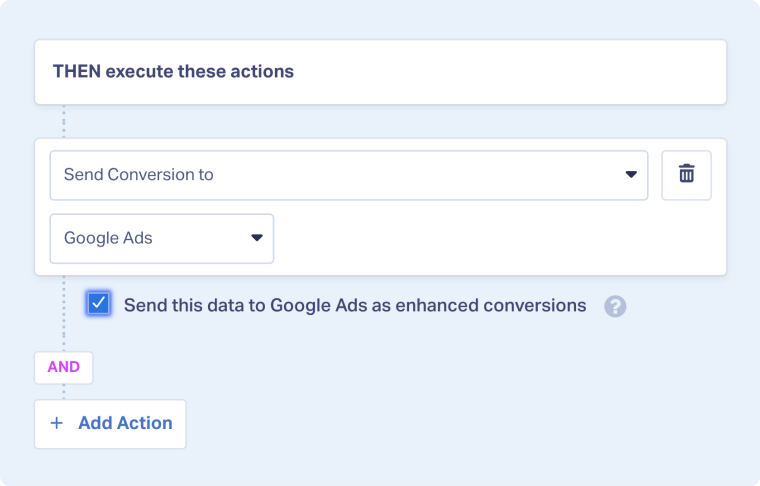
This allows you to send only specific qualified leads as Enhanced Conversions.
Understand Enhanced Conversion Status
In WhatConverts Lead Manager, Enhanced Conversions appear under the Google Ads Conversion dimension with the status "Enhanced Conversion" when successfully sent. This indicates:
- The lead had a phone number and/or email address
- It met the trigger condition set up to send a Google Ads conversion
- Google accepted the conversion
Learn more about Conversion statuses in View and Understand Your Google Ads Conversion Details
Note: Google may or may not be able to match the hashed data to a user who saw your ads. WhatConverts confirms the data was sent successfully, but does not receive a response from Google indicating whether it was counted or not.
Enhanced Conversions vs. Standard Conversions
Standard Conversions (GCLID-based)
- Require the lead to have clicked a Google Ad and have a GCLID
- Only track conversions that happen on the same device/browser
- Cannot track offline conversions
Enhanced Conversions
- Track cross-device conversions
- Track offline conversions
- Requires a phone number and/or email address
Note: If a lead can be sent as a Click or Call Conversion, WhatConverts will always prioritize those methods of sending first. They have a higher likelihood of being matched and counted in Google Ads.
For more information on Enhanced Conversions, see Google's Enhanced Conversions Guide.
For more information on Enhanced Conversions, see Google's Enhanced Conversions Guide.
Related Topics
Get a FREE presentation of WhatConverts
One of our marketing experts will give you a full presentation of how WhatConverts can help you grow your business.
Schedule a Demo






