


Track Google Ads While Using ClickCease
ClickCease helps protect your Google Ads campaigns from invalid clicks, but it also adds its own tracking template. To ensure WhatConverts continues tracking your Google Ads campaign data correctly, you need to add two pieces of tracking inside your Google Ads account:
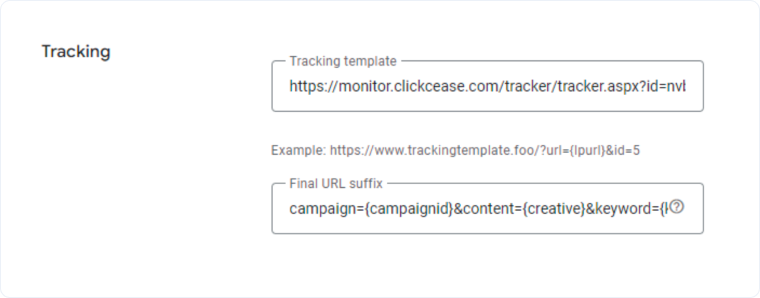
- ClickCease tracking template (placed in the Tracking template field)
- WhatConverts ValueTrack template (placed in the Final URL suffix field)
This article explains how both work together and where to place each one.
How ClickCease and WhatConverts Work Together
Google Ads supports multiple tracking layers, but each must be in the correct field:
- ClickCease uses the Tracking template
- WhatConverts uses the Final URL suffix field to capture ValueTrack parameters (campaign, keyword, and ad group).
When each template is placed correctly, both tools work without interfering with each other.
Add ClickCease and WhatConverts Tracking in Google Ads
To apply both tracking templates at the account level:
- Sign in to your Google Ads account.
- Click "Admin" in the left menu.
- Select "Account settings".
- Click "Tracking".
- In the Tracking template field, add your ClickCease tracking template.
- In the Final URL suffix field, add the following:
campaign={campaignid}&content={creative}&keyword={keyword} - Click "Save".
Related Topics
Was this page helpful?
Get a FREE presentation of WhatConverts
One of our marketing experts will give you a full presentation of how WhatConverts can help you grow your business.
Schedule a Demo






