


Track Calls from Google Ads Location Assets (formerly Location Extensions)
Location Extensions display your business address, phone number, and map location alongside your Google Ads. To track calls from Location Extensions in WhatConverts, you need to add a tracking number to your Google Business Profile.
Before You Begin
Before setting up Location Extension call tracking, ensure you have:
- An active Google Ads account with Location Assets (formerly Location Extensions) enabled
- A Google Business Profile (formerly Google My Business)
- A WhatConverts account
- Your country qualifies for Google Business Profile (check eligible countries)
How It Works
Location Assets pull phone number information from your Google Business Profile. By adding a WhatConverts tracking number to your Business Profile, calls from Location Assets are routed through the tracking number, allowing you to attribute calls back to your Google Ads campaigns.
Set Up Location Extension Tracking
Create a Tracking Number in WhatConverts
- In your WhatConverts Profile, select "Tracking" from the top menu.
- Select "Calls", then "Phone Numbers".
- Click "+ Add Phone Number".
- Select "Advanced Setup".
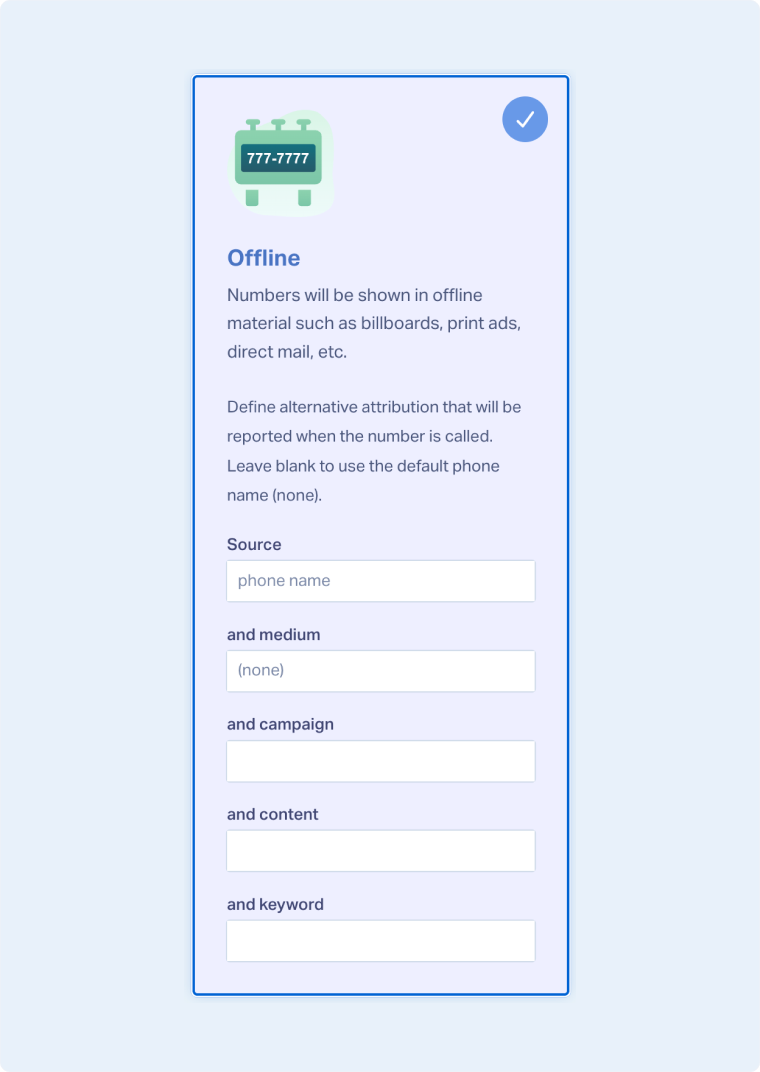
- For "Where will you show these new numbers?", select "Offline". Click “Next Step”.
- Here you can fill out the attribution that will show up on your leads. Some will have placeholders already that are semi-transparent. You can replace those with a custom value you’d prefer. You can fill in Source, Medium, Campaign, Content, and Keyword to be attributed to your leads whenever you receive a call. Click “Next Step”.
- Move the slider to “1”. Choose the Country, Phone Number Type (Local or Toll-Free), and Area Code.
- Click “Find Numbers”.
- Review and select your preferred number, then click “Next Step”.
- Enter the Destination Number (the line your calls will forward to) and give your tracking number a descriptive name.
- Review and adjust optional features such as Call Recording, Call Greeting, or Call Whisper as needed. Click “Finish”.
Add the Number to Google Business Profile
To add the number to your Google Business Profile:
- While logged into Google Business Profile, search for your business and find your business profile in the search results.
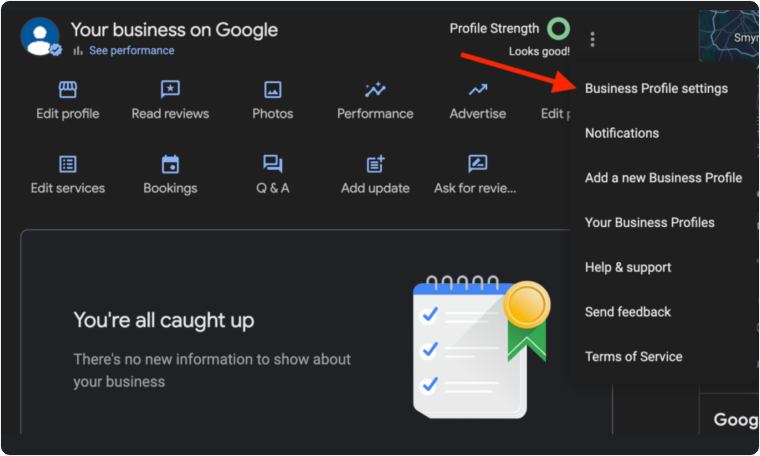
- Click on the menu icon and select "Business Profile Settings".
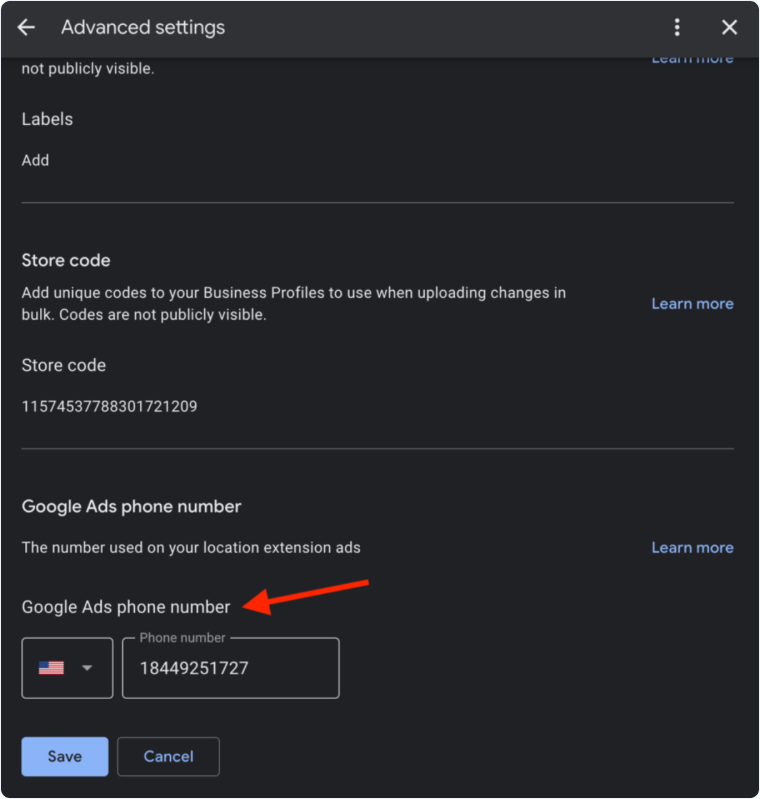
- Locate your business's Contact Number section.
- Paste or enter the tracking number created in WhatConverts.
- Click "Save".
Note: Using this method helps you maintain NAP (Name, Address, Phone) consistency for your listing. Consider adding your original business phone number as a secondary number in your Business Profile to maintain consistency across other directories.
Understand Attribution
When a lead comes from a Google Ads Location Extension, you will see in WhatConverts:
- Source: google
- Medium: cpc (if from a paid ad)
- Campaign: Your Location Extension campaign name
The tracking number routes calls through WhatConverts, capturing call details like:
- Caller information
- Call duration and recording
- Which ad or campaign triggered the call
- Complete attribution data
Maintain NAP Consistency
To maintain Name, Address, Phone (NAP) consistency across the internet:
- Add the WhatConverts tracking number as your Primary Phone in Google Business Profile.
- Add your actual business phone number as an Additional Phone number.
- This maintains consistency while allowing call tracking from Location Assets.
Update Your Website URL for Campaign Tracking
You can update your URL in your Google Business Profile listing to capture a campaign name that will be reported in WhatConverts:
- Log in to Google Business Profile.
- Click "Info" on the left menu.
- Locate your business's Website URL and click the Pencil Icon to edit the URL.
- Add campaign parameters to your URL:
https://www.yourwebsite.com?utm_source=google&utm_medium=organic&utm_campaign=GoogleMyBusiness - Save the updated URL.
When a user clicks through to your website from Google Business Profile, the click would normally be considered source: Google, medium: Organic. With campaign parameters added, WhatConverts will identify that the click came from your Business Profile listing.
Troubleshooting
If calls aren't being tracked:
- Check that Location Assets are enabled and active in Google Ads
- Verify your Google Business Profile is verified and linked to Google Ads
Related Topics
Get a FREE presentation of WhatConverts
One of our marketing experts will give you a full presentation of how WhatConverts can help you grow your business.
Schedule a Demo






