


Send Leads to Make.com with Webhooks
To automatically send new leads from WhatConverts to your Make account, you need to create a webhook in Make and connect it to your WhatConverts account. This setup ensures your lead data flows seamlessly into Make for further automation without manual input.
Before you start, see What is the Make.com Integration? for an overview.
Create a Make.com Webhook
To create a webhook in Make:
- Log in to your Make account.
- Click “+ Create scenario”.
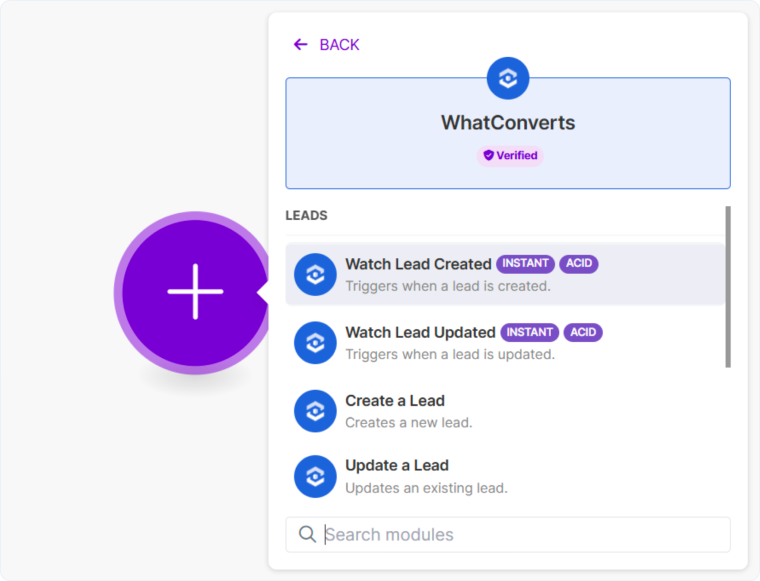
- Click the large + icon and search for “WhatConverts”.
- Select “Watch Lead Created”.
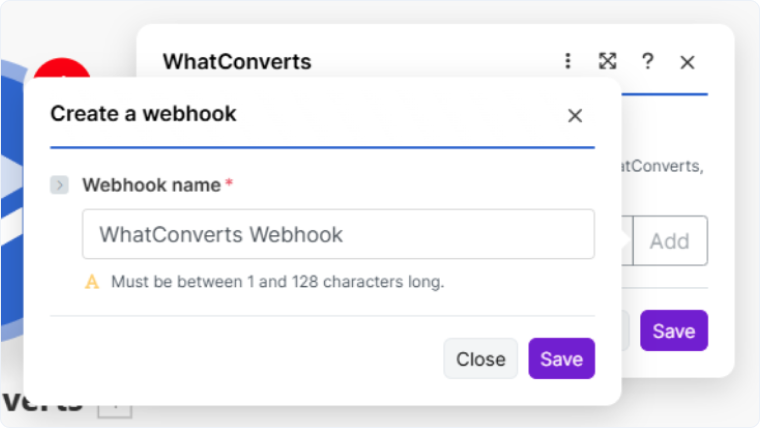
- On the Webhooks page, click “Add”.
- Enter a name for your webhook and click “Save”.
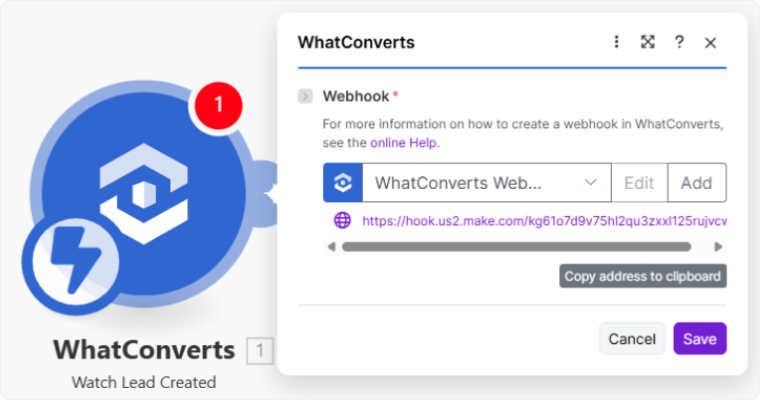
- Copy the Webhook URL.
Add the Webhook in WhatConverts
Once you have the Webhook URL:
- Log in to your WhatConverts account.
- At the top of your page, go to “Tracking” and access “Integrations”.
- Select “Automation” and then “Webhooks”.
- Click “+ Add Webhook”.
- Enter the Webhook URL.
- Click “Next Step”.
- Choose the types of leads you want to send to Make.
- Click “Finish”.
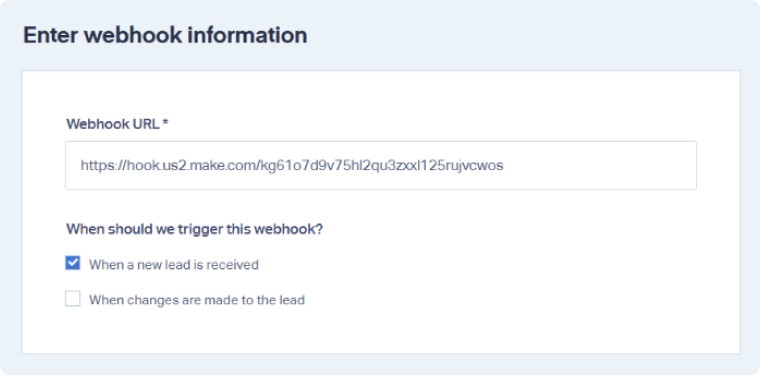
Note: By default, only new leads will be sent. Under When should we trigger this webhook?, you can choose to send updated leads as well.
Test the Webhook
To verify the webhook is working:
- Submit a test lead in WhatConverts.
- Log in to Make and confirm the lead appears in your scenario.
Related Topics
- What is the Make.com Integration?
- What is the Zapier Integration?
- What is the LeadsBridge Integration?
Was this page helpful?
Get a FREE presentation of WhatConverts
One of our marketing experts will give you a full presentation of how WhatConverts can help you grow your business.
Schedule a Demo






