


Connect WhatConverts to Capsule CRM
This article explains how to connect WhatConverts to Capsule CRM through Zapier to automatically sync lead data and sales information between the two platforms.
Before You Begin
To set up this integration, you will need:
- A Capsule CRM account and your site address
- A Zapier account
- Your WhatConverts API key:
- For Master Account integrations: Generate a Master API Key
- For Profile integrations: Generate a Profile API Key
Set up Custom Fields
Note: Only Capsule CRM administrators can add and manage Custom Fields.
First, create a Lead ID custom field you’ll use in your workflows:
- Create a custom field in Capsule CRM to store the WhatConverts Lead ID
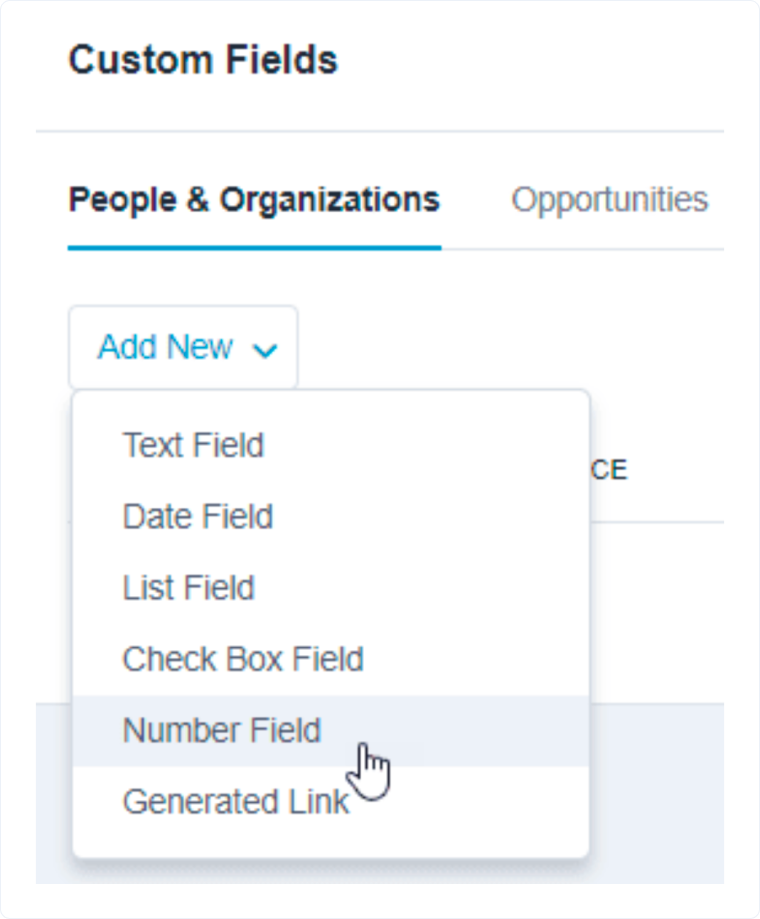
- Navigate to the “Account Settings” and then “Custom Fields”
- Use the tabs to select the Custom Fields for People & Organizations
- Click “Add New”
- Select “Number Field” from the dropdown.
- Give the Custom Field a Label and save
When sending leads from WhatConverts to Capsule, map the Lead ID to this custom field
When sending sales data from Capsule to WhatConverts, reference this custom field to find the correct lead to update
Connect Capsule CRM to Zapier
To connect your Capsule CRM account to Zapier:
- When setting up your first Capsule CRM step in a Zapier workflow, you'll be prompted to connect your account.
- Click "Sign in to Capsule".
- Enter your Capsule CRM site address (for example, yourcompany.capsulecrm.com).
- Click "Continue".
- Log in to your Capsule CRM account to authorize Zapier and select “Allow”.
- Your Capsule CRM account will now be connected and available for all your Zapier workflows.
Understand Data Flow Options
The Capsule CRM integration supports bidirectional data flow through separate Zapier workflows:
From WhatConverts to Capsule CRM
- Send new lead data from WhatConverts to create contacts in your CRM
- Keep your sales team updated with fresh leads from your marketing efforts
- Store the WhatConverts Lead ID as a custom field in Capsule for future updates
From Capsule CRM to WhatConverts
- Send quote values and sales data back to WhatConverts when deals close
- Track revenue attribution to understand which marketing sources generate the most valuable customers
- Update existing leads in WhatConverts with sales information from your CRM
Set Up Your Zapier Workflows
The Capsule CRM integration requires separate Zapier workflows for each type of data you want to sync. Choose which workflows you need based on your business requirements:
To send data FROM WhatConverts TO Capsule CRM
- Follow the step-by-step instructions in the Send Leads from WhatConverts to Capsule CRM article to create the lead-to-contact workflow
To send data FROM Capsule CRM TO WhatConverts
- Follow the step-by-step instructions in the Send Quote and/or Sales Value from Capsule CRM to WhatConverts article to create the sales tracking workflow
Test Your Connection
After setting up your Zapier workflows:
- Create a test record in the source platform (lead or contact update, depending on your workflow).
- Verify that the Zapier workflow triggers and completes successfully.
- Check the destination platform to confirm that the data was created or updated with the correct information.
- Review the Validate and Troubleshoot Your Capsule CRM Integration article if you encounter any issues during testing.
Related Topics
Get a FREE presentation of WhatConverts
One of our marketing experts will give you a full presentation of how WhatConverts can help you grow your business.
Schedule a Demo






