


Create Conversion Actions Using the Google Ads Integration
Conversion actions in Google Ads define what counts as a conversion and how Google tracks it. WhatConverts allows you to create multiple conversion actions, enabling you to separate different lead types or send specific leads to different actions for more precise campaign optimization.
How It Works
When you set up the Google Ads integration, WhatConverts creates a default conversion action in your Google Ads account called "Leads (your profile id)". You can create additional conversion actions by editing the integration and changing the conversion action name. Each conversion action can have different triggers and settings, allowing you to send phone calls to one action and web forms to another, for example.
Create Conversion Actions
Create Your First Conversion Action
When you connect WhatConverts to Google Ads for the first time, WhatConverts automatically creates your first conversion action.
For setup steps, see Connect WhatConverts to Google Ads.
Create Additional Conversion Actions
To create more conversion actions for the same Google Ads account:
- In your WhatConverts profile, navigate to "Tracking".
- Open "Integrations" and select "Google Ads".
- Click "View Details" on your existing connection.
- Click "Edit Connection".
- Change the "Conversion Action Name" to a new name (e.g., change "Leads" to "Phone Call Conversions").
- Update the "Call Extension Conversion Action Name" if needed.
- Save your changes.
A new conversion action will be created in Google Ads with the new name. The previous conversion action remains in Google Ads and can still receive conversions if you route leads to it (for example, with Lead Intelligence).
Note: If you rename an existing conversion action in Google Ads directly (not through WhatConverts), WhatConverts will no longer be able to send conversions to it. Always create new conversion actions through the WhatConverts integration panel.
Route Leads to Specific Conversion Actions with Lead Intelligence
For Elite plan users, you can use Lead Intelligence to route different lead types to different conversion actions:
- Create the conversion actions you want to use in the Google Ads integration panel (e.g., "Phone Call Conversions" and "Web Form Conversions").
- Navigate to "Profile Settings" and open "Lead Intelligence".
- Create a new Lead Intelligence rule.
- Set conditions for which leads should trigger this action (e.g., "Lead Type is Phone Call").
- Under Actions, select "Send lead conversion to" and choose "Google Ads".
- Select the specific conversion action to send to (e.g., "Phone Call Conversions").
- Save and activate the rule.
- Repeat for other lead types and conversion actions.
This allows you to send phone calls to one conversion action, web forms to another, and high-value transactions to a third action, giving you granular control over what Google optimizes for.
Common Conversion Action Strategies
Separate by Lead Type
Create different actions for calls, forms, chats, and transactions. This helps Google understand which ad formats and keywords drive which interaction types.
- Conversion Action 1: "Phone Call Leads"
- Conversion Action 2: "Web Form Leads"
- Conversion Action 3: "Chat Leads"
Separate by Qualification Level
Create actions for different stages of qualification:
- Conversion Action 1: "All Leads" (New Lead trigger)
- Conversion Action 2: "Qualified Leads" (Quotable trigger)
- Conversion Action 3: "Closed Sales" (Sales Value trigger)
Separate by Campaign Type
Create actions for different campaign objectives:
- Conversion Action 1: "Brand Campaign Conversions"
- Conversion Action 2: "Non-Brand Campaign Conversions"
- Conversion Action 3: "Remarketing Campaign Conversions"
Use Lead Intelligence rules to route leads based on campaign or keyword data.
View Conversion Actions in Google Ads
To see all conversion actions created by WhatConverts:
- Log in to your Google Ads account.
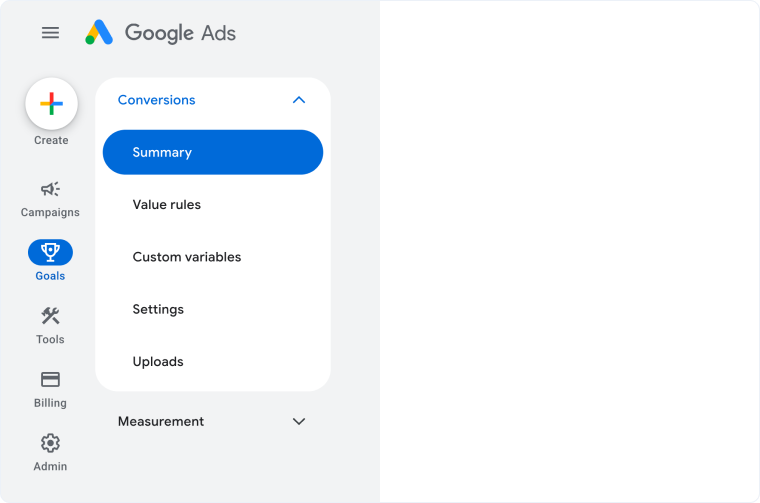
- Click the Goals section on the left-hand bar and select “Conversions”, then “Summary”.
- Select View All Conversion Actions in blue on the right-hand side.
- You'll see all conversion actions, including those created by WhatConverts.
Note: Do not rename WhatConverts conversion actions in Google Ads, unless you are using Lead Intelligence. If renamed from Google Ads, this change won’t affect WhatConverts, and we will continue sending to the same conversion action. Only Lead Intelligence offers a two-way connection to Google Ads and can see name updates.
Related Topics
Get a FREE presentation of WhatConverts
One of our marketing experts will give you a full presentation of how WhatConverts can help you grow your business.
Schedule a Demo






