


Create a Lead Export with Zapier
The "Create Export" action allows you to automatically export filtered lead data from WhatConverts as a CSV file and send it to your preferred platform via Zapier. Use this action to schedule regular exports to Google Sheets, receive exports via email, or automate data backups.
Learn more in What is the Zapier Integration?
How It Works
The Create Export action generates a CSV file containing lead data based on your specified filters (profile, date range, lead type, source, quotable status, etc.). The CSV file can then be sent to another app through an additional Zapier action step, such as emailing the file as an attachment or uploading it to Google Sheets.
Set Up a Lead Export Workflow
Follow these steps to create an automated lead export:
Step 1: Choose Your Trigger
- Log in to your Zapier account.
- In the left-hand menu, click "+ Create", then click "Zaps".
- Select a trigger that determines when the export should run:
- Schedule by Zapier. Run exports on a recurring schedule (daily, weekly, monthly)
- WhatConverts "New Lead" or "Updated Lead". Export leads based on incoming or updated data
- Any other trigger that fits your workflow
- Configure your trigger settings and click “Continue”.
Step 2: Add the Create Export Action
- Click the "+" button to add a new action step.
- Search for and select "WhatConverts" as the Action App.
- Choose "Create Export" as the Action Event.
- Click “Continue”.
- Connect your WhatConverts account if you haven't already.
- Configure the export filters to specify which leads to include:
- Profile. Select the WhatConverts profile to export from
- Filter by specific account (optional)
- Lead Status. Filter by status (e.g., Open, Closed Won, Closed Lost)
- Quotable. Filter for quotable leads only (Yes/No)
- Quote Value. Filter by quote value range
- Sales Value. Filter by sales value range
- Spam. Include or exclude spam leads
- Duplicate. Include or exclude duplicate leads
- Start Date. Beginning of date range for export
- End Date. End of date range for export
- Lead Type. Filter by specific lead types (Phone Call, Web Form, Chat, Transaction, SMS)
- Source. Filter by traffic source (e.g., google, bing, facebook)
- Medium. Filter by medium (e.g., cpc, organic, referral)
- Campaign. Filter by campaign name
- Content. Filter by ad content or ad group
- Keyword. Filter by specific keywords
- Click “Continue”.
- Click “Test & Continue” to generate a sample file.
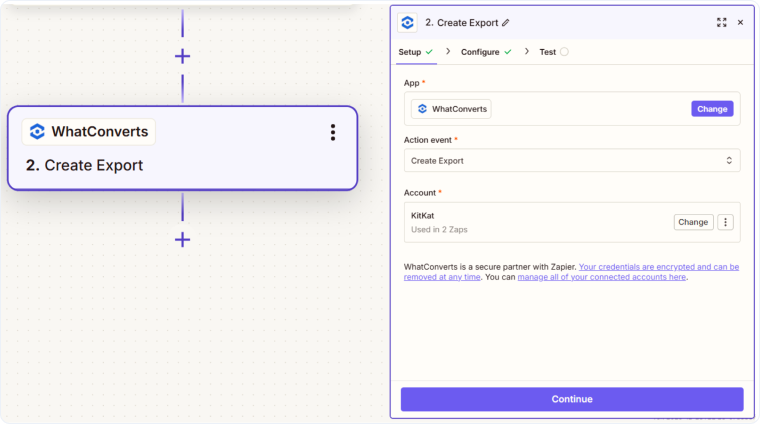
Note: This will generate a compressed file and needs to be sent through a 3rd step to be usable.
Step 3: Send the Export File
- Click the "+" button to add another action step.
- Choose how you want to receive the export:
Option A: Email the Export
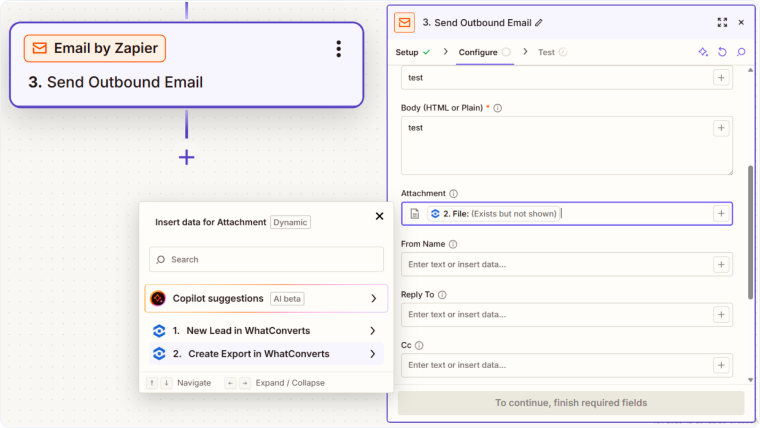
- Search for and select "Email by Zapier".
- Choose "Send Outbound Email" as the Action Event.
- Configure the email settings:
- To: Your email address
- Subject: Customize the subject line (e.g., "WhatConverts Lead Export - [Date]")
- Body: Add a message explaining the export
- Attachment: Map the File field from Step 2 (Create Export) to the Attachment field
- The CSV file will be attached to the email.
Option B: Upload to Google Sheets
- Search for and select "Google Sheets".
- Choose an appropriate action (e.g., "Create Spreadsheet from Text/CSV").
- Map the File field from Step 2 (Create Export) to the appropriate field.
- Click “Continue”.
- Test the action to ensure the export is delivered correctly.
- Publish your Zap to activate the automated export workflow.
Common Export Workflows
- Monthly reporting: Schedule a monthly export of all quotable leads and email it to your team.
- Weekly backup: Export all leads from the past week to Google Sheets for backup and analysis.
- Campaign performance: Export leads from specific campaigns when they reach a certain threshold.
- Sales reconciliation: Export leads with sales values at the end of each month for accounting purposes.
Related Topics
Get a FREE presentation of WhatConverts
One of our marketing experts will give you a full presentation of how WhatConverts can help you grow your business.
Schedule a Demo






