


Connect Keragon to WhatConverts with API Keys
Connecting Keragon to WhatConverts using API keys enables HIPAA-compliant workflow automation between the platforms. Once connected, you can create workflows that trigger on new or updated leads and perform actions like creating, updating, or retrieving lead data.
Before You Begin
Make sure you have:
- A Keragon account with workflow creation permissions
- Your WhatConverts API key:
- For Master Account integrations: Generate a Master API Key
- For Profile integrations: Generate a Profile API Key
Create a Workflow in Keragon
To connect WhatConverts to Keragon:
- Log in to your Keragon account.
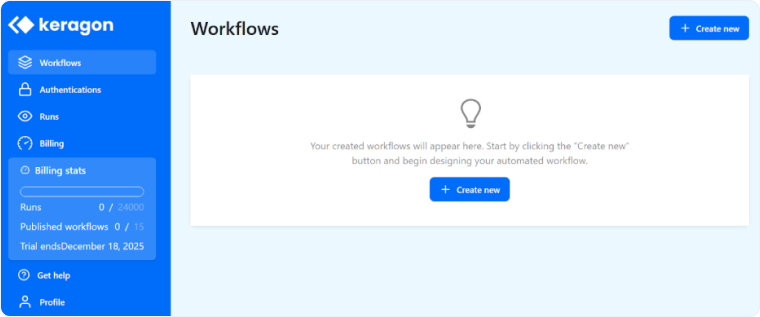
- Click "Create Workflow" to start a new automation.
- You'll be prompted to select your trigger and action platforms.
Set Up a Trigger from WhatConverts
To trigger workflows based on WhatConverts activity:
- Select "WhatConverts" as your trigger platform.
- Choose your trigger event:
- "New Lead". Fires when a new lead is created in WhatConverts
- "Updated Lead". Fires when an existing lead is modified
- Enter your WhatConverts API Key when prompted to authenticate the connection.
- Select your Profile to specify which WhatConverts profile to monitor.
- Configure any additional trigger settings based on your needs.
- Click "Test Step" to verify the trigger works correctly.
Note: Testing will retrieve a maximum of 500 records created in the last 5 minutes.
Set Up an Action in WhatConverts
To perform actions on WhatConverts data:
- Select "WhatConverts" as your action platform.
- Choose your action type:
- "Get Leads". Retrieve all leads, optionally filtered by email
- "Get Lead". Find a single lead by Lead ID
- "Create Lead". Add a new lead to WhatConverts
- "Update Lead" Modify an existing lead
- Enter your WhatConverts API Key when prompted to authenticate.
- Configure the required fields for your chosen action:
For Get Leads- Email address filter (optional)
- Max items to retrieve (set to 1 for single results)
For Get Lead
- Profile ID (required)
- Lead ID (required)
For Create Lead
- Profile ID (required)
- Lead Type (required) – Select from phone call, web form, chat, transaction, etc.
- Send notification (required) – Choose whether to notify users about the new lead
- Complete the default lead fields (name, phone, email, etc.)
For Update Lead
- Profile ID (required)
- Lead ID (required)
- Fields you can update:
- Quote value
- Sales value
- Lead page URL
- Quotable status
- Map any data from your trigger to the action fields.
- Click "Test" to verify the action works correctly.
Verify Your Connection
After setting up your workflow:
- Check that the connection status shows as active.
- Run a test to ensure data flows correctly.
- Monitor the first few workflow executions to confirm everything works as expected.
- Review any error messages and adjust the configuration if needed.
Important Field Limitations
When working with the Keragon integration, remember:
- Create Lead uses WhatConverts default fields only, you cannot add custom fields
- Update Lead can only modify four fields: quote value, sales value, lead page URL, and quotable status
- Other lead fields cannot be modified through Keragon actions
Related Topics
Was this page helpful?
Get a FREE presentation of WhatConverts
One of our marketing experts will give you a full presentation of how WhatConverts can help you grow your business.
Schedule a Demo






