


Connect WhatConverts to Housecall Pro
Connecting WhatConverts to Housecall Pro through Zapier enables automated data transfer in both directions: you can send job and appointment data from Housecall Pro to WhatConverts for marketing attribution, and push new leads from WhatConverts into Housecall Pro to create customer records automatically.
Before You Begin
Make sure you have:
- A Housecall Pro account on the Essentials or MAX plan (Basic plan does not support API access)
- Your Housecall Pro API key from https://pro.housecall.io/pro/apps/details/zapier
- A Zapier account
- Your WhatConverts API key:
- For Master Account integrations: Generate a Master API Key
- For Profile integrations: Generate a Profile API Key
Understand the Connection
This integration works differently depending on the direction of your data flow:
Housecall Pro to WhatConverts
When sending data from Housecall Pro to WhatConverts, you'll only receive the information that Housecall Pro captures. Because Housecall Pro uses iFrame forms that don't allow custom tracking code, WhatConverts cannot track these forms natively. This means marketing attribution data that we normally track (ad source, keywords, referrers) will not be available for leads originating in Housecall Pro.
WhatConverts to Housecall Pro
When sending data from WhatConverts to Housecall Pro, you can include all the rich marketing attribution data that WhatConverts tracks, including lead source, landing pages, keywords, and any custom fields you've configured.
Connect Housecall Pro to Send Data to WhatConverts
Follow these steps to send job or appointment data from Housecall Pro to WhatConverts:
- Log in to your Zapier account and click "+ Create". Then select “Zap”.
- For the Trigger, search for and select "Housecall Pro".
- Choose a trigger event:
- "New Scheduled Job". Triggers when a job is scheduled
- "New Completed Job". Triggers when a job is marked complete
- Click "Continue" and connect your Housecall Pro account by entering your API key when prompted.
- Test the trigger to verify it retrieves data from Housecall Pro correctly.
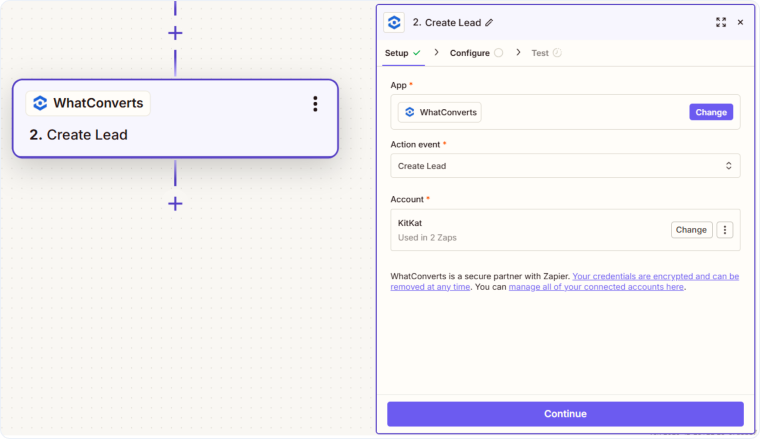
- For the Action, search for and select "WhatConverts".
- Choose "Create Lead" as your action event.
- Connect your WhatConverts account by entering your API key.
- Map the fields from Housecall Pro to the corresponding WhatConverts fields (contact name, phone, email, etc.).
- Test the action to ensure the data transfers correctly.
- Publish your Zap to begin sending data automatically.
Connect WhatConverts to Send Data to Housecall Pro
Follow these steps to send new leads from WhatConverts to Housecall Pro:
- Log in to your Zapier account and click "+ Create". Then select “Zap”.
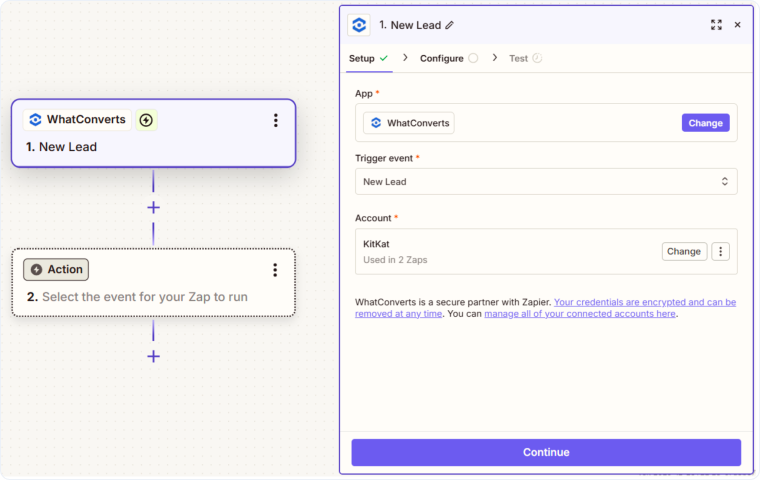
- For the Trigger, search for and select "WhatConverts".
- Choose "New Lead" as your trigger event.
- Connect your WhatConverts account by entering your API key when prompted.
- Configure filters if you only want specific lead types sent to Housecall Pro.
- Test the trigger to verify it retrieves leads from WhatConverts correctly.
- For the Action, search for and select "Housecall Pro".
- Choose "Create Customer" as your action event.
- Connect your Housecall Pro account by entering your API key.
- Map the lead fields from WhatConverts to Housecall Pro fields. Test the action to ensure the customer is created correctly in Housecall Pro.
- Publish your Zap to begin creating customers automatically.
Your Housecall Pro integration is now active and will automatically transfer data based on your Zap configuration.
Note: First Name is required when sending a new Customer to Housecall Pro.
Related Topics
Get a FREE presentation of WhatConverts
One of our marketing experts will give you a full presentation of how WhatConverts can help you grow your business.
Schedule a Demo






