


Connect WhatConverts to Google Looker Studio
Connecting WhatConverts to Google Looker Studio lets you visualize and analyze your lead data with advanced dashboards and custom reports. This guide shows you how to generate API credentials and connect your WhatConverts profile to Looker Studio.
Step 1. Generate an API Key
Follow the steps below based on the type of API Key you want to use:
- Profile API Key: Follow the steps in Generate a Profile API Key.
- Master Account API Key: Follow the steps in Generate a Master Account API Key.
Once generated, copy your API Token and API Secret to use in the next step.
Step 2. Configure the Looker Studio Connector
To connect WhatConverts in Looker Studio:
- Go to Looker Studio.
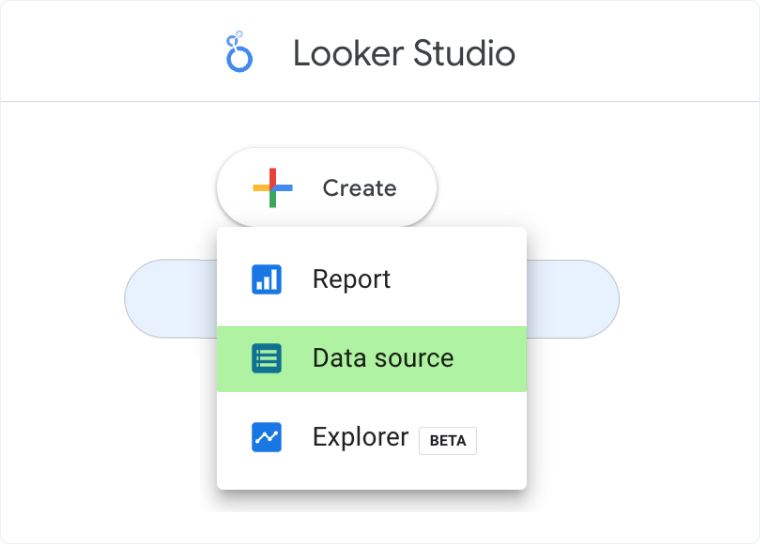
- Click “Create”, then click “Data Source”.
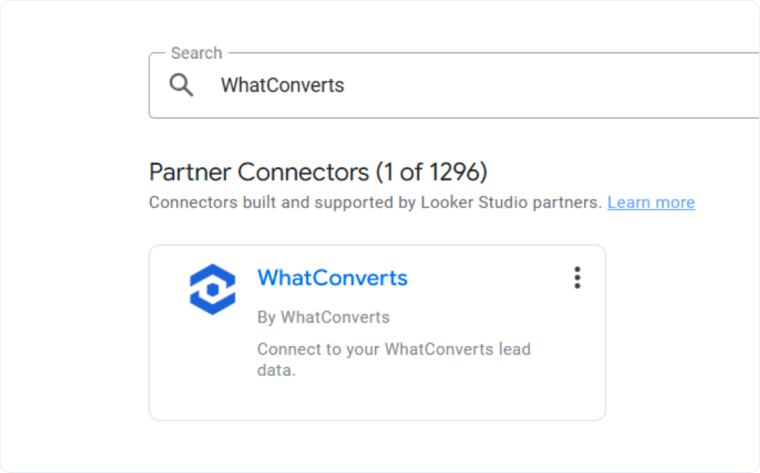
- Search for the WhatConverts Partner Connector.
- Select the connector.
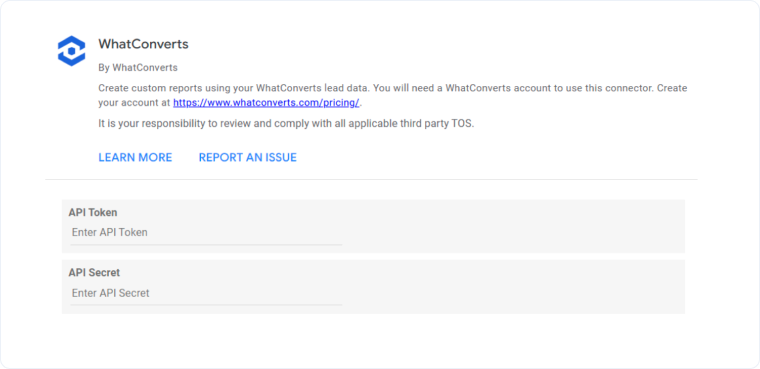
- Enter your API Token and API Secret in the corresponding fields.
- Click “Next”.
Step 3. Select Your Profile
To select the profile you want to pull data from:
- Open the Select Profile menu.
- Choose the Profile you want to pull data from.
- Click “CONNECT”.
Note: If you use a Master Account API Key, you can leave the Select Profile menu blank to pull data from all profiles.
If you use a Profile API Key, you do not need to select a profile because the key is already linked to that specific profile.
Related Topics
- What is the Report Builder?
- Integrate AgencyAnalytics with WhatConverts
- Send WhatConverts Data to Cyfe with Zapier
- Integrate Octoboard with WhatConverts
- Integrate ReportGarden with WhatConverts
Get a FREE presentation of WhatConverts
One of our marketing experts will give you a full presentation of how WhatConverts can help you grow your business.
Schedule a Demo






