


Set Up Squarespace Transaction Tracking
Set up transaction tracking for your Squarespace eCommerce store.
Learn more about the Squarespace integration in What is the Squarespace Integration?
Before You Begin
Make sure you have:
- A Squarespace website with eCommerce functionality enabled
- Access to your Squarespace Code Injection settings
Add Transaction Tracking Code
- Log in to your Squarespace account.
- Click "Settings" in the left panel.
- Select "Advanced", then click "Code Injection".
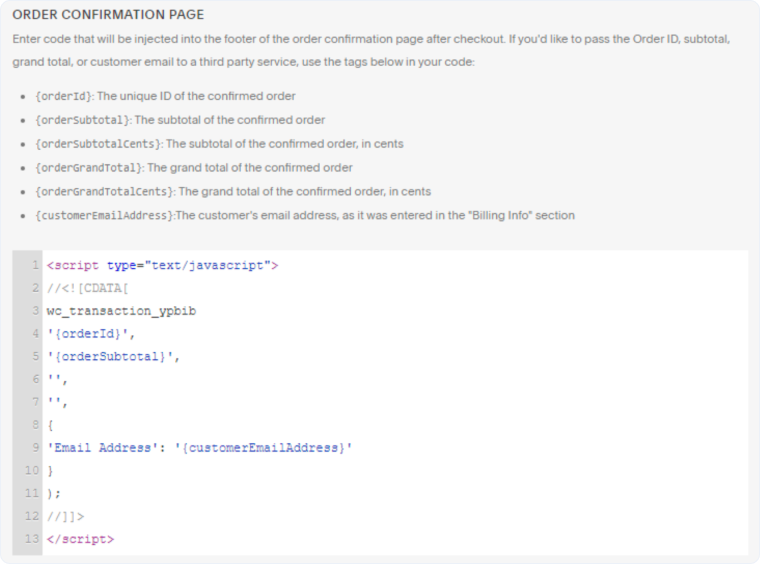
- In the "Order Confirmation Page" section, paste the following code:
<script type="text/javascript"> //<![CDATA[ wc_transaction_ypbib ( '{orderId}', '{orderGrandTotal}', '{orderTax}', '{orderShipping}', { 'Email Address': '{customerEmail}' } ); //]]> </script> - Click "Save".
Verify Transaction Tracking
- Place a test order on your Squarespace store.
- Complete the checkout process.
- Log in to your WhatConverts account.
- Access the Lead Manager and look for your test transaction.
- Verify that the transaction amount and marketing attribution appear correctly.
Related Topics
Was this page helpful?
Get a FREE presentation of WhatConverts
One of our marketing experts will give you a full presentation of how WhatConverts can help you grow your business.
Schedule a Demo






