


Track Landbot Chats
Landbot is a conversational chatbot platform that helps you create interactive chat experiences for websites and messaging apps. WhatConverts can track Landbot chat conversations through a Zapier integration combined with custom JavaScript code, which captures completed chat flows along with complete marketing attribution including source, medium, campaign, landing page, and click ID information.
Note: If you haven't added your WhatConverts tracking script to your website, add your tracking script. If you are using the WhatConverts WordPress Plugin, you will want to deactivate the plugin and place your WhatConverts Tracking Code above your Landbot.io Integration Code.
Set Up Landbot Chat Tracking
To track Landbot chat conversations with WhatConverts, you'll need to replace your standard Landbot code with custom tracking code, configure Zapier integration in your chatbot, and set up a Zapier automation.
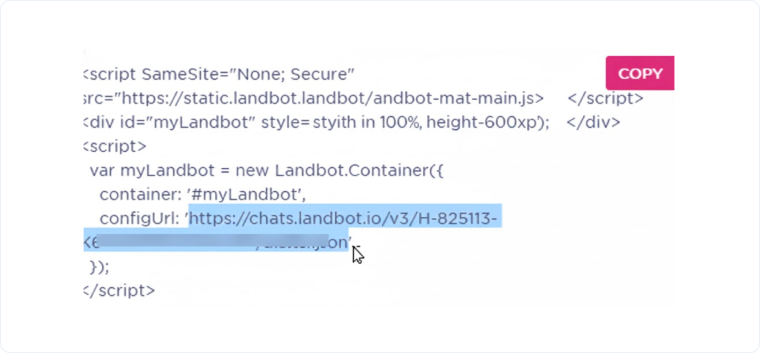
Step 1: Copy Your Landbot configURL
Copy your configURL from your Landbot.io chatbot embed code. This can be found in the Landbot.io App, by selecting the bot you'd like to integrate with WhatConverts and selecting "Share" at the top of the page.
Step 2: Replace Landbot Installation Code
Where you have your Landbot.io chatbot installed on your site, replace your installation code with the following:
Html
<script src="https://static.landbot.io/landbot-3/landbot-3.js"></script>
<script>
    var cookie = oqhaqzwnbjgcpycneryg('wc_client');
    var source = '',
        medium = '',
        campaign = '',
        content = '',
        keyword = '',
        gclid = '',
        landing_page = '',
        user_id = '',
        msclkid = '';
    if (cookie) {
        var cookie_parts = cookie.split('+..+');
        if (cookie_parts[0])
            source = cookie_parts[0];
        if (cookie_parts[1])
            medium = cookie_parts[1];
        if (cookie_parts[2])
            campaign = cookie_parts[2];
        if (cookie_parts[3])
            content = cookie_parts[3];
        if (cookie_parts[4])
            keyword = cookie_parts[4];
        if (cookie_parts[5])
            gclid = cookie_parts[5];
        if (cookie_parts[6])
            landing_page = cookie_parts[6];
        if (cookie_parts[7])
            user_id = cookie_parts[7];
        if (cookie_parts[8])
            msclkid = cookie_parts[8];
    }
    var myLandbot = new Landbot.Livechat({
        configUrl: 'Paste Your LandBot configURL Here',
        customData: {
            source: source,
            medium: medium,
            campaign: campaign,
            content: content,
            keyword: keyword,
            gclid: gclid,
            landing_page: landing_page,
            user_id: user_id,
            msclkid: msclkid
        },
    });
</script>
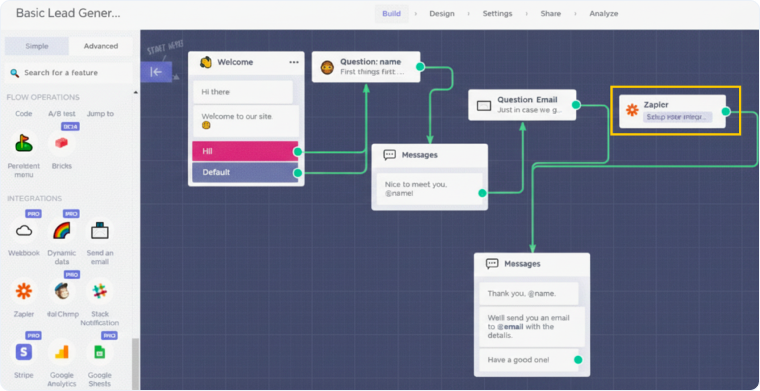
Step 3: Configure Zapier Integration in Landbot
- At the top of your LandBot.io App select "Build".
- On the left-hand menu, under Integrations, select "Zapier". Connect your Zapier step to your chat flow after contact information has been collected.
- "Click" the Zapier step and "copy" the Landbot Token.
Step 4: Set Up Zapier Integration
- Go to Zapier and click "Create Zap".
- Select "Landbot" as your Trigger App and "Zapier Block Activated" as your Trigger Event. Click "Continue".
- If your Landbot account is already connected, select your account and click "Continue"; if not, click "Connect an Account".
- In the pop-up, paste your Landbot Token in the box and click "Yes, Continue".
- On the Set up trigger page, make sure you select the correct bot from the Bot drop-down list. Click "Continue".
- Append the following parameters to the end of your URL and start a chat and go through your chat flow:
?wc_clear=true&utm_campaign=SampleCampaign&utm_medium=SampleMedium&utm_campaign=SampleCampaign&utm_content=SampleAd&utm_keyword=SampleKeyword&gclid=SampleGCLID&msclkid=SampleMSCLKID
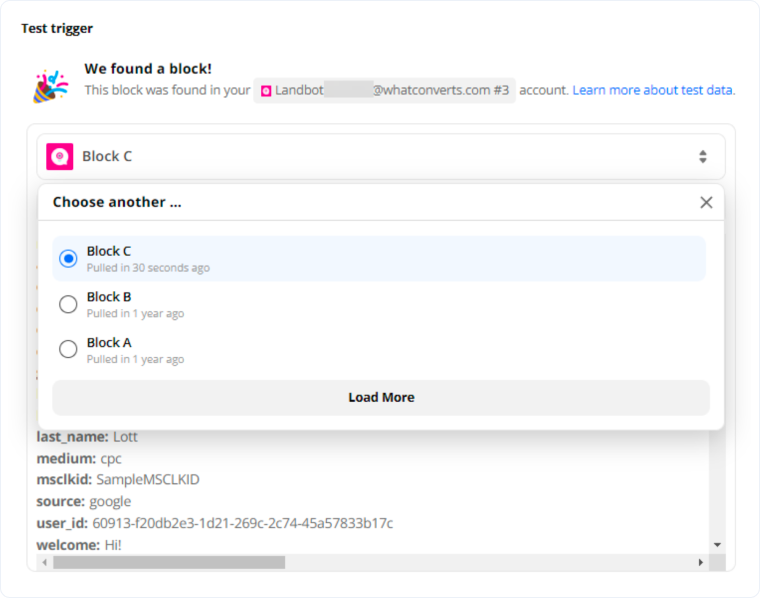
- Go back to Zapier. On the Test Trigger page, click the dropdown and select "Load More" to make sure you've pulled in the newest test submitted using the parameters above.
Step 5: Set Up WhatConverts Action
- Add an Action Step and select "WhatConverts" as your Action App.
- Select "Create Lead" then click "Continue".
- Select your WhatConverts account to integrate with Landbot.
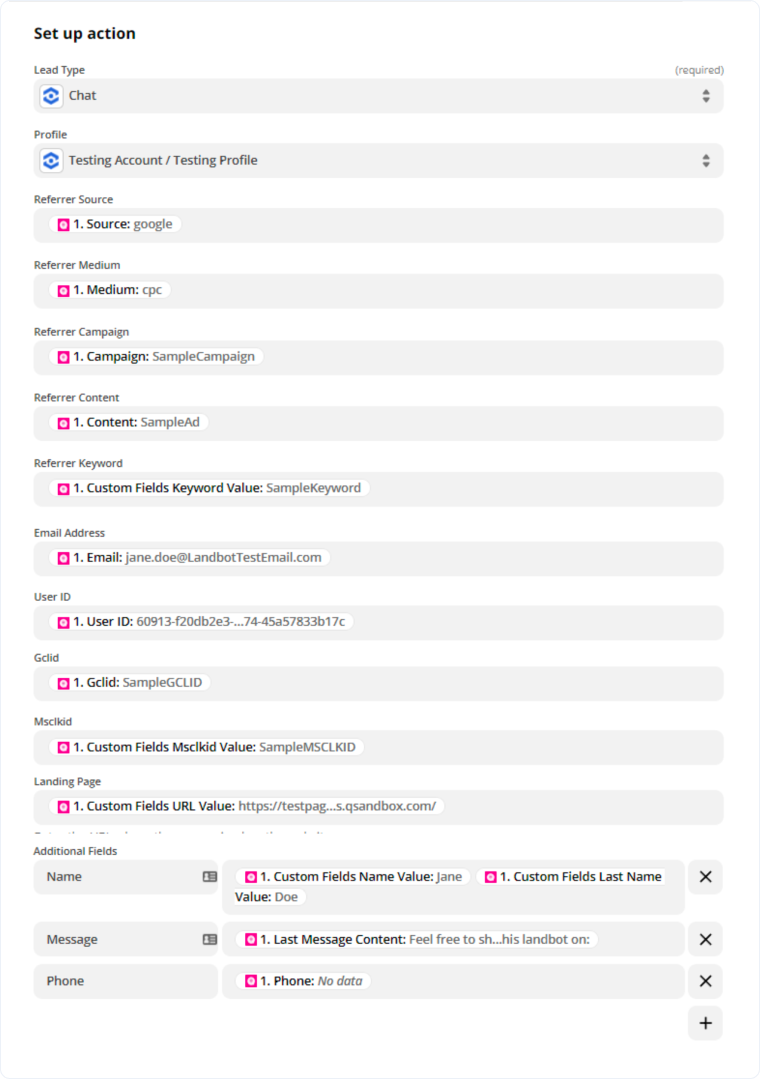
- Set up your template as follows:
- Lead Type: Chat
- Profile: Your WhatConverts Profile
- Referrer Source: Source
- Referrer Medium: Medium
- Referrer Campaign: Campaign
- Referrer Content: Content
- Referrer Keyword: Keyword
- Email: Email *if applicable
- User ID: User ID
- Gclid: Gclid
- Msclkid: Msclkid
- Landing Page: Custom Fields URL Value
- Add any additional fields that you collect from your chat bot under Additional Fields. In the example screenshot, the fields are Name and Email:
- Name: Name
- Message: Last Message Content
- Phone Number: Phone *if applicable
- Click "Continue". Click "Test & Continue" to send your test to WhatConverts. Give your Zap a Name and turn it "On".
Your Landbot integration is now complete. WhatConverts will capture all completed chat flows from Landbot through Zapier and create leads with full attribution data.
Related Topics
Get a FREE presentation of WhatConverts
One of our marketing experts will give you a full presentation of how WhatConverts can help you grow your business.
Schedule a Demo






