


Track SnapEngage Chats
SnapEngage is a live chat solution designed to help sales and support teams engage with website visitors. You can track SnapEngage chat conversations in WhatConverts by using Zapier and custom JavaScript to capture complete marketing attribution data.
Note: If you haven't added your WhatConverts tracking script to your website, add your tracking script. If you are using the WhatConverts WordPress Plugin, you will want to deactivate the plugin and place your WhatConverts Tracking Code above your SnapEngage install code.
Set Up SnapEngage Chat Tracking
To capture lead data from SnapEngage, you must pass tracking data into SnapEngage as a variable and then send that data to WhatConverts via Zapier.
Step 1: Add Tracking Code to Your Website
Locate your SnapEngage chat widget installation code on your website. Add the following script directly above your installation code:
  <script type="text/javascript">
      var source_data = oqhaqzwnbjgcpycneryg('wc_client');
  </script>
Step 2: Configure SnapEngage Settings
- Log in to SnapEngage.
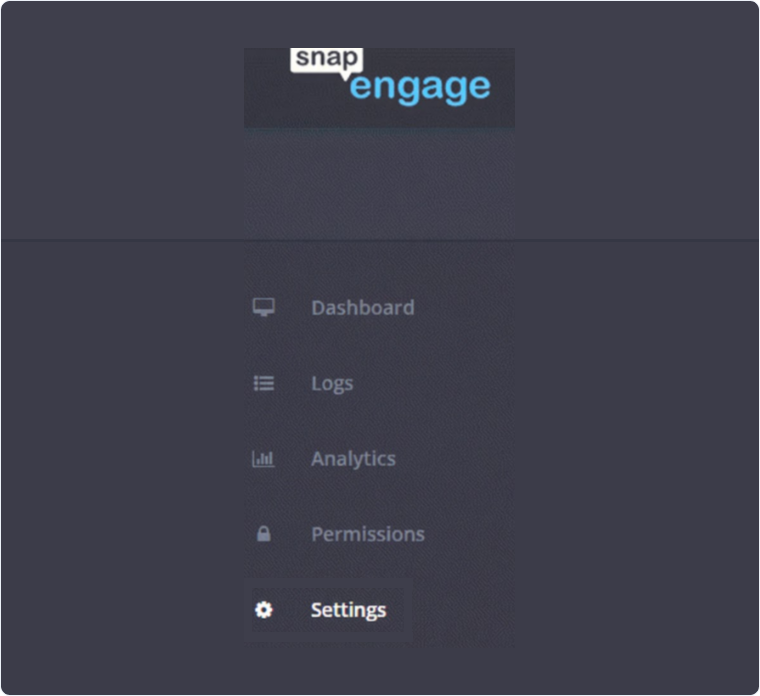
- Under the current widget, select "Settings".
- Select “Options" at the top of the settings menu.
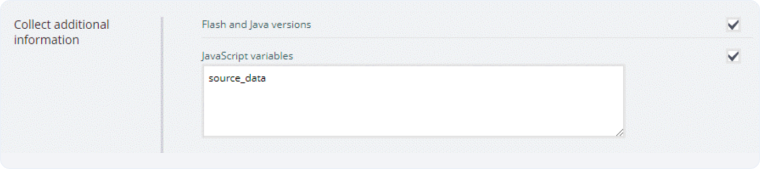
- Beside collect additional information, add the following JavaScript variable: source_data.
- Click "Save Changes".
Step 3: Configure the Zapier Trigger
- Go to Zapier and click "Create Zap".
- Select "Webhooks by Zapier" as your trigger app and "Catch Hook" as the trigger event.
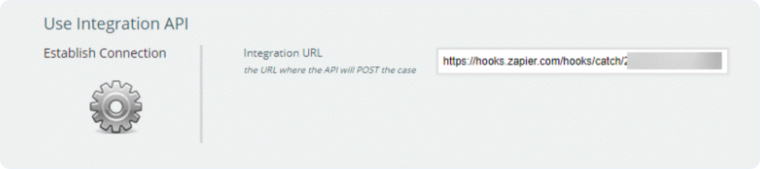
- Click "Continue" and copy the webhook URL.
- Go back to SnapEngage, paste the webhook URL into the integration URL box, and click "Save Changes".
- Go to your website and start (and end) a test chat session.
- Return to Zapier, click "Test Trigger", select the hook found, and click "Continue".
Step 4: Add JavaScript Formatting
- Add an action step in Zapier and select "Code by Zapier" as the action app.
- Select "Run JavaScript" as the action event.
- Under input data, type source_data in the left box and select the JavaScript variables from your catch hook step in the right box.
- Under code, paste the following:
JavaScript
var [source, medium, campaign, content, keyword, gclid, landing_page, user_id, msclkid] = ['', '', '', '', '', '', '', '']; var data = inputData.source_data.match(/name: source_datanvalue: (.*)/); if (data[1]) { var data_parts = data[1].split('+..+'); if (data_parts[0]) source = data_parts[0]; if (data_parts[1]) medium = data_parts[1]; if (data_parts[2]) campaign = data_parts[2]; if (data_parts[3]) content = data_parts[3]; if (data_parts[4]) keyword = data_parts[4]; if (data_parts[5]) gclid = data_parts[5]; if (data_parts[6]) landing_page = data_parts[6]; if (data_parts[7]) user_id = data_parts[7]; if (data_parts[8]) msclkid = data_parts[8]; } output = [{ source: source, medium: medium, campaign: campaign, content: content, keyword: keyword, gclid: gclid, landing_page: landing_page, msclkid: msclkid }]; - Click "Continue", run a test, and click "Continue" again.
Step 5: Map Fields to WhatConverts
- Add another action step and select "WhatConverts" as the action app.
- Select "Create Lead" and click "Continue".
- Select your WhatConverts profile.
- Set up the template using these mappings:
- Lead Type: Chat
- Referrer Source: Step 2 - Source
- Referrer Medium: Step 2 - Medium
- User ID: Step 2 - User ID
- Add these fields under additional fields:
- Transcript: Step 1 - Transcripts
- Email: Step 1 - Requester Details Emails
- Name: Step 1 - Requester Details Name
- Chat URL: Step 1 - URL
- Click "Continue", send a test to WhatConverts, and turn your zap on.
Related Topics
- What is Web Chat Tracking?
- Track Landbot Chats
- Track LiveChat Chats
- Track Olark Chats
Get a FREE presentation of WhatConverts
One of our marketing experts will give you a full presentation of how WhatConverts can help you grow your business.
Schedule a Demo






