


Connect WhatConverts to Search Ads 360
The Search Ads 360 Integration sends your WhatConverts lead data back to Search Ads 360 floodlights for campaign optimization across multiple search engines. Once connected, Search Ads 360 uses your conversion data to optimize bids and improve performance across Google, Bing, Yahoo, and other platforms.
Learn more in What is the Search Ads 360 Integration?
Before You Begin
Make sure you have:
- A Search Ads 360 account with active campaigns
- Admin access to your Search Ads 360 advertiser account
- Floodlights configured in Search Ads 360
- WhatConverts tracking set up to capture conversions (calls, forms, chats, etc.)
Connect Your Search Ads 360 Account
Tip: You can connect Search Ads 360 at the Master Account level to authorize WhatConverts once for all profiles. This is useful if you manage multiple profiles that use the same Search Ads 360 authorization. However, you'll still need to configure the integration settings at each individual profile level.
Follow these steps to connect your Search Ads 360 account:
Option 1: Connect at the Profile Level
To connect your Search Ads 360 at the profile level:
- In your WhatConverts profile, click “Tracking” in the top menu and select “Integrations”.
- Find Search Ads 360 in the list of available integrations and click “Connect”.
- Click “+ Add Connection”.
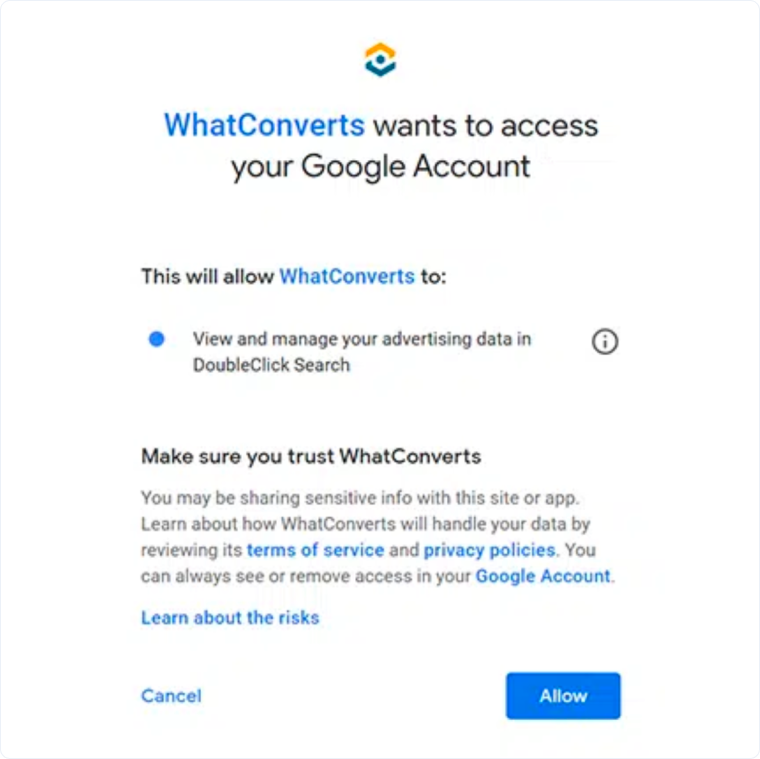
- You'll be redirected to Google to authorize the connection. Log in with your Google account if prompted.
- Click “Allow” at the authorization page to grant WhatConverts permission to send conversions to floodlights in your Search Ads 360 account.
- Set up the connection by selecting the correct accounts:
- Select your Agency. Choose the Search Ads 360 agency from the dropdown menu.
- Select your Advertiser. Choose the advertiser account you want to connect.
- Select your Floodlight. Choose the floodlight you want to use for this integration.
- Choose when to trigger conversions:
- New Lead Received. Send conversions when any new lead is received
- Sales Value Received or Added. Send conversions when a sales value is present (conversions are sent to Search Ads 360 only if the floodlight type is set to "transaction")
- Set as Quotable Lead. Send conversions only when a lead is marked as "Quotable"
- Lead Intelligence Rules (Elite plans only). Send conversions based on custom Lead Intelligence automation rules
- Click “Finish” to save your connection.
Tip: Conversions to floodlights will only be sent once to Search Ads 360. After a sales value has been added, no more conversions will be sent for that lead.
Note: It may take up to 24 hours before conversions show up in Search Ads 360.
Option 2: Connect at the Master Account Level (Optional)
If you manage multiple WhatConverts profiles and want to use one authorization for all of them:
- Select “Master Integrations” from the Master Account Settings.
- Find Search Ads 360 and click “Connect”.
- Follow the authorization steps to grant WhatConverts access to your Search Ads 360 account.
- Once authorized at the Master Account level, you can configure individual profile connections without needing to authorize again for each profile.
After authorizing at the Master Account level, you'll still need to complete the connection setup (selecting Agency, Advertiser, Floodlight, and triggers) at each individual profile level.
Edit Search Ads 360 Integration Settings
You can update your Search Ads 360 integration settings at any time:
- In your WhatConverts profile, click “Tracking” in the top menu and select “Integrations”.
- Find Search Ads 360 in your connected integrations and select “View Details”.
- Click “Edit Connection”
- Update your preferences:
- Change which conversion events trigger Search Ads 360 conversions
- Update floodlight selection
- Adjust trigger settings
- Click “Update Connection” to apply your changes.
Disconnect Search Ads 360
If you need to remove the Search Ads 360 connection:
- In your WhatConverts profile, click “Tracking” in the top menu and select “Integrations”.
- Find Search Ads 360 in your connected integrations and select “View Details”.
- Click “Disconnect”.
- Confirm you want to disconnect the integration.
Once disconnected, WhatConverts will stop sending conversion data to Search Ads 360 floodlights.
Related Topics
Get a FREE presentation of WhatConverts
One of our marketing experts will give you a full presentation of how WhatConverts can help you grow your business.
Schedule a Demo






