


Connect WhatConverts to Insightly
Connect WhatConverts to Insightly through Zapier to automatically sync lead data and sales information between the two platforms.
Before You Begin
To set up this integration, you will need:
- An Insightly account
- A Zapier account
- Your WhatConverts API key:
- For Master Account integrations: Generate a Master API Key
- For Profile integrations: Generate a Profile API Key
Connect Insightly to Zapier
To connect your Insightly account to Zapier:
- When setting up your first Insightly step in a Zapier workflow, you'll be prompted to connect your account.
- Click "Sign in to Insightly".
- Enter your Insightly API key.
- Click "Continue".
- Your Insightly account will now be connected and available for all your Zapier workflows.
Create a Custom Field in Insightly
To create custom fields in Insightly for storing the WhatConverts Lead ID:
- Log in to Insightly.
- Go to "Settings" (gear icon).
- Navigate to "Custom Fields".
- Select "Contacts" as the object type.
- Click “Object Fields” under Object Management and select "Add Custom Field".
- Name and Label the field something like "WhatConverts Lead ID" or "Lead ID".
- Set the field type to "Text" or "Number".
- Save the custom field.
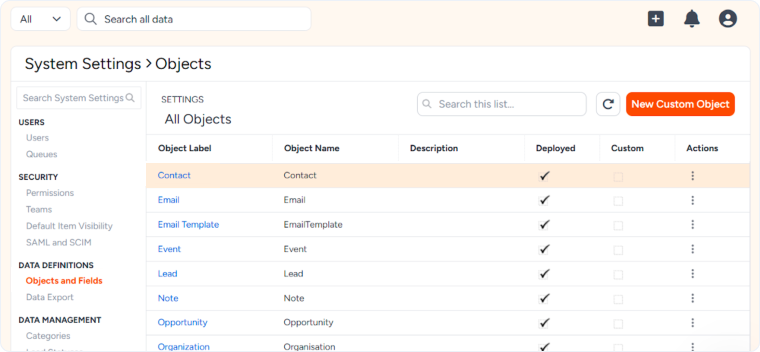
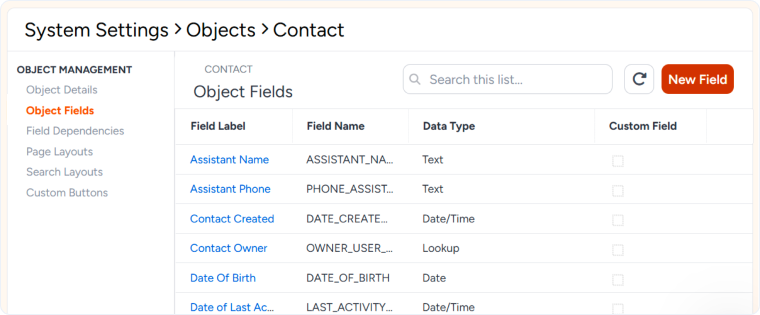
This custom field will be available for mapping in your Zapier workflows.
Set Up Your Zapier Workflows
The Insightly integration requires separate Zapier workflows for each type of data you want to sync. Choose which workflows you need based on your business requirements:
To send data FROM WhatConverts TO Insightly
Follow the step-by-step instructions in the Send Leads from WhatConverts to Insightly article to create the lead-to-contact workflow.
To send data FROM Insightly TO WhatConverts
Follow the step-by-step instructions in the Send Quote and/or Sales Value from Insightly to WhatConverts article to create the sales tracking workflow.
Test Your Connection
After setting up your Zapier workflows:
- Create a test record in the source platform (lead or contact update, depending on your workflow).
- Verify that the Zapier workflow triggers and completes successfully.
- Check the destination platform to confirm that the data was created or updated with the correct information.
- Review the Validate and Troubleshoot Your Insightly Integration article if you encounter any issues during testing.
Related Topics
Get a FREE presentation of WhatConverts
One of our marketing experts will give you a full presentation of how WhatConverts can help you grow your business.
Schedule a Demo






