


Connect WhatConverts to Pipedrive
Complete the foundational setup required before creating Zapier workflows to sync data between WhatConverts and Pipedrive.
Before You Begin
Make sure you have:
- A Pipedrive account
- A Zapier account
- Your WhatConverts API key:
- For Master Account integrations: Generate a Master API Key
- For Profile integrations: Generate a Profile API Key
Create Custom Fields in Pipedrive
To enable bidirectional data sync, you need to create custom fields in Pipedrive to store the WhatConverts Lead ID. You'll need to create this custom field in two places: on Person records and on Deal records.
Create Lead ID Field for Person Records
- Log in to Pipedrive.
- Click on your profile icon in the top-right corner.
- Select "Company Settings".
- In the left sidebar, navigate to "Data Fields".
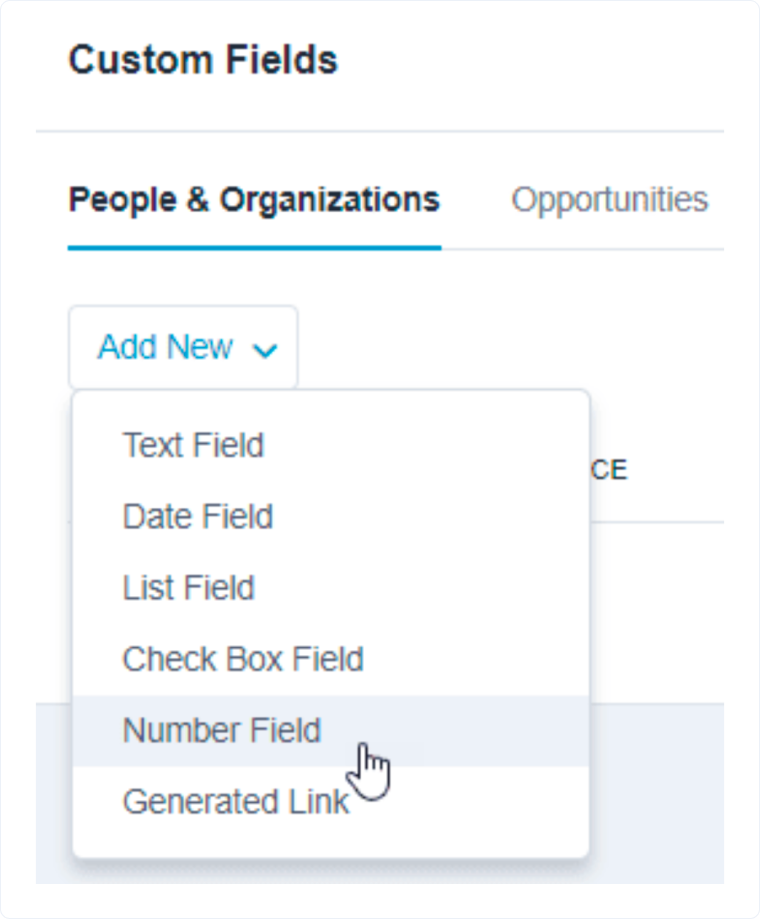
- Click "Add Custom Field".
- Configure the field:
- Field Name: "LeadID" or "WhatConverts Lead ID"
- Field For: Select "Person"
- Field Type: Select "Numerical"
- Check all available properties (visible to all users, editable, etc.)
- Click "Save".
Create Lead ID Field for Deal Records
- While still in "Data Fields" settings.
- Click "Add Custom Field" again.
- Configure the field:
- Field Name: "LeadID" or "WhatConverts Lead ID"
- Field For: Select "Deal"
- Field Type: Select "Numerical"
- Check all available properties (visible to all users, editable, etc.)
- Click "Save".
These custom fields will store the WhatConverts Lead ID for both the person and their associated deals, enabling accurate data matching when syncing information between the platforms.
Connect Pipedrive to Zapier
When you create your first Zapier workflow with Pipedrive:
- During the workflow setup, Zapier will prompt you to connect your Pipedrive account.
- Click "Sign in to Pipedrive".
- Pipedrive will open an OAuth authorization window.
- Review the permissions Zapier is requesting.
- Click "Allow and Install" to authorize the connection.
- You'll be redirected back to Zapier to continue building your workflow.
Once connected, Zapier will have access to your Pipedrive account for all future workflows.
Set Up Your Zapier Workflows
With the custom fields created and your Zapier connection ready, you can now create the workflows to:
Related Topics
Get a FREE presentation of WhatConverts
One of our marketing experts will give you a full presentation of how WhatConverts can help you grow your business.
Schedule a Demo






