


Trigger Workflows in Pabbly Connect with Webhooks
Webhooks allow you to automatically trigger Pabbly Connect workflows when new leads are received or existing leads are updated in WhatConverts. By setting up a webhook connection, you can send lead data to your CRM, notify your team, create tasks, or automate any action across thousands of apps.
Tip: To learn more about how webhooks work, see What Are Webhooks?
Set Up WhatConverts as a Trigger in Pabbly Connect
Follow these steps to use WhatConverts as a trigger in your Pabbly Connect workflow:
Step 1: Create a Workflow in Pabbly Connect
To create a workflow:
- Log in to your Pabbly Connect account.
- Click “Create Workflow”.
- Give your workflow a name and click “Continue”.
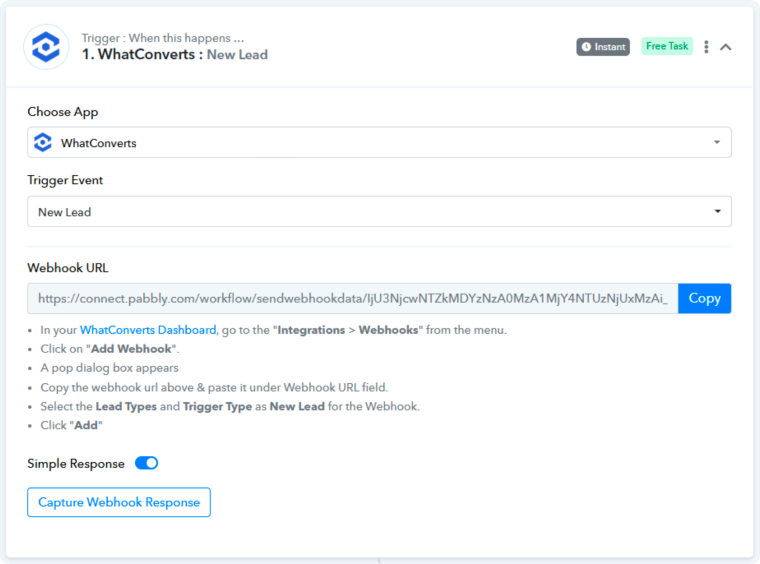
- On the Choose Your First Application: Trigger section, select “WhatConverts” from the Choose App dropdown.
- Select the Trigger Event:
- New Lead. Trigger when a new lead is received in WhatConverts
- Updated Lead. Trigger when an existing lead is updated in WhatConverts
- Click “Continue”.
- Copy the Webhook URL provided by Pabbly Connect. You'll need this in the next step.
Step 2: Add the Webhook in WhatConverts
Once you have the webhook URL from the previous step:
- In a new tab or window, log in to the WhatConverts profile you want to connect to Pabbly Connect. Click “Tracking” in the top menu. Select “Integrations” from the submenu.
- Click the “Automation” tab.
- In the Webhooks module, click “Connect” or “View Details”.
- Click the “+ Add Webhook” button.
- Paste the copied webhook URL from Pabbly Connect into the Webhook URL input field.
- Choose when to trigger the webhook:
- New Lead Received. Send a webhook when any new lead is received
- Updated Lead. Send a webhook when a lead is updated
- Click “Next Step”.
- Select all of the lead types that you wish to pass using Pabbly:
- Web Form
- Phone Call (Completed, Modified, or In Progress). Select which phone call type to use. Most cases will use the Completed Phone Call.
- Chat (Completed, In Progress). Same as Phone Call.
- Transaction
- Appointments
- Text Messages
- Custom Events
- Others
- Click “Finish”.
Step 3: Test the Webhook Connection
Once configured, test the connection:
- Go to the website where you have WhatConverts tracking installed or manually create a lead in your WhatConverts dashboard.
- Create a test lead by:
- Placing a test call to one of your tracking numbers
- Filling out a form submission
- Starting a chat conversation
- Selecting the Plus symbol below the date range to manually add a new lead
- Go back to Pabbly Connect and look for the Response Received message from your test lead.
- Verify the lead data is captured correctly.
Once the webhook is set up and tested, you can add action steps in Pabbly Connect to send lead data to other apps, create notifications, or run automated workflows.
Related Topics
Get a FREE presentation of WhatConverts
One of our marketing experts will give you a full presentation of how WhatConverts can help you grow your business.
Schedule a Demo






