


Track JivoChat Chats
JivoChat is a live chat platform that provides chat widgets, chatbots, and omnichannel customer communication tools. WhatConverts can track JivoChat conversations through a Zapier integration using webhooks combined with custom JavaScript code, which captures finished chat conversations along with complete marketing attribution, including source, medium, campaign, landing page, and click ID information.
Note: If you haven't added your WhatConverts tracking script to your website, add your tracking script. If you are using the WhatConverts WordPress Plugin, you will want to deactivate the plugin and place your WhatConverts Tracking Code above your JivoChat Integration Code.
Set Up JivoChat Tracking
To track JivoChat conversations with WhatConverts, you'll need to add custom tracking code to your website, configure webhooks in JivoChat, and set up a multi-step Zapier automation.
Step 1: Add Tracking Code to Your Website
- On your website, where you have placed your JivoChat Installation Code, add the following code directly under your JivoChat installation code.
JavaScript
<script>
    var cookie = oqhaqzwnbjgcpycneryg('wc_client');
    var source = '',
        medium = '',
        campaign = '',
        content = '',
        keyword = '',
        gclid = '',
        landing_page = '',
        user_id = '',
        msclkid = '';
    if (cookie) {
        var cookie_parts = cookie.split('+..+');
        if (cookie_parts[0])
            source = cookie_parts[0];
        if (cookie_parts[1])
            medium = cookie_parts[1];
        if (cookie_parts[2])
            campaign = cookie_parts[2];
        if (cookie_parts[3])
            content = cookie_parts[3];
        if (cookie_parts[4])
            keyword = cookie_parts[4];
        if (cookie_parts[5])
            gclid = cookie_parts[5];
        if (cookie_parts[6])
            landing_page = cookie_parts[6];
        if (cookie_parts[7])
            user_id = cookie_parts[7];
        if (cookie_parts[8])
            msclkid = cookie_parts[8];
    }

    function jivo_onOpen(res) {
        jivo_api.setContactInfo({
            "description": cookie
        });
    }
</script>
Step 2: Set Up Zapier Webhook
- Go to Zapier and click "Create Zap".
- Select "Webhooks by Zapier" as your Trigger App and "Catch Hook" as the Trigger Event.
- "Copy" the custom Webhook URL.
- Log in to your JivoChat dashboard. On the left-hand menu, click "Manage".
- Under System, select "Channels". Click "Settings" under your URL.
- Select "Integration Settings for Developers". Paste the Webhooks URL into the Webhooks Endpoint URL box.
- Open your website in an incognito/private browser window. Then, add the following parameters to the end of your website URL:
?utm_source=JivoTestSource&utm_medium=JivoTestMedium&utm_keyword=JivoTestKeyword&utm_content=JivoTestContent&utm_campaign=JivoTestCampaign&gclid=TestGclid&msclkid=TestMSClkID&force_utm=true&wc_clear=true
- Start and end a chat.
- Go back to Zapier. Click "Continue" on your Webhooks step and click "Test trigger" to find the chat you just completed.
- Select the chat and click "Continue".
Step 3: Configure Zapier Filters and Formatters
- Select "Filter by Zapier" as your Action App.
- Under Only Continue If... select "Event Name" from the first drop-down menu, "(Text) Contains" from the second drop-down, and type finished in the last input box. Click "Continue".
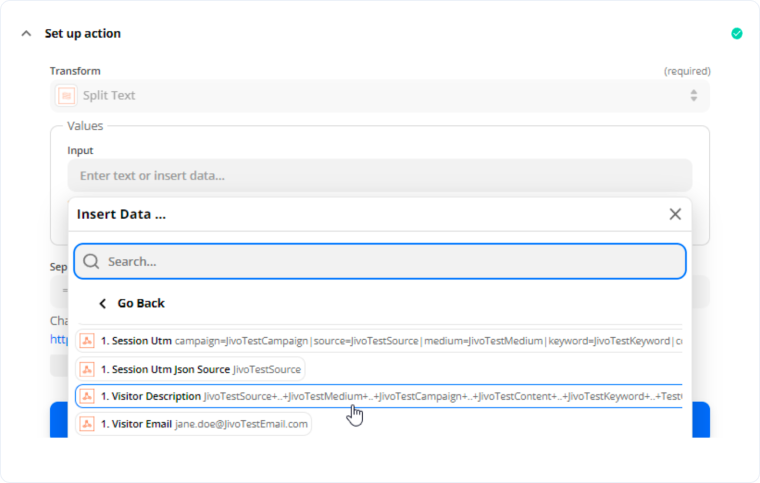
- Click "+" and add "Formatter by Zapier" as a new action step. Select "Text" as your Action Event. Select "Split Text" under Transform. Under Values, select "Visitor Description" in the dropdown from Step 1.
- Under Separator type + and under Segment Index select "All (as Separate Fields)" from the drop-down.
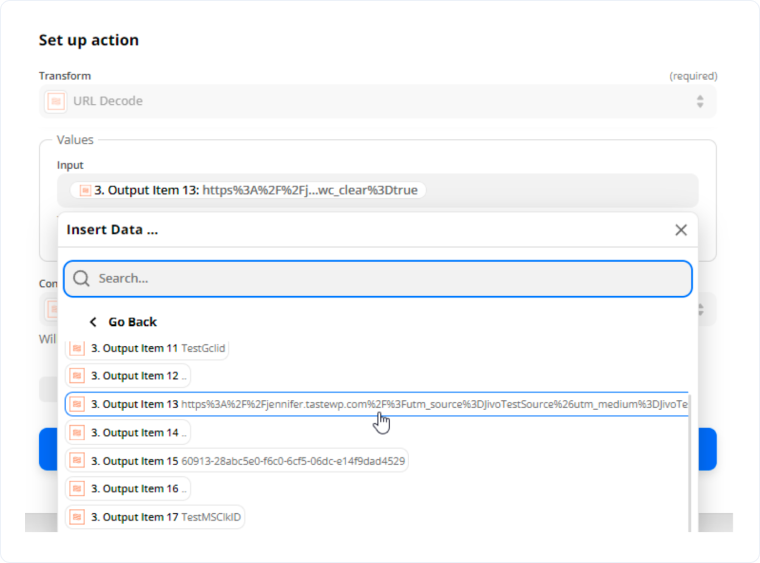
- Click the "+". Add an additional "Formatter by Zapier" Action Step. Select "Text" as your Action Event. Under Transform, select "URL Decode" and click "Insert a Field". Locate and select the Landing Page URL from Step 3 of your Zap. In the example below, it is "Output Item 13" from the Values dropdown.
- Click "Continue". Review the data and click "Test and Continue".
Step 4: Set Up WhatConverts Action
- Click the "+" to add an Action Step and select "WhatConverts" as your Action App.
- Select "Create Lead" as your Action Event. Click "Continue". Select your WhatConverts profile to integrate with JivoChat.
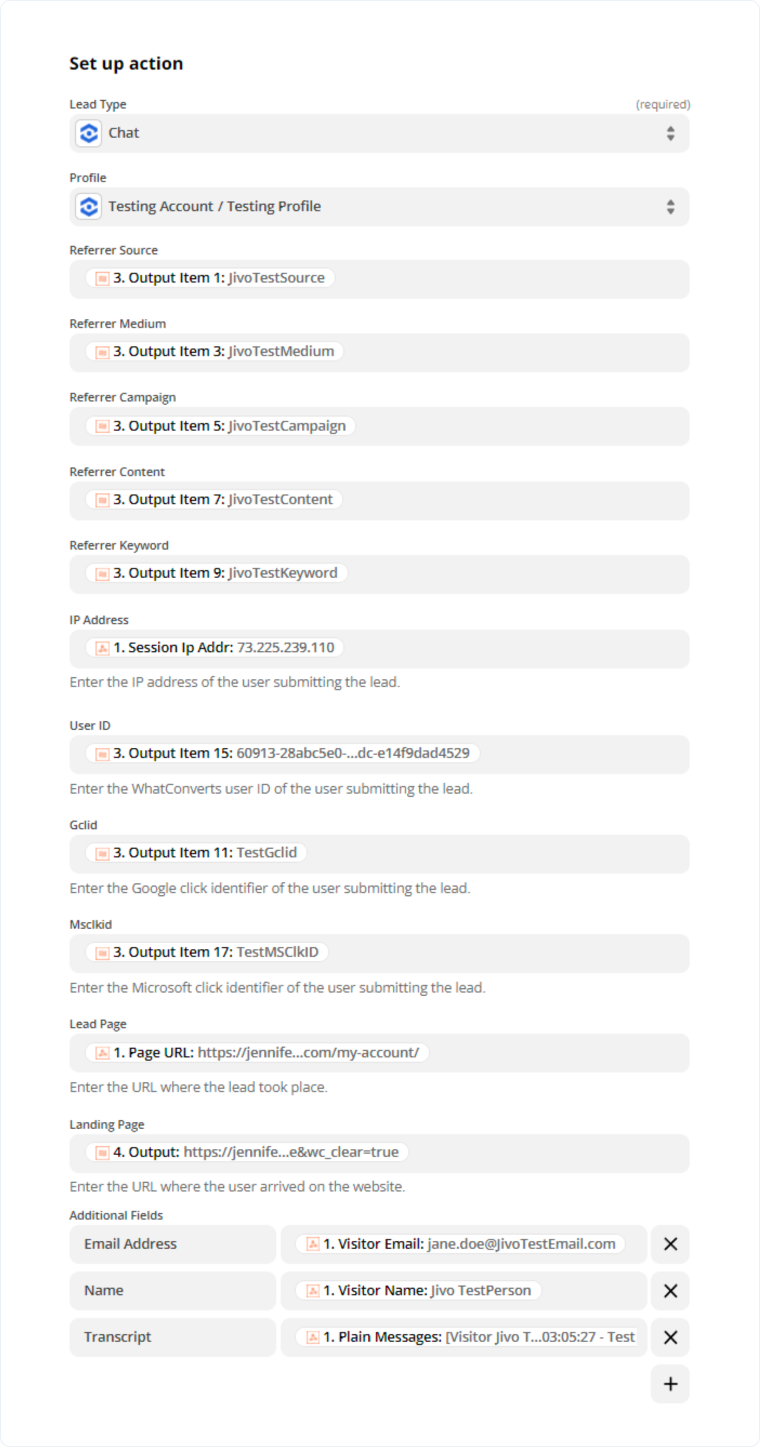
- Set up your Set up action template as follows:
- Lead Type: Chat
- Profile: Your WhatConverts Profile
- Referrer Source: Zap step 3 - Output Item 1
- Referrer Medium: Zap step 3 - Output Item 3
- Referrer Campaign: Zap step 3 - Output Item 5
- Referrer Content: Zap step 3 - Output Item 7
- Referrer Keyword: Zap step 3 - Output Item 9
- IP Address: Zap step 1 - Session Ip Addr
- User ID: Zap step 3 - Output Item 15
- Gclid: Zap step 3 - Output Item 11
- Msclkid: Zap step 3 - Output Item 17
- Lead Page: Zap step 1 - Page URL
- Landing Page: Zap step 4 - Output
- Add the following fields under Additional Fields:
- Email Address: Zap step 1 - Visitor Email
- Name: Zap step 1 - Visitor Name
- Transcript: Zap step 1 - Plain Messages
- Click "Continue". Click "Test & Continue" to send a test to WhatConverts. When the test is successful, you can name your Zap and turn your Zap "on".
Your JivoChat integration is now complete. WhatConverts will capture all finished chat conversations from JivoChat through Zapier and create leads with full attribution data.
Related Topics
Get a FREE presentation of WhatConverts
One of our marketing experts will give you a full presentation of how WhatConverts can help you grow your business.
Schedule a Demo






