


Set Up Wix Form Tracking
Add WhatConverts tracking to your Wix website. Learn more about what this integration offers in What is the Wix Integration?
Before You Begin
Make sure you have:
- A Wix website with access to add custom code
- Your WhatConverts tracking script
Add the WhatConverts Tracking Script
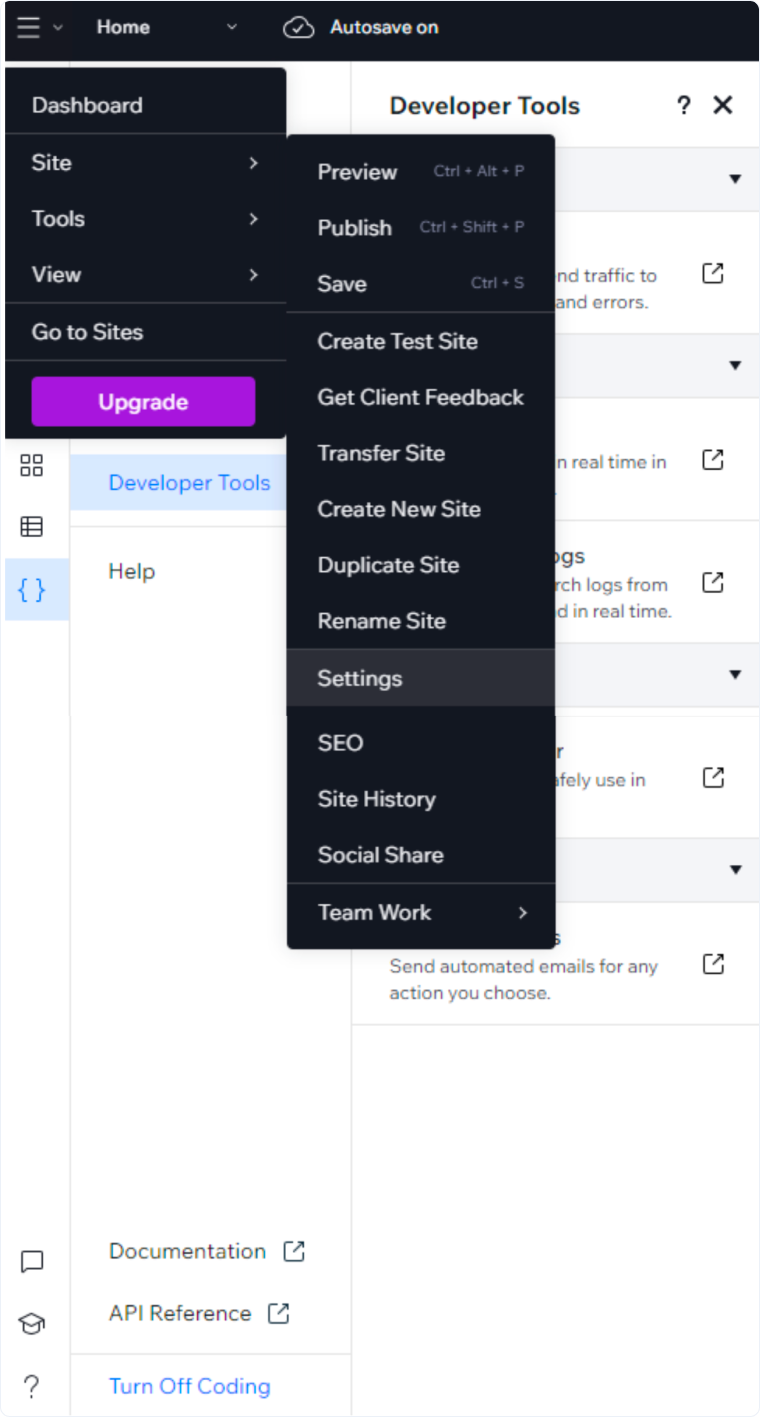
- Log in to your Wix account.
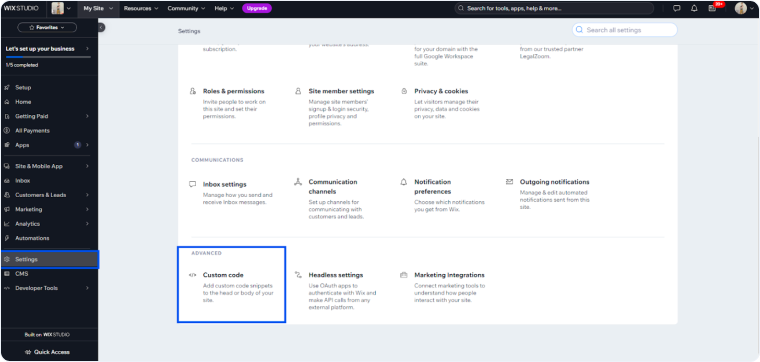
- Go to your site's dashboard.
- Click "Settings" in the left menu.
- Select "Advanced" then "Custom Code".
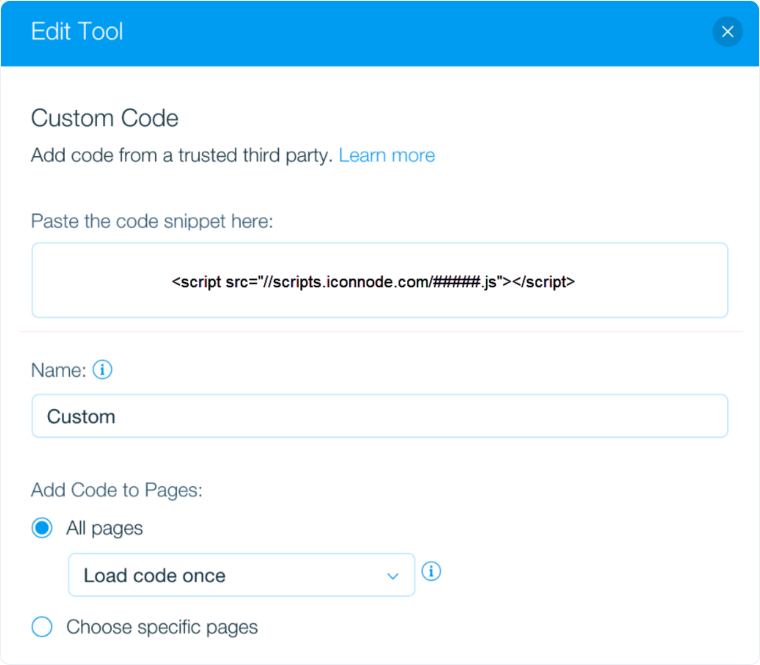
- Give your code a name (e.g., "WhatConverts Tracking").
- Paste your WhatConverts tracking script in the code box.
- Select "Head" for code placement.
- Choose "All Pages" for where the code should load.
- Click "Apply".
- Publish your site to make the changes live.
Verify Tracking Installation
- Visit your published website.
- Right-click and select "Inspect."
- Click the Application tab and check the website to see if the wc_ cookies have appeared, such as: wc_client and wc_client_current
Track Phone Calls from Your Wix Website
Follow the steps in our Create a Dynamic Number Pool for All Traffic to set up a Number Pool.
When visitors land on your Wix page, WhatConverts will automatically replace your business number with the tracking number. When someone calls the tracking number, WhatConverts captures the call and marketing attribution, then forwards the call to your business.
Track Forms on Your Wix Website
Wix forms require special configuration. For detailed form tracking instructions, see Set Up Wix Form Tracking.
Related Topics
Was this page helpful?
Get a FREE presentation of WhatConverts
One of our marketing experts will give you a full presentation of how WhatConverts can help you grow your business.
Schedule a Demo






