


Connect WhatConverts to Jobber
Connect WhatConverts to Jobber to automatically sync your Jobber activity with your marketing leads. Once connected, WhatConverts records requests, quotes, jobs, and invoices from Jobber, helping you track the full customer journey from the initial request through completed work and revenue.
Before You Begin
Make sure you have:
- A Jobber account with active jobs or invoices
- Edit Integration permissions in WhatConverts
Connect Jobber
Follow these steps to connect Jobber to WhatConverts:
- From your WhatConvers profile, go to “Tracking” in the top menu and select “Integrations”.
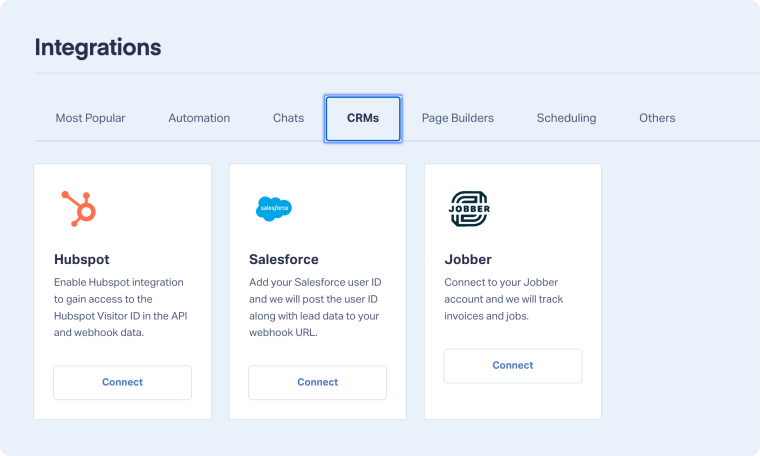
- Click "CRMs".
- Find "Jobber" in the list and click "Connect".
- You'll be prompted to select which types of data you want to sync:
- Requests: Check this box to sync scheduled requests from Jobber as appointments in WhatConverts.
- Quotes: Check this box to sync quotes from Jobber as estimates in WhatConverts.
- Jobs: Check this box to sync scheduled jobs from Jobber as jobs in WhatConverts
- Invoices: Check this box to sync invoices from Jobber as transactions with sales values in WhatConverts
- Click "Save" to activate the integration.
- The integration will begin syncing data from Jobber to WhatConverts automatically.
Once connected, any new requests, quotes, jobs, or invoices created in Jobber will automatically appear in WhatConverts, tied to the original lead's marketing attribution data.
What Gets Synced
Requests sync as Appointments
- Request details and scheduling information
- Request status updates
- Customer information
- Requests are tied back to the original lead that generated the customer
Quotes sync as Estimates
- Quote value
- Quote status updates
- Customer information
Jobs sync as Jobs
- Job details and scheduling information
- Job status updates
- Sold Revenue
- Customer information
Invoices sync as Transactions
- Invoice amounts (sales values)
- Payment status
- Customer billing information
- Transactions are connected to the marketing source that brought in the customer
View Your Connection
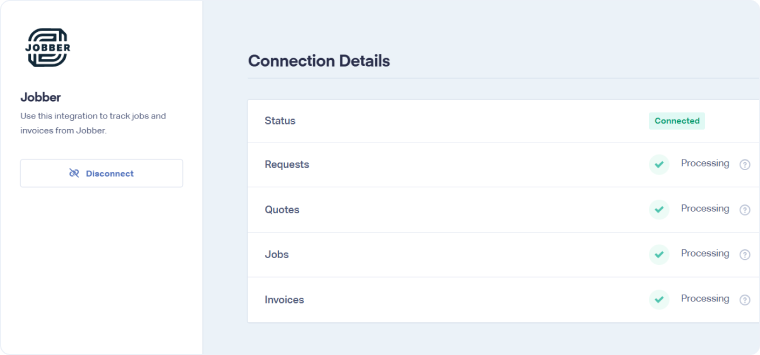
After connecting, you can view your integration status:
- Follow Steps 1-2 in the Connect Jobber section above.
- Click "View Details" to see:
- Connection status
- Which data types are being synced
Related Topics
Was this page helpful?
Get a FREE presentation of WhatConverts
One of our marketing experts will give you a full presentation of how WhatConverts can help you grow your business.
Schedule a Demo






