


View Leads in Salesforce and Merge Duplicates
View leads that have been synced from WhatConverts to Salesforce and learn how to merge duplicate records using Salesforce's built-in tools.
Before You Begin
Make sure you have:
- Completed the Connect WhatConverts to Salesforce setup
- Created a workflow to send leads from WhatConverts to Salesforce
- At least one test lead has been synced from WhatConverts to Salesforce
View Leads in Salesforce
To view leads that have been synced from WhatConverts:
- Log in to Salesforce.
- Click on the "Leads" tab in the top navigation.
- Review your lead list to find leads from WhatConverts.
- Click on any lead to view the complete lead record.
Review Lead Information
When viewing a lead record from WhatConverts:
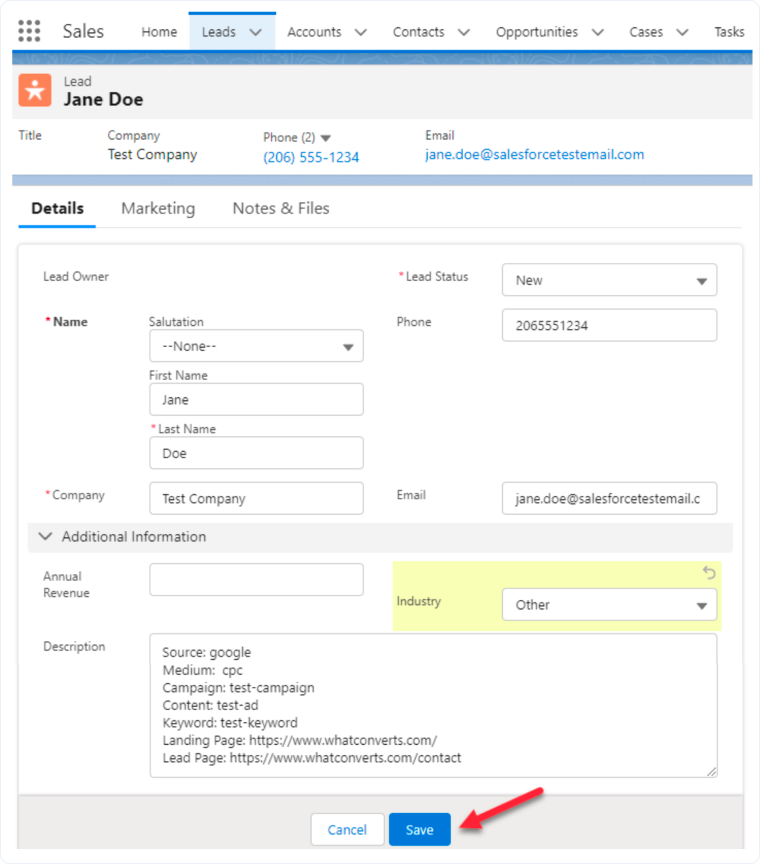
- The lead detail page displays all information synced from WhatConverts.
- Review the following fields to see marketing attribution data:
- Lead Source: Shows the marketing source
- Description: Contains detailed marketing attribution (source, medium, campaign, keyword, landing page, lead page)
- Contact Information: Phone, email, city, state, zip, country
- Custom Fields: Any custom fields, like WhatConverts Lead ID or call recordings
- Click "Edit" to add or modify information as needed.
- Click "Save" when finished editing.
Understand Duplicate Leads
Duplicate leads can occur when:
- The same person submits multiple forms or calls multiple times
- Lead data is imported from multiple sources
- Manual lead entry creates records that already exist
- Multiple Zapier workflows create leads for the same person
Salesforce provides tools to identify and merge duplicate leads, keeping your CRM data clean.
Find Duplicate Leads
Salesforce automatically identifies potential duplicates:
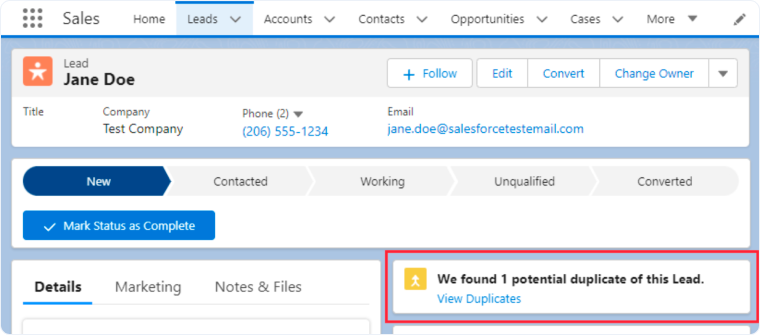
- When viewing a lead record, look for the "Potential Duplicates" section in the right sidebar.
- If potential duplicates are found, Salesforce displays "View Duplicates" or shows a count of potential matches.
- Click "View Duplicates" to see the list of similar leads.
Alternatively, you can manually search for duplicates:
- Go to the "Leads" tab.
- Use the search and filter tools to find similar records.
- Look for matching names, phone numbers, or email addresses.
Merge Duplicate Leads
When you've identified duplicate leads, use Salesforce's merge tool:
Step 1: Select Leads to Merge
- From the lead record, click "View Duplicates" in the "Potential Duplicates" section.
- Select the checkbox next to each duplicate lead you want to merge (up to 3 leads can be merged at once).
- Click "Next" or "Merge".
Step 2: Choose Master Record Data
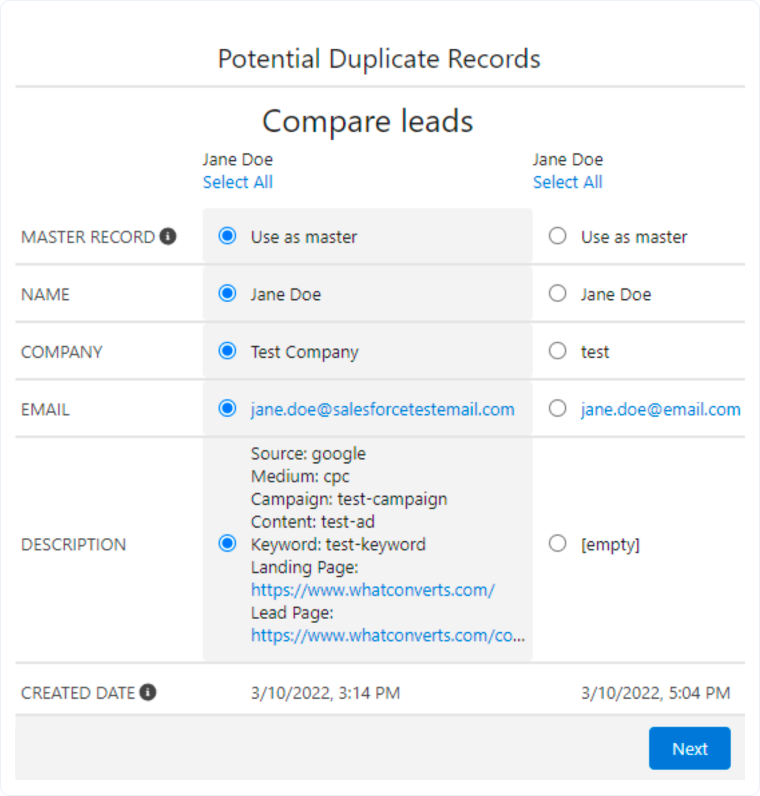
- Salesforce displays the leads side-by-side for comparison.
- For each field, select which value to keep:
- Click the radio button next to the value you want to preserve
- The selected values will be used in the final merged record
- Pay special attention to:
- Name: Choose the most complete or accurate name
- Contact Information: Select the most recent or accurate phone/email
- Marketing Attribution: Keep the data from the first lead for accurate attribution
- Custom Fields: Preserve the WhatConverts Lead ID from the original lead
- Click "Next" after selecting all fields.
Step 3: Confirm the Merge
- Review the merged record summary.
- Note that the non-master records will be deleted.
- Related records (notes, activities, opportunities) will be transferred to the master record.
- Click "Merge" to complete the process.
Best Practices for Managing Duplicates
To minimize duplicate lead creation:
- Configure Zapier Filters: Add filters to your Zapier workflow to only process specific lead types (Phone Call Completed, Web Form, Chat Completed) rather than all lead events
- Use Salesforce Duplicate Rules: Enable Salesforce's built-in duplicate prevention rules:
- Go to "Setup"
- Search for "Duplicate Rules"
- Activate or create rules for "Leads"
- Configure matching criteria (email, phone, name)
- Store Lead IDs: Include the WhatConverts Lead ID in your workflows to track which leads have already been synced
- Regular Cleanup: Schedule regular reviews of your lead database to identify and merge duplicates
- Single Workflow: Ensure you only have one active Zapier workflow creating leads from WhatConverts to prevent multiple syncs of the same lead
Important Notes
- Lost Data: When merging leads, only the data from the selected master record is preserved. Data from non-master records is deleted unless explicitly selected during the merge process.
- Related Records: Activities, notes, and related records from all merged leads will be associated with the master record after the merge.
- Cannot Undo: Merging leads is permanent and cannot be undone. Review carefully before confirming the merge.
- Converted Leads: Once a lead is converted to a contact/account/opportunity, it cannot be merged with other leads. You must merge at the contact level instead.
Related Topics
Was this page helpful?
Get a FREE presentation of WhatConverts
One of our marketing experts will give you a full presentation of how WhatConverts can help you grow your business.
Schedule a Demo






