















































View and Understand Your Google Ads Conversion Details
WhatConverts tracks the status of every conversion sent to Google Ads, allowing you to verify which leads were successfully sent, which are pending, and which encountered errors. Understanding conversion statuses helps you troubleshoot issues and ensure your data is flowing correctly.
How It Works
When a lead meets your conversion trigger criteria (New Lead, Quotable, Sales Value, etc.), WhatConverts queues it to send to Google Ads. The system assigns a status to each conversion attempt and updates it as the conversion moves through Google's processing.
View Conversion Status in Lead Manager
To see conversion statuses for your leads:
- Navigate to "Leads" in the main menu.
- In the Lead Manager, click "Choose Columns".
- Select the toggle for "Google Ads Conversion" from the Marketing Data category.
- Exit the panel.
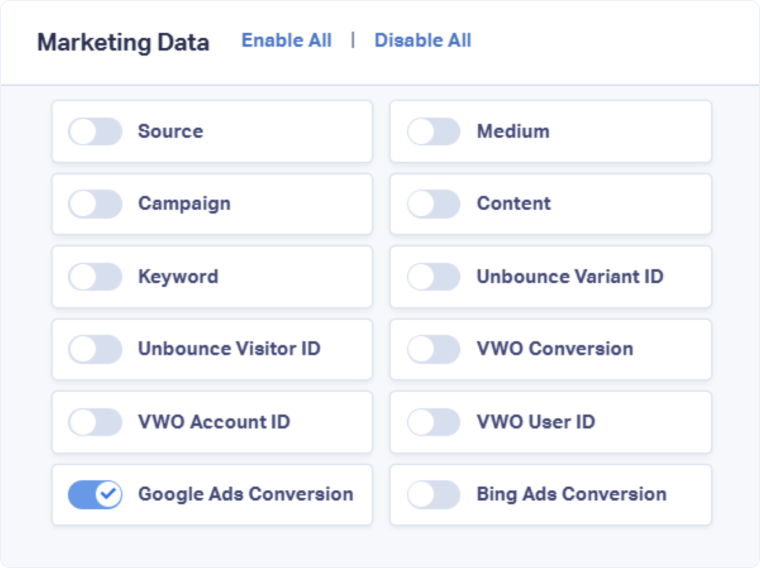
The Google Ads Conversion column now appears in your Lead Manager table, showing the status for each lead.
Understand the Status Column
In the Google Ads Conversion column, you can find different statuses:
- Pending: Conversion is waiting to be sent
- Click Conversion: Successfully sent to Google Ads using the lead's GCLID
- Call Conversion: Successfully sent call extension conversion using timestamp matching
- Enhanced Conversion: Successfully sent using hashed first-party data (phone number or email)
- Error: Conversion failed to send (see below for troubleshooting)
- Empty (-): No conversion was triggered because the lead didn't meet your conversion criteria
View Detailed Conversion Information
For more details about a specific conversion:
- Open the Lead Details page of the lead you want to analyze.
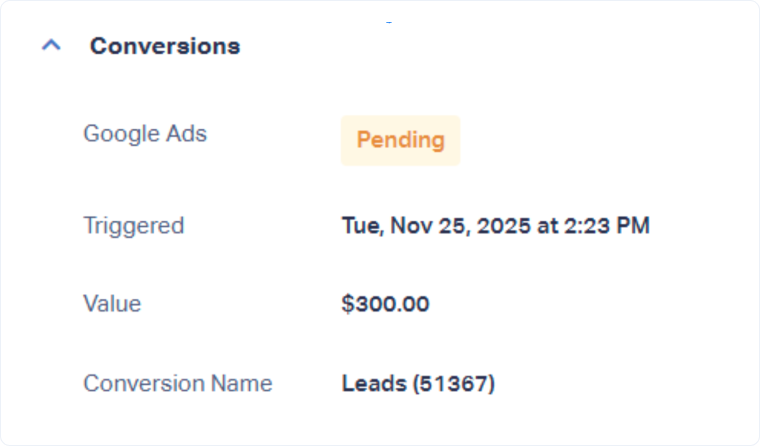
- Scroll down the left-hand panel to the "Conversions" section.
- Here you can see:
- Conversion Status: Current status of the conversion
- Conversion Action: Which conversion action in Google Ads received the lead
- Sales Value Passed: Whether a sales value was included with the conversion
- Quote Value Passed: Whether a quote value was included
- Timestamp: When the conversion was sent to Google Ads
- Error Message (if applicable): Detailed explanation of why the conversion failed
Understand Conversion Types
Click Conversion
This is the most common conversion type. It means:
- The lead had a valid GCLID from a Google Ads click
- WhatConverts successfully matched the lead back to that click
- Google Ads accepted the conversion and counted it in the conversion action specified
Call Conversion
This applies specifically to Call Extensions and Call-Only Ads:
- WhatConverts sends the call's timestamp to Google Ads
- Google attempts to match the timestamp with calls in their system
- If matched successfully, the conversion is accepted
Note: Call Extension conversions require the ad group to reach a click threshold (20-50 clicks per month) before Google starts replacing your number with their forwarding number.
See more about Call Extensions on Add a Phone Number to Track Google Ads Extension Calls.
Enhanced Conversion
This conversion type uses first-party data instead of (or in addition to) GCLIDs:
- WhatConverts hashes the lead's phone number and/or email address
- Google cross-references this hashed data with their user database
- If a match is found with someone who saw your ad, the conversion is attributed
Enhanced Conversions are valuable for tracking offline conversions that lack GCLIDs.
See more about Enhanced Conversions on Google’s Help document About Enhanced Conversions.
Troubleshooting Error Status
If a lead shows "Error" status, hover over the error in the Lead Manager or view the lead details to see the error message.
Tip: See Troubleshoot Common Google Ads Errors for a list of errors and detailed solutions.
Filter and Group by Conversion Status
To filter leads by conversion status or group leads by conversion status:
- Follow the steps at the beginning of this article to add the Google Ads Conversion column.
- In Lead Manager, locate the Google Ads Conversion column, then use it to filter or group your leads:
- Filter Leads in the Lead Manager
- Group Leads in the Lead Manager
Why Conversions Don't Appear Immediately
If a conversion shows "Pending" or hasn't appeared in Google Ads yet:
- 6-hour delay: Google requires WhatConverts to wait 6 hours before sending conversions
- 72-hour processing: Google Ads may take up to 72 hours to display conversions in reporting
- Trigger criteria not met: The lead didn't meet your conversion trigger (not quotable, no sales value, etc.)
Related Topics
Get a FREE presentation of WhatConverts
One of our marketing experts will give you a full presentation of how WhatConverts can help you grow your business.
Schedule a Demo






