


Add Your Tracking Script Manually
Adding your tracking script manually gives you full control over where and how it loads on your website. This method works for any site that allows you to directly edit your website's HTML or use a custom code injection area.
To learn more about the tracking script, see What is the WhatConverts Tracking Script?
Note: The tracking script must be added to every page on your website to ensure accurate tracking.
If you do not want to do this manually, see Add Your Tracking Script Using the WordPress Plugin or Add Your Tracking Script Using Google Tag Manager.
Add the Tracking Script
To manually add the tracking script to your website:
- Log in to your WhatConverts account.
- Go to the Tracking tab and select "Tracking Code".
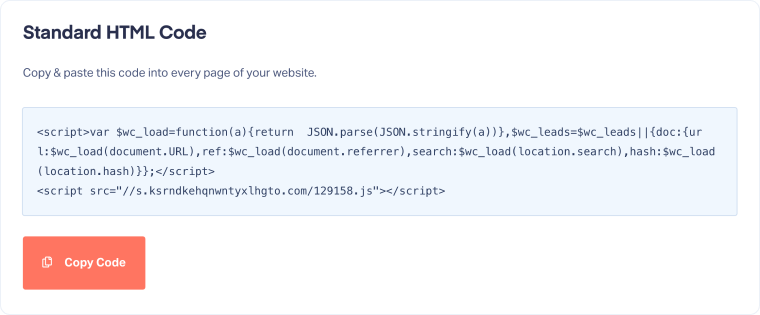
- Under the Standard HTML Code section, copy the highlighted part of the tracking code.
- Open your website's HTML files or Content Management System (CMS) editor (e.g., Code Injection, Theme Editor, Custom Code section).
- Paste the WhatConverts tracking script directly before the closing </head> tag (preferred) or inside the <body> tag.
- Save your changes and republish your site.
Related Topics
Was this page helpful?
Get a FREE presentation of WhatConverts
One of our marketing experts will give you a full presentation of how WhatConverts can help you grow your business.
Schedule a Demo






