


Action Workflows in Pabbly Connect with API Keys
API Keys allow you to use WhatConverts as an action in Pabbly Connect workflows, enabling you to create leads, update existing leads, retrieve lead data, and manage profiles programmatically. By connecting with API credentials, you can automate data flow from thousands of apps into WhatConverts or perform custom API requests.
Available WhatConverts Actions in Pabbly Connect
When using WhatConverts as an action in Pabbly Connect, you have access to the following actions:
- Create Lead. Create a new lead in WhatConverts from data in other apps
- Get Leads. Retrieve a list of leads by profile
- Get Leads By Date. Retrieve leads filtered by date range
- Update Lead. Modify an existing lead in WhatConverts
- Create Profile. Create a new profile in your WhatConverts account
- Get All Profiles. List all profiles from your account
- Edit Profile. Update an existing profile
- Create Account. Create a new account
- Custom API Request (Beta). Execute custom API requests using the WhatConverts API
This article focuses on the most commonly used actions: Create Lead and Update Lead. The other actions are self-explanatory and follow similar setup patterns.
Connect WhatConverts as an Action Using API Keys
Follow these steps to use WhatConverts as an action in your Pabbly Connect workflow:
Step 1: Add WhatConverts as an Action
To create the action:
- Log in to your Pabbly Connect account.
- Select the workflow where you want to add WhatConverts as an action (or create a new workflow with a trigger from another app).
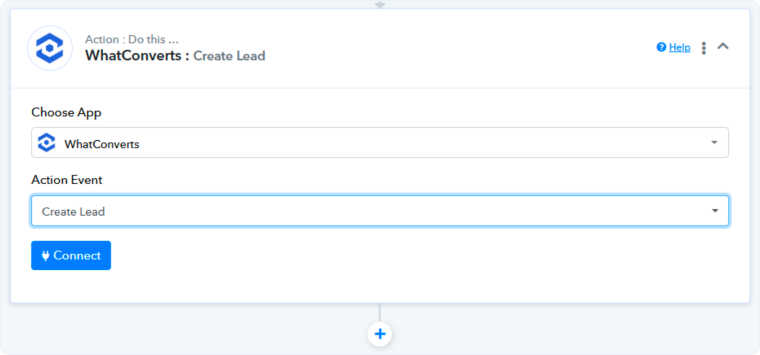
- On the Action: Do This... module, select “WhatConverts” from the Choose App dropdown.
- Select the Action Event you want to perform from the dropdown (e.g., Create Lead, Update Lead, Get Leads, etc.).
- Click “Connect”.
Step 2: Retrieve Your API Credentials from WhatConverts
For Master Account integrations: Generate a Master API Key
For Profile integrations: Generate a Profile API Key
Note: You can use API keys from either the Profile level or Master Account level. However, when creating or updating leads, you must always select a specific profile.
Tip: Remove any additional spaces at the beginning or end of your API Token or API Secret before pasting into Pabbly Connect.
Step 3: Connect Your API Keys in Pabbly Connect
Once you have the API key:
- Go back to the Pabbly Connect page.
- Paste the API Token from WhatConverts into the API Token box in Pabbly.
- Paste the API Secret from WhatConverts into the API Secret box.
- Click “Save”.
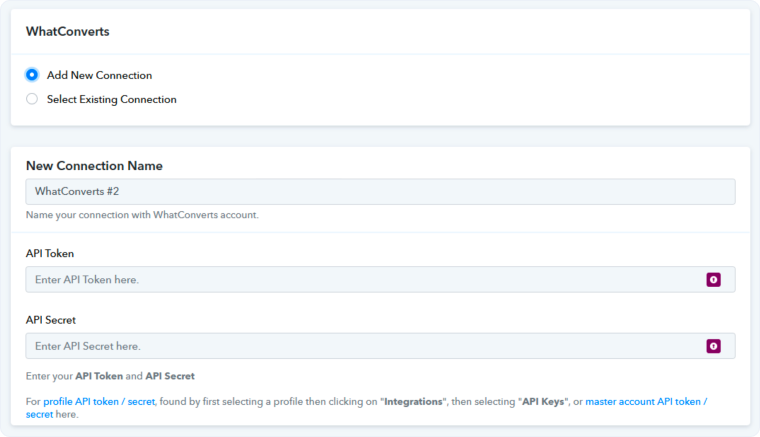
Once connected, you can configure the specific action you selected.
Create a Lead in WhatConverts
Use the Create Lead action to automatically push leads into WhatConverts from other apps.
Required Fields:
- Lead Type. Select the type (Web Form, Phone Call, Chat, Transaction, SMS)
- Profile. Select the WhatConverts profile where the lead should be created
- Send Notification?. Choose whether to send email notifications for this lead (Yes/No)
Optional Fields:
- Contact Name
- Email Address
- Phone Number
- Source, Medium, Campaign, Content, Keyword
- Quote Value, Sales Value
- Lead Status
- Custom Fields
Map data from your trigger app to the appropriate WhatConverts fields, then test and activate your workflow.
Update a Lead in WhatConverts
Use the Update Lead action to modify existing lead data in WhatConverts based on actions in other apps.
Required Fields:
- Lead ID. The unique identifier for the lead you want to update
- Profile. Select the WhatConverts profile containing the lead
Optional Fields:
- Lead Status
- Quotable (Yes/No)
- Quote Value
- Sales Value
- Custom Fields
Note: If you don't have the Lead ID from your trigger, use the Get Leads action first to search for the lead by email, phone number, or other criteria. This action will return the Lead ID, which you can then use in the Update Lead step.
Use Custom API Requests
The Custom API Request (Beta) action allows you to make any API call to WhatConverts using JSON requests. This is useful for advanced users who want to leverage the full WhatConverts API beyond the pre-built actions.
For detailed API documentation and available endpoints, visit the WhatConverts API Documentation.
Common use cases for custom API requests:
- Retrieve specific lead data with custom filters
- Perform bulk operations
- Access advanced API features not available in standard actions
- Build custom integrations for unique workflows
Related Topics
Get a FREE presentation of WhatConverts
One of our marketing experts will give you a full presentation of how WhatConverts can help you grow your business.
Schedule a Demo






